
Key Takeaways:
- Learn how to access settings on Android.
- Find and download a song as a ringtone.
- Select and set the downloaded song as your ringtone.
If you want to personalize your Android phone with your favorite melody, this guide will help you set a song as your ringtone. Follow these simple steps to give your phone a unique touch that reflects your style. This comprehensive tutorial ensures that you can enjoy your chosen track every time you receive a call. You can also learn how to create a personalized ringtone on your iPhone with GarageBand by following this descriptive anchor text.
Step 1: Open Settings on Your Android Phone
Begin by tapping the Settings app icon on your Android phone. This application allows you to customize various features and preferences of your device.
Step 2: Navigate to Sounds and Vibration
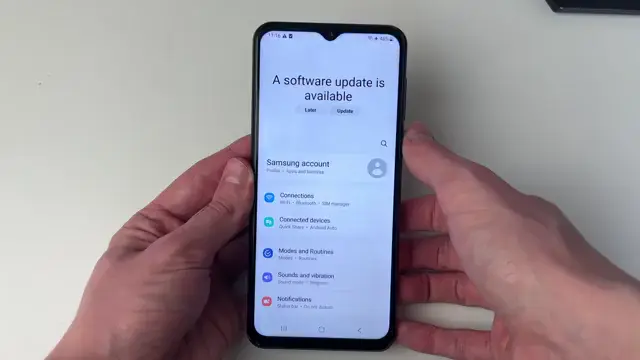
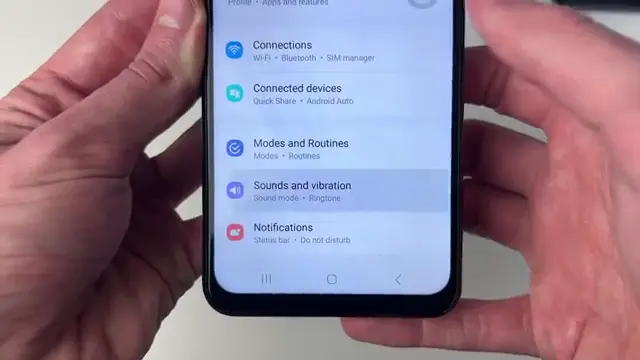
Scroll down and select ‘Sounds and Vibration’ from the settings menu. This section allows you to manage all sound-related settings, including ringtones.
Step 3: Select Ringtone Settings
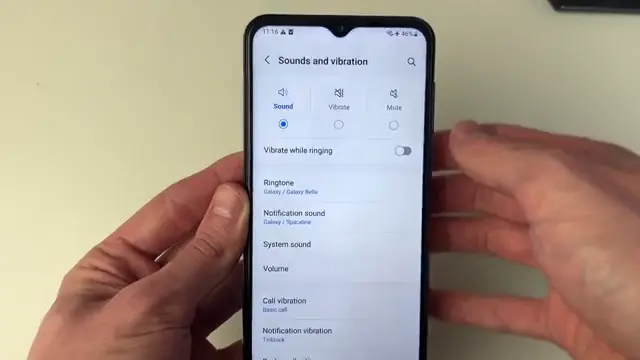
In the ‘Sounds and Vibration’ menu, click on ‘Ringtone’ to access the list of available ringtones on your device.
Step 4: Search for Ringtone
If you cannot find the ringtone option, use the search tool located at the top right corner of the settings menu to quickly locate it by typing ‘ringtone’.
Step 5: Preview the Song
To listen to your downloaded songs, click on the play button next to the track in your ringtone selection to hear how they sound before setting it.
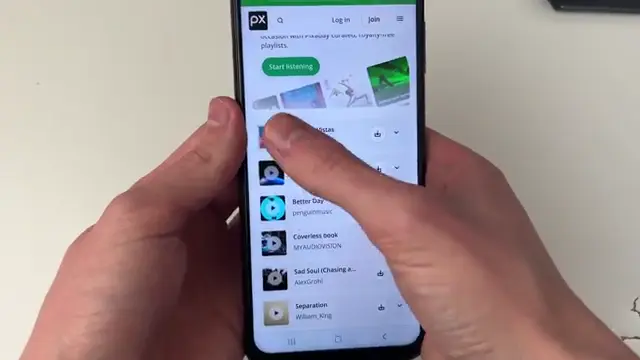
Step 6: Download a Song from Pixabay
When you find a song you like on Pixabay, click the download button on the right-hand side to save it to your device’s storage.
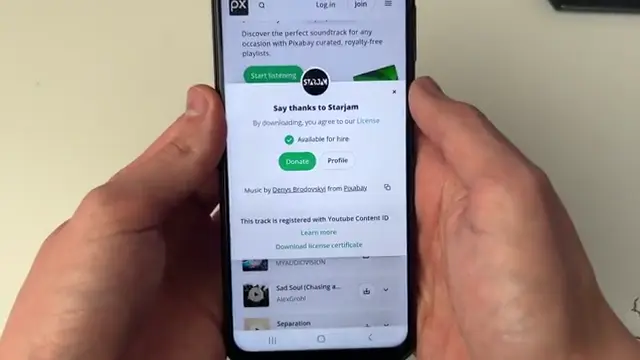
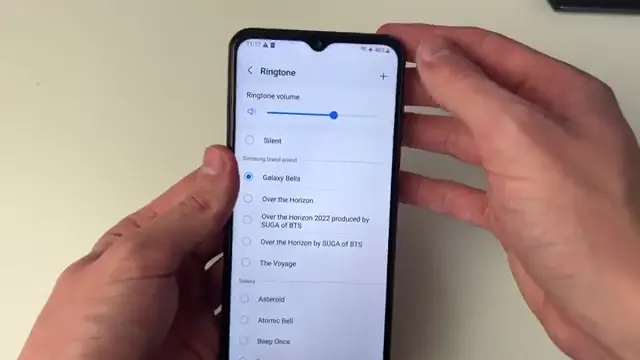
Step 7: Add a New Ringtone
In the ringtone settings, click on the plus button located at the top right corner to add a song from your device’s storage.
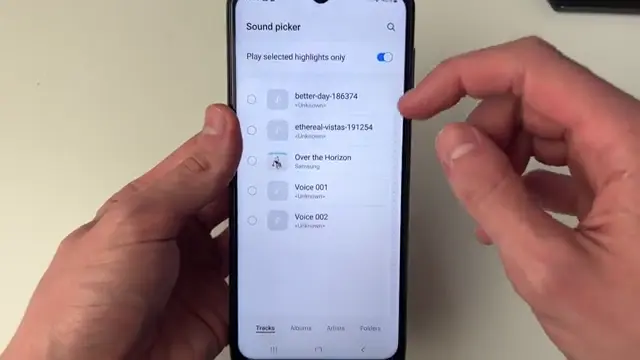
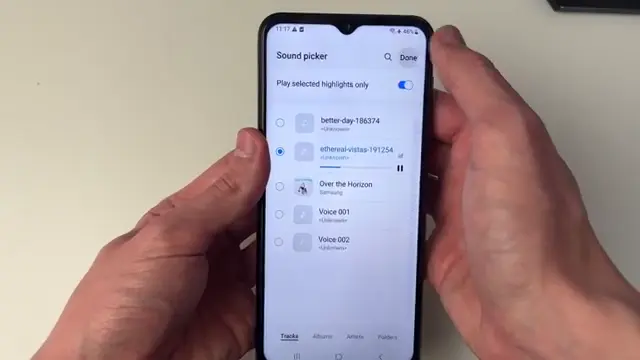
Step 8: Select Your Downloaded Song
From the list of available songs, select the one you want to set as your ringtone. Make sure to click on it to confirm your choice and preview the sound.
Step 9: Finalize Your Ringtone Selection
After selecting your desired song, press ‘Done’ to save your new ringtone. This will set the song as your ringtone for incoming calls.
Frequently Asked Questions
How do I download a song for ringtones?
You can download songs from royalty free music websites like Pixabay or by purchasing songs from platforms like iTunes.
Can I use any song as a ringtone?
You can use any song as a ringtone as long as it’s saved on your phone and compatible with ringtone settings.
What format should the song be in for ringtones?
Most Android phones support MP3 format for ringtones, so ensure your song is in this format.
How do I change my ringtone back to default?
Go to Settings > Sounds and Vibration > Ringtone and select a default option to revert your ringtone.
Watch the Video Tutorial
Conclusion
By following this guide, you’ll have your preferred song as your ringtone in no time. Enjoy the personal touch it adds to your calls!





Leave a comment