
Target Audience: Beginners | Estimated Read Time: 1 min
Key Takeaways:
- Learn how to access settings for alarm volume.
- Understand the relationship between ringtone and alarm volume.
- Follow simple steps to adjust volume levels easily.
Changing your iPhone’s alarm volume is a straightforward process. In just a few steps, you can set the perfect volume for your alarms to ensure you wake up on time without any hassle.
Step 1: Access Settings on Your iPhone
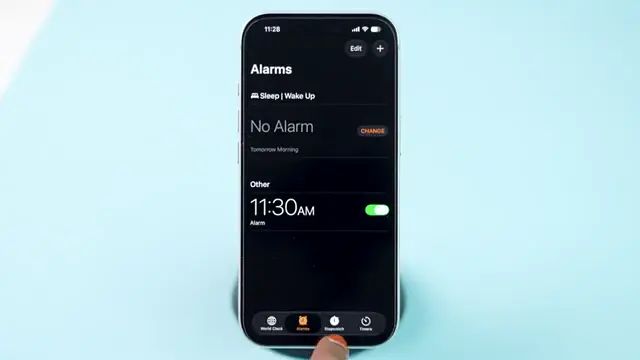
Exit the Clock app and open the Settings app on your iPhone. This is where you can control various volume settings, including alarm volume.
Step 2: Navigate to Sounds & Haptics
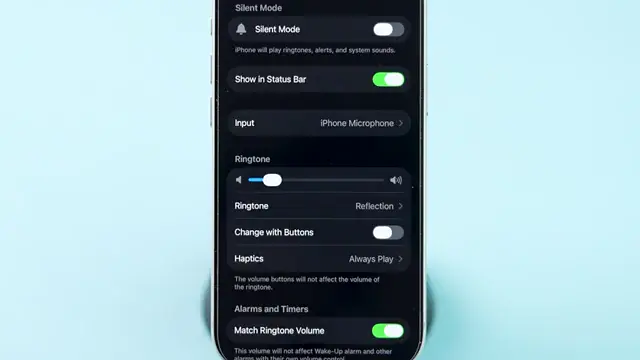
In the Settings menu, scroll down until you find the Sounds & Haptics option. Tap on it to enter the sound settings where you’ll manage alarm and ringtone volumes.

Step 3: Adjust the Ringtone Volume Slider
Make sure to enable the ‘Match Ringtone Volume’ option. Now, simply adjust the ringtone volume slider up or down; this will change your alarm volume accordingly.
Frequently Asked Questions
How do I change the alarm volume on my iPhone?
To change your iPhone alarm volume, go to Settings > Sounds & Haptics and adjust the ringtone volume slider.
Why is my iPhone alarm not loud enough?
Ensure that ‘Match Ringtone Volume’ is enabled in Settings > Sounds & Haptics, and adjust the ringtone slider accordingly.
Can I set different volumes for alarms and ringtones?
Yes, you can adjust the alarm volume separately by changing the ringtone volume in the Settings app.
What to do if my iPhone alarm still doesn’t ring?
Check your volume settings, ensure Do Not Disturb mode isn’t enabled, and consider updating your iOS if problems persist.
Watch the Video Tutorial
Conclusion
With these easy steps, you’ll be able to adjust the alarm volume on your iPhone to suit your needs, ensuring you always wake up on time. For more iPhone tips, see how to turn off Safari suggestions in 3 steps, how to fix Face ID issues on iPhone, and 10 hidden iPhone gestures you need to know.











Leave a comment