
Target Audience: Beginners | Estimated Read Time: 2 min
Key Takeaways:
- Understand how to access YouTube settings.
- Learn to stop YouTube from saving your search history.
- Manage your profile settings effectively.
Are you concerned about privacy and want to stop YouTube from saving your search history? In this guide, we will show you the easy steps to manage your YouTube settings effectively.
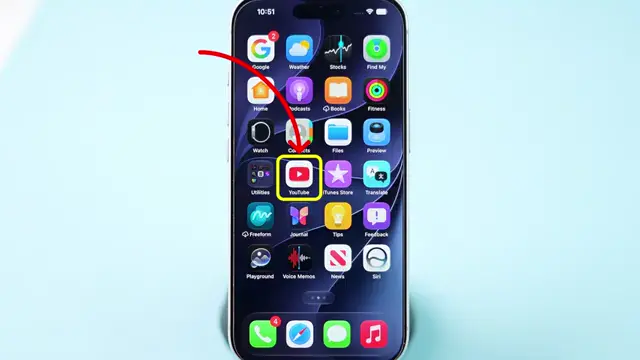
Step 1: Open the YouTube App
Start by opening the YouTube app on your device to begin the process of managing your settings. Accessing the app is the first step in stopping YouTube from saving your search history.
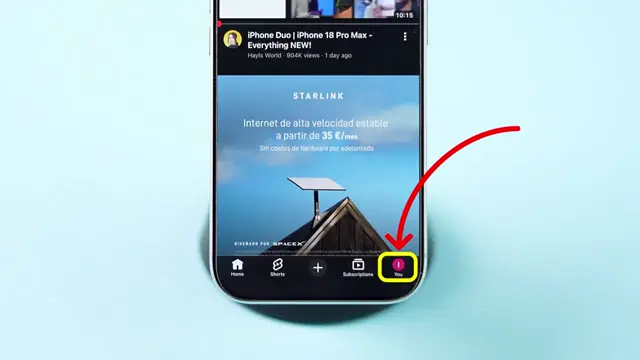
Step 2: Navigate to Your Profile Icon
Now, tap on the profile icon located in the bottom right corner of your screen. This icon allows you to access personal settings related to your YouTube account.
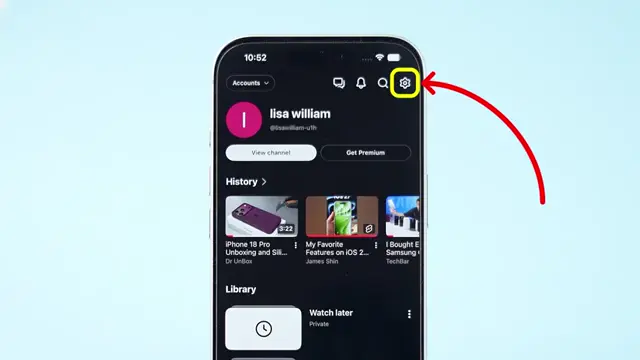
Step 3: Access Settings
Then tap on the settings icon found in the top right corner. This will lead you to various settings options, including managing your search history.
Step 4: Manage Your History
Here, select ‘Manage all history’ to view and modify your YouTube activity. This option helps you oversee your saved search history and preferences.

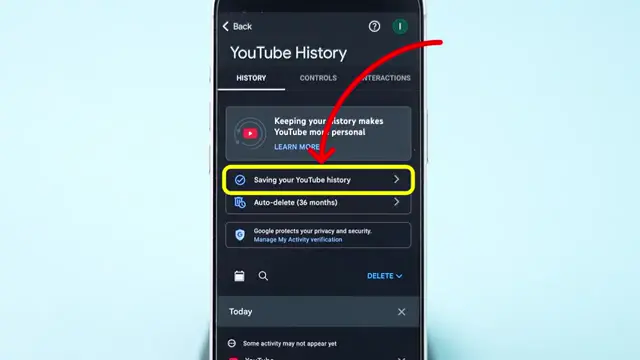
Step 5: Turn Off Saving History
Next, tap on the option for saving your YouTube history. After that, select the ‘turn off’ option to prevent YouTube from saving your search history.
Step 6: Confirmation
The search history will not be stored anymore, ensuring your YouTube activity remains private. You have successfully managed your search settings.

Frequently Asked Questions
How do I stop YouTube from saving my watch history?
Follow the same steps to manage your history settings and choose to turn off saving watch history.
Can I delete my current YouTube search history?
Yes, you can delete your search history by accessing the history management options within your YouTube settings.
Why should I stop YouTube from saving my search history?
Stopping YouTube from saving your search history helps maintain your privacy and prevents personalized content based on past searches.
Is there a way to view my saved search history in YouTube?
You can view your saved search history by navigating to ‘Manage all history’ in your YouTube account settings.
Watch the Video Tutorial
Conclusion
By following these simple steps, you can easily manage your YouTube settings and stop it from saving your search history, helping to protect your privacy.












Leave a comment