
Key Takeaways:
- Learn how to access YouTube settings
- Find out how to select your preferred country
- Understand the importance of changing YouTube country settings
If you’re looking to change your YouTube country for tailored content, you’re in the right place. This guide will walk you through how to change your YouTube country in just a few simple steps.
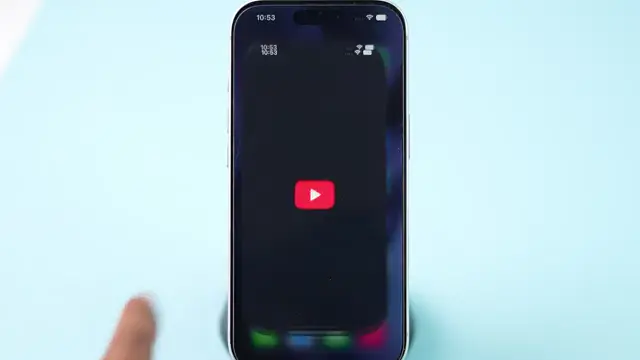
Step 1: Open the YouTube App
Start by opening the YouTube app on your device to begin changing your country settings. This is the first step in how to change your YouTube country effectively.
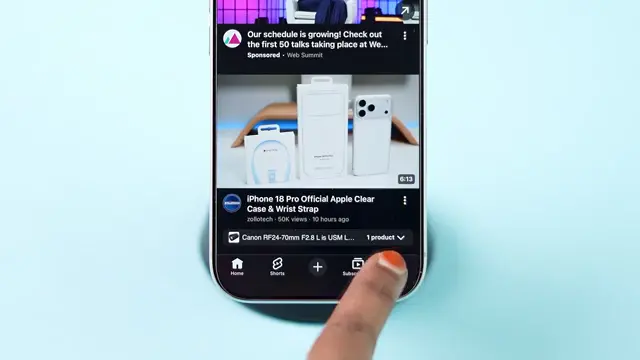
Step 2: Tap the Profile Icon
Next, tap on the profile icon located in the bottom right corner of the screen. This icon is crucial as it leads you to your account settings.
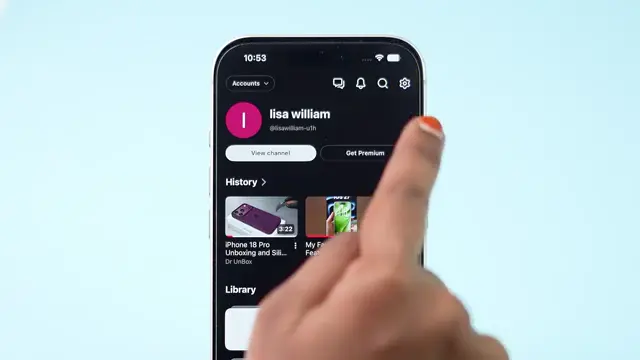
Step 3: Access Settings
Once in your profile, tap on the settings icon found in the top right corner. This icon is your gateway to making changes to your YouTube experience.
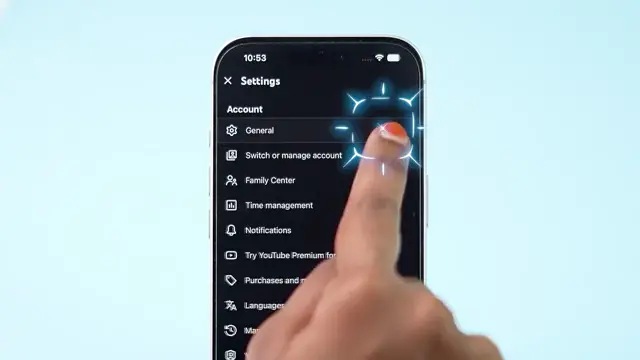
Step 4: Select General Settings
Now, select the general settings option from the menu. This will help you access the location settings necessary to change the YouTube country.
Step 5: Change Location
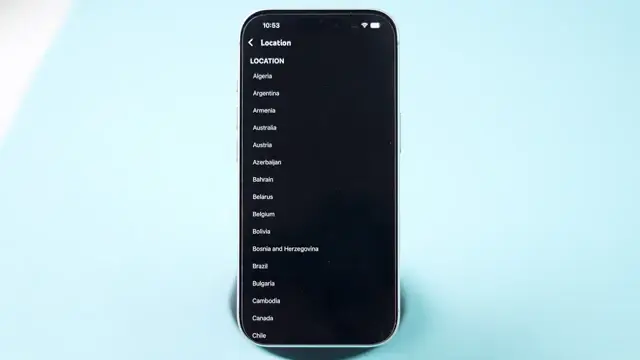
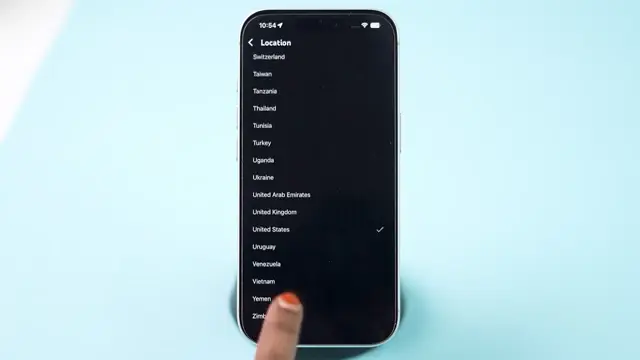
Here, you’ll see the location option. Tap on it to open a list of countries available. This step is vital for customizing your content based on preferred country views.
Step 6: Choose Your Preferred Country
Browse the list and select the country you want. Remember, the YouTube country settings allow for a personalized content experience.
Step 7: Update Successful
This will take just a few seconds, and your location will be updated. You’ve successfully changed your YouTube country with just a few steps! Enjoy your new tailored content.
Frequently Asked Questions
How do I change my YouTube country?
You can change your YouTube country by accessing the settings in the app and selecting your desired country from the location options.
Why should I change my YouTube country?
Changing your YouTube country can help you access region-specific content and recommendations tailored to your interests.
Will changing my country affect my YouTube subscriptions?
No, changing your YouTube country will not affect your existing subscriptions; it only alters the content recommendations based on the new location.
Do I need a VPN to change my YouTube country?
No, you do not need a VPN. You can change your YouTube country directly through the app settings.
Conclusion
In conclusion, changing your YouTube country is a straightforward process that allows for a more personalized experience. With just a few taps, you can access content that is more relevant to your location.





Leave a comment