
Key Takeaways:
- Transfer files without apps or cables.
- Connect both devices to the same Wi-Fi.
- Easily share photos and videos up to 200 MB.
Transferring files from an Android to an iPhone can seem daunting, but it doesn’t have to be. With a straightforward method using just your web browser, you can send files smoothly between both devices. In following this guide, you’ll learn how to connect your devices to the same Wi-Fi and use a simple website for easy data transfer.
Step 1: Connect Both Devices to Wi-Fi
To start the transfer, connect both your Android and iPhone to the same Wi-Fi network. This is essential for enabling the file transfer process seamlessly. Once connected, proceed to the next step to prepare the devices for transfer.
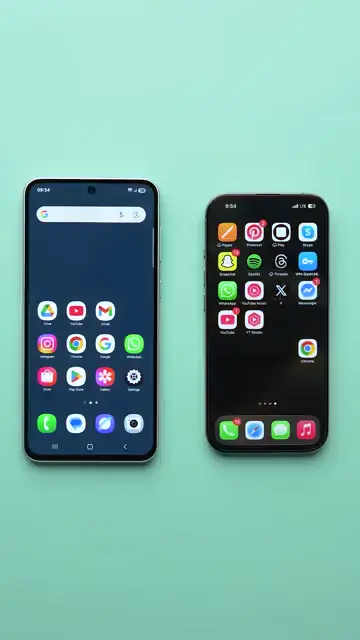
Step 2: Access Pairdrop.net
On both devices, open any web browser (like Chrome or Safari) and navigate to pairdrop.net. This website allows you to initiate the file sharing session from your Android device to your iPhone.
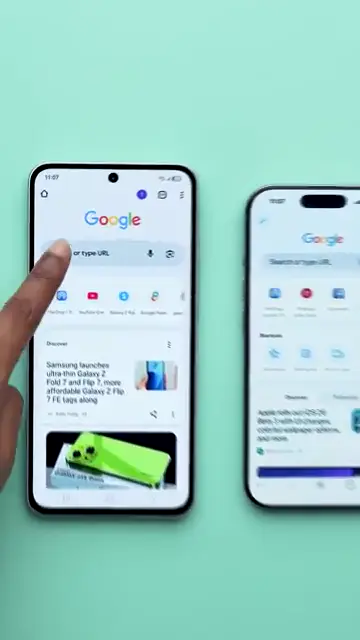
Step 3: Select Files to Transfer
After accessing the website, you’ll see the other device appear on screen. Tap the device name of the iPhone you want to send files to. Then, choose photos and videos to transfer, selecting any file up to 200 megabytes.
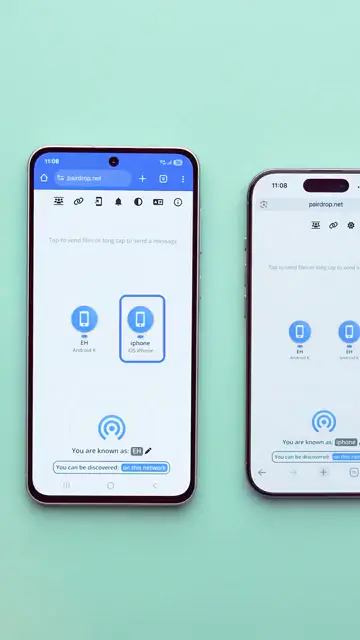
Step 4: Confirm the Transfer
Once you’ve selected the files you want to share, confirm your choices by tapping ‘done’. This will initiate the sending process and allow the transfer to take place seamlessly between the two devices.
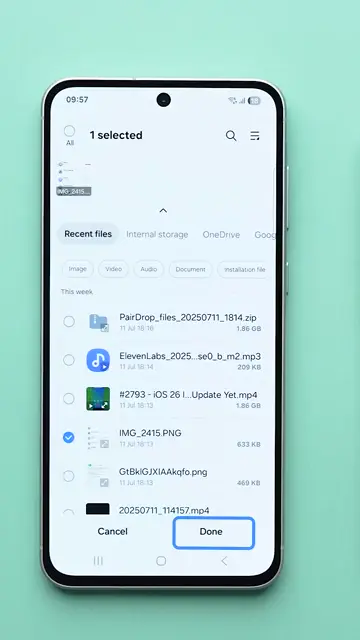
Frequently Asked Questions
What types of files can I transfer from Android to iPhone?
You can transfer photos and videos up to 200 MB using this method.
Do I need to install any apps for this transfer?
No, this method does not require any apps or cables.
Can I transfer files if both devices are not on the same network?
No, both devices must be connected to the same Wi-Fi network for the transfer to work.
What should I do if my device does not show up on pairdrop.net?
Make sure both devices are connected to the same Wi-Fi and refresh the browser page if necessary.
Watch the Video Tutorial
Conclusion
Transferring files from Android to iPhone can be done easily and quickly using a browser without the need for apps or additional cables. Follow the steps outlined, and you’ll be able to share your favorite memories in no time.
{“@context”:”https://schema.org”,”@graph”:[{“@type”:”HowTo”,”name”:”Transfer Files from Android to iPhone Easily”,”description”:”Learn how to wirelessly transfer data from Android to iPhone without apps or cables. It’s fast and easy!”,”step”:[{“@type”:”HowToStep”,”position”:1,”name”:”Connect Both Devices to Wi-Fi”,”text”:”To start the transfer, connect both your Android and iPhone to the same Wi-Fi network. This is essential for enabling the file transfer process seamlessly. Once connected, proceed to the next step to prepare the devices for transfer.”},{“@type”:”HowToStep”,”position”:2,”name”:”Access Pairdrop.net”,”text”:”On both devices, open any web browser (like Chrome or Safari) and navigate to pairdrop.net. This website allows you to initiate the file sharing session from your Android device to your iPhone.”},{“@type”:”HowToStep”,”position”:3,”name”:”Select Files to Transfer”,”text”:”After accessing the website, you’ll see the other device appear on screen. Tap the device name of the iPhone you want to send files to. Then, choose photos and videos to transfer, selecting any file up to 200 megabytes.”},{“@type”:”HowToStep”,”position”:4,”name”:”Confirm the Transfer”,”text”:”Once you’ve selected the files you want to share, confirm your choices by tapping ‘done’. This will initiate the sending process and allow the transfer to take place seamlessly between the two devices.”}]},{“@type”:”FAQPage”,”mainEntity”:[{“@type”:”Question”,”name”:”What types of files can I transfer from Android to iPhone?”,”acceptedAnswer”:{“@type”:”Answer”,”text”:”You can transfer photos and videos up to 200 MB using this method.”}},{“@type”:”Question”,”name”:”Do I need to install any apps for this transfer?”,”acceptedAnswer”:{“@type”:”Answer”,”text”:”No, this method does not require any apps or cables.”}},{“@type”:”Question”,”name”:”Can I transfer files if both devices are not on the same network?”,”acceptedAnswer”:{“@type”:”Answer”,”text”:”No, both devices must be connected to the same Wi-Fi network for the transfer to work.”}},{“@type”:”Question”,”name”:”What should I do if my device does not show up on pairdrop.net?”,”acceptedAnswer”:{“@type”:”Answer”,”text”:”Make sure both devices are connected to the same Wi-Fi and refresh the browser page if necessary.”}}]}]}

Leave a comment