
Key Takeaways:
- Learn how to open the mail settings on iPhone.
- Understand the steps to add your Gmail account.
- Discover tips for managing your Gmail settings.
Adding a Gmail account on your iPhone can enhance your email accessibility, allowing you to manage your messages more efficiently. In this guide, we’ll walk you through the simple steps to set up your Gmail account using the Mail app on your iPhone, making your email management a breeze.
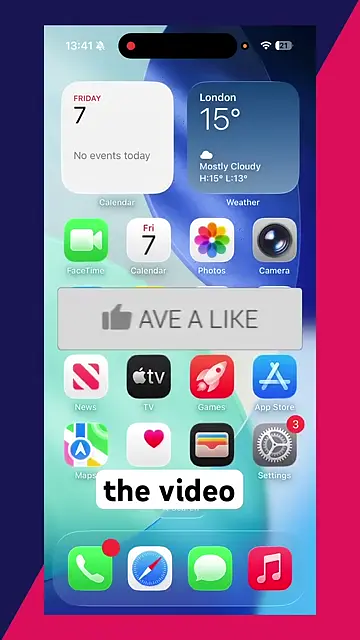
Step 1: Open Settings App
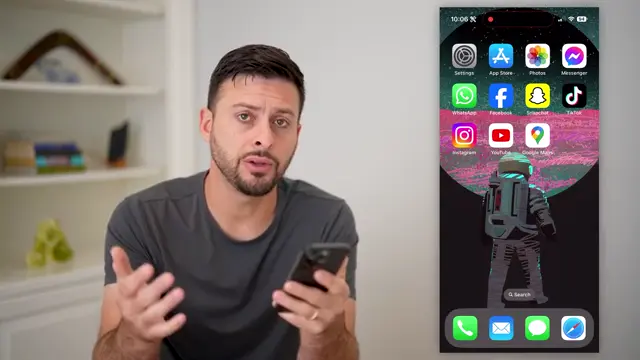
Start by locating the Settings app on your iPhone. Tap on it to open the settings menu. This is where you will configure your email settings and accounts.
Step 2: Search for Mail Settings
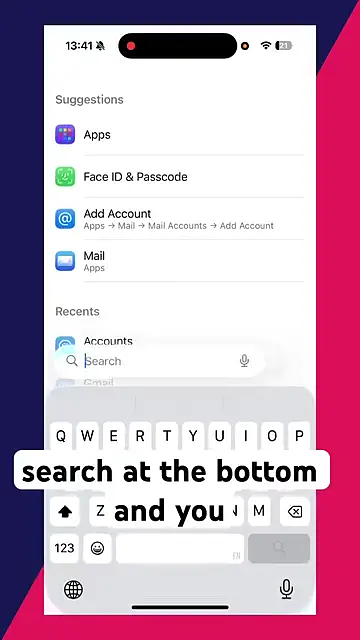
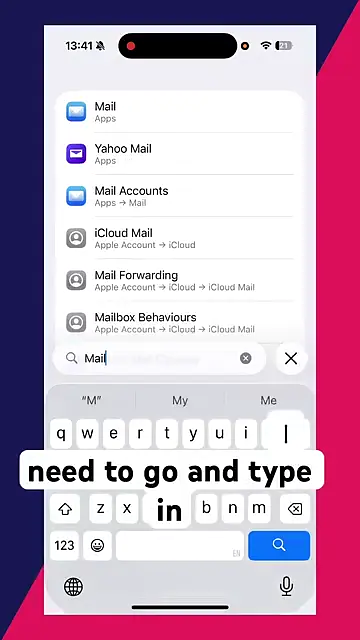
In the Settings app, press the search bar located at the bottom of the screen. Type ‘Mail’ and tap on the ‘Mail’ option that appears in the results. This helps you navigate directly to mail settings.
Step 3: Locate Mail Accounts
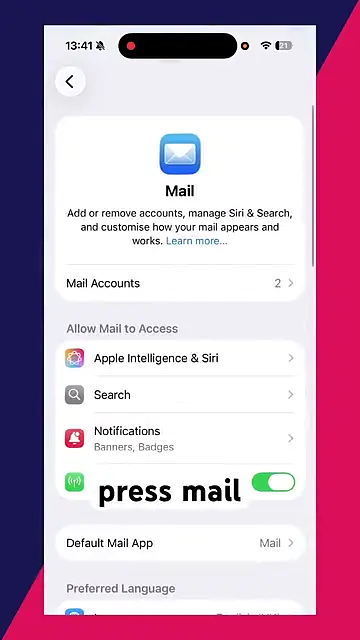
In the mail settings, you need to tap on the ‘Mail’ option that appears in the search results. This will take you to the relevant mail settings for your device.
Step 4: Add Email Account
Once you are in the Mail settings, look for ‘Accounts’ and then press ‘Add Account.’ You will be prompted with several email account options, including Gmail. Select ‘Gmail’ to continue.
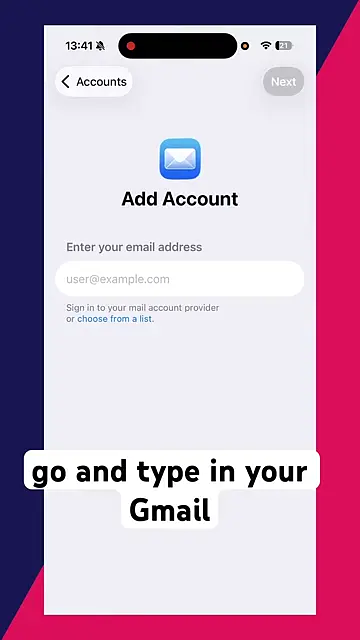
Step 5: Enter Your Email Address
Now, type your full Gmail address in the designated field and press ‘Next.’ A web page will open where you can log in. This step is crucial for linking your Gmail account to your iPhone.
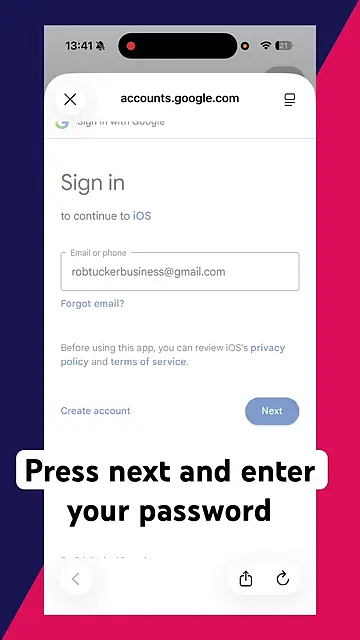
Step 6: Log in to Your Gmail Account
After entering your email, press ‘Next’ and then input your password. Make sure your credentials are accurate to avoid login issues. This is the way to grant your iPhone access to your Gmail.
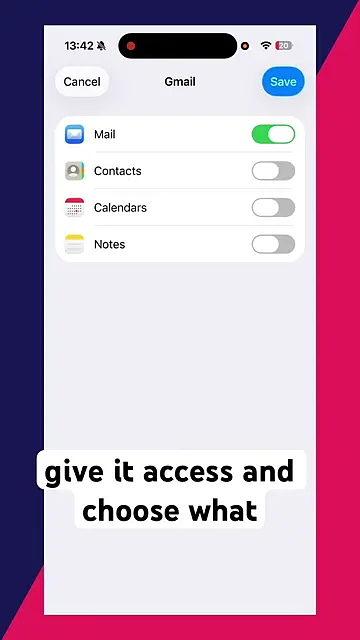
Step 7: Finalize Account Setup
Once you have logged in, you may be prompted to grant access to your Gmail account. Review the permissions and select what items you’d like to sync with the iPhone Mail app, then press ‘Save.’ For privacy, you may want to Turn Off Gmail’s Smart Features for Privacy.
Frequently Asked Questions
How do I find the Mail settings on my iPhone?
You can find the Mail settings by opening the Settings app and using the search bar to type ‘Mail.’
Can I add multiple Gmail accounts on my iPhone?
Yes, you can add multiple Gmail accounts by repeating the steps for each account in the Mail settings.
What should I do if my Gmail account doesn’t sync?
Ensure that you’ve entered the correct email and password, and check your internet connection.
Is it safe to add my Gmail account to my iPhone?
Yes, it is safe, especially if you ensure you have activated any necessary privacy settings in your Gmail account.
Watch the Video Tutorial
Conclusion
By following these steps, you can successfully add your Gmail account to your iPhone, which will allow you to manage your emails easily. Don’t forget to check your privacy settings for safe emailing!




Leave a comment