
· By KAI
Key Takeaways:
- Learn how to enable AirPlay on your Samsung TV.
- Discover how to connect your iPhone to the TV wirelessly.
- Understand troubleshooting tips for screen mirroring.
Screen mirroring allows you to display your iPhone’s screen on a Samsung TV, making it great for watching videos or sharing photos. In this guide, we will walk you through the necessary steps using AirPlay settings and ensure that you maximize your TV’s capabilities. Follow along to seamlessly mirror your device!
Step 1: Start the Screen Mirroring Process
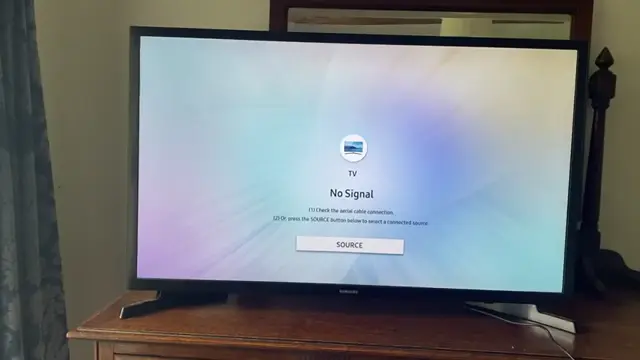
Begin by ensuring that your Samsung TV supports AirPlay. If it’s a newer model, use the settings button on your remote to navigate to ‘Settings’.
Step 2: Access AirPlay Settings
Once in the settings menu, press on the settings button on your remote, scroll down to find the General section, then tap down and go over to the right to access Apple AirPlay settings. Make sure your AirPlay is switched on.
Step 3: Open Control Center on iPhone
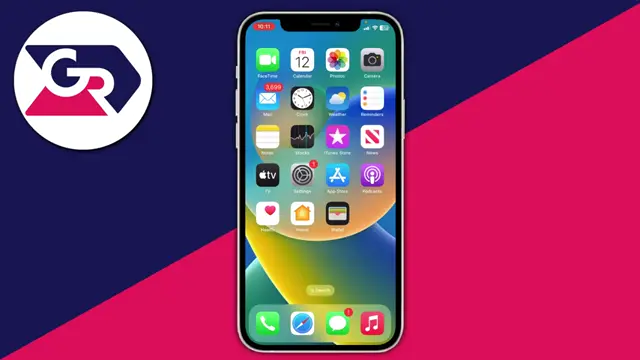
Swipe down from the top right corner of your iPhone to access the Control Center. Tap on the ‘Screen Mirroring’ icon, represented by two rectangles in front of each other.
Step 4: Change HDMI Source on TV
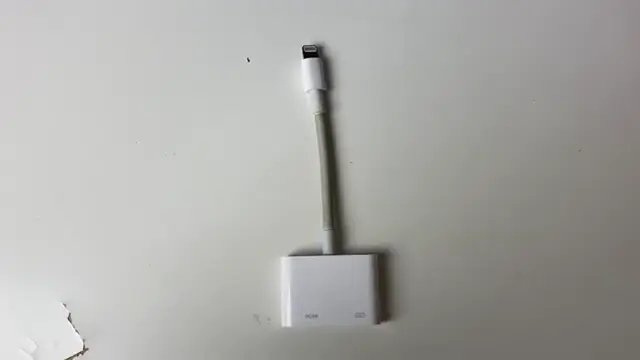
If using a Lightning to HDMI dongle, go to your TV and change the source to the HDMI port you plugged the dongle into.
What should I do if screen mirroring is not working on my Samsung TV?
If screen mirroring is not working, restart both your iPhone and Samsung TV, and ensure both devices are on the same Wi-Fi network.
Screen mirroring issues can arise from various sources, such as connectivity problems, compatibility issues, or outdated software. Begin by checking your Wi-Fi connection and confirming that both devices are connected to the same network. If they are, try restarting your iPhone and Samsung TV. To reset your Samsung TV, unplug it for about 30 seconds and then plug it back in. Make sure the software on both your iPhone and Samsung TV is up to date. If you’re using a hybrid connection with a Lightning to HDMI adapter, ensure that the adapter is functioning properly as well.
How do I enable AirPlay on my Samsung TV?
To enable AirPlay on Samsung TV, navigate to Settings > General > Apple AirPlay Settings and switch AirPlay to On.
Enabling AirPlay is essential for utilizing the screen mirroring feature on your Samsung TV. Begin by turning on your TV and pressing the settings button on your remote. Scroll down to the ‘General’ section, where you will find ‘Apple AirPlay Settings.’ Click on this option, and you’ll see a toggle for AirPlay. Set it to ‘On’ to enable AirPlay. If you have an older Samsung TV model, the location of these settings may vary, so you may need to consult the user manual or online resources for precise navigation steps. Always check for software updates to ensure that your TV’s features are functioning optimally. For more tips on optimizing your Samsung settings, check out our article on Essential Samsung Settings To Change Right Now.
Can screen mirroring work on older Samsung TV models?
Screen mirroring can work on older Samsung TV models, but functionality may vary and could require additional devices.
While most recent Samsung TVs support AirPlay and seamless screen mirroring, older models might not have this capability built-in. If your Samsung TV supports screen mirroring through Miracast, you can still connect your iPhone using a third-party app or device, like an Apple TV or a compatible streaming device. This solution allows you to bypass limitations found in older TV models. Before proceeding, check your television model for any available firmware updates that may enhance its compatibility with newer technologies. Using adapters may also be worth exploring if compatible wireless connections are unavailable, so you could use a Lightning to HDMI dongle for a direct connection instead.
How to troubleshoot screen mirroring issues with iPhone and Samsung TV?
To troubleshoot screen mirroring, ensure both devices are on the same Wi-Fi network, and restart them if necessary.
Screen mirroring can sometimes be tricky. Start by verifying your Wi-Fi connection, as both your iPhone and Samsung TV must be connected to the same network. If they are already connected, consider restarting both devices. On the iPhone, simply restart the device, while for the Samsung TV, use the power button to turn it off, then back on after a few seconds. Ensure that the AirPlay settings on your TV are enabled and check for any software updates on both devices. You can also attempt to forget your Wi-Fi network on your iPhone and reconnect it. If these steps don’t help, consider reaching out to customer support for both Apple and Samsung for additional troubleshooting options.
Frequently Asked Questions
What should I do if my Samsung TV doesn’t appear for mirroring?
Ensure that your iPhone and Samsung TV are connected to the same Wi-Fi network. If the TV still doesn’t appear, try restarting both devices.
Does my Samsung TV need to support AirPlay for screen mirroring?
Yes, AirPlay must be supported on your Samsung TV, which is typically available on newer models.
Can I use a cable to connect my iPhone to my Samsung TV?
Yes, you can use a Lightning to HDMI dongle to connect your iPhone directly to the TV for screen mirroring.
How do I stop screen mirroring on my iPhone?
To stop mirroring, open the Control Center and tap on the Screen Mirroring option, then select ‘Stop Mirroring.’
Watch the Video Tutorial
Conclusion
By following these steps, you can easily screen mirror your iPhone to your Samsung TV. Enjoy your favorite content on a larger screen!





Leave a comment