
Key Takeaways:
- Learn how to access Facebook settings.
- Discover how to add an admin on mobile and desktop.
- Understand the implications of granting admin access.
Adding an admin to your Facebook page can help streamline management and improve collaboration. Whether you’re using the Facebook mobile app or desktop, the process is fairly straightforward. In this guide, we’ll walk you through each step necessary to successfully add an admin to your Facebook page, ensuring you keep everything secure and well-managed.
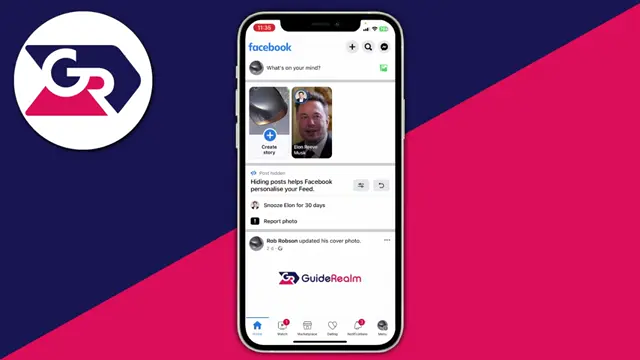
Step 1: Open Facebook Menu
To begin the process of adding an admin, open the Facebook app and tap on the menu icon located either in the top right or bottom right of the screen. This ensures you’re accessing the right settings for your Facebook page.
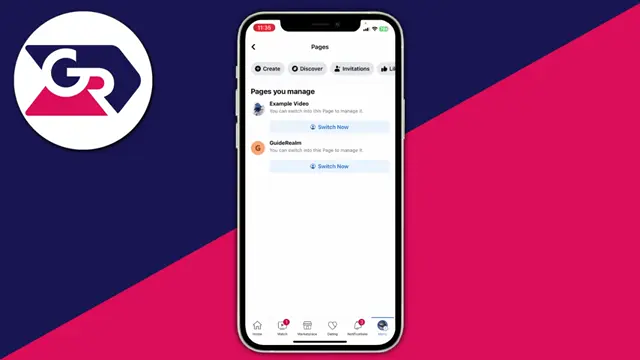
Step 2: Select Your Facebook Page
Next, navigate to the ‘Pages’ section and choose the specific Facebook page you wish to manage. This helps focus the admin addition process on the correct page.
Step 3: Access Settings
If you’re using the mobile app, continue scrolling down in the menu until you find ‘Settings’. For desktop users, click on ‘Settings’ directly in the top right corner for your chosen page.

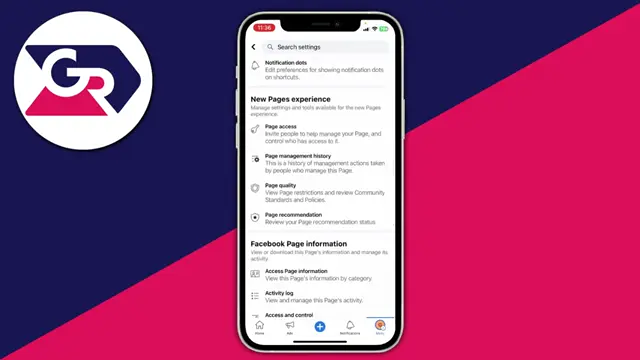
Step 4: Navigate to Page Access
In the settings menu, look for ‘Page Access’ under the new pages experience. If you can’t find it, use the search bar within settings for easier navigation.
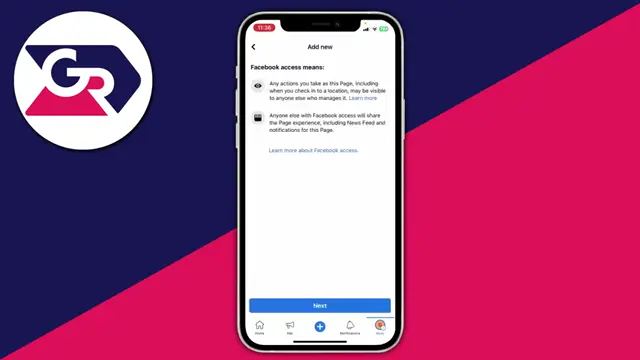
Step 5: Add New Admin
Finally, tap ‘Add New’ in the top right corner of the Page Access screen. Choose the person you want to add, setting their level of control as needed, and enter your password to confirm the action.
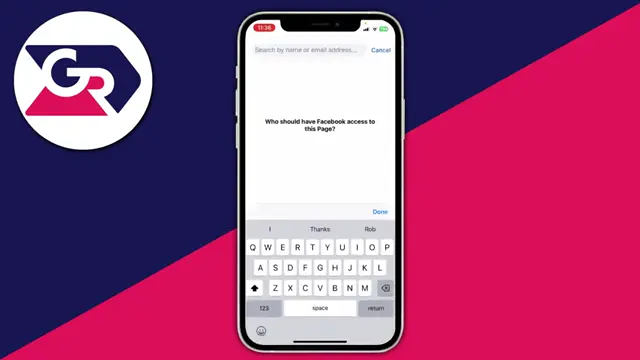
Step 6: Select User for Admin Access
Once you tap ‘Add New’, you will be prompted to choose who you want to give access to. Select the specific user from your friends list or enter their information accordingly.
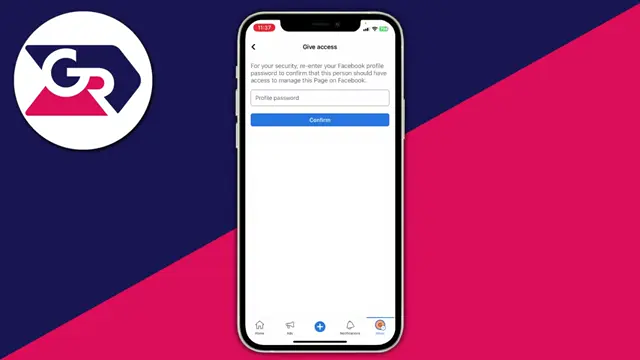
Step 7: Confirm Your Identity
Before the admin addition is finalized, enter your profile password as a security measure to confirm your identity and authorize the action.
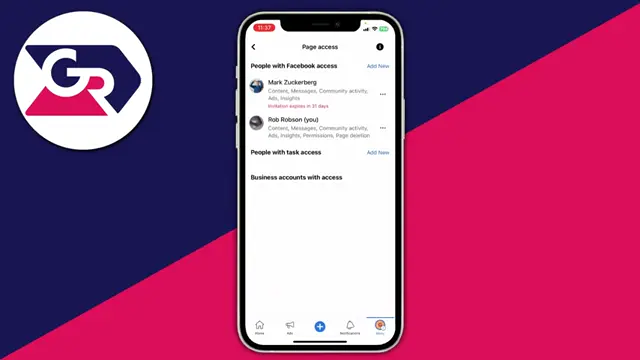
Step 8: Admin Acceptance of Invitation
The user you added will receive an invitation to accept your admin role. They will need to go to their notifications and accept the invitation within 31 days for it to be valid.
Frequently Asked Questions
How do I add an admin to my Facebook page?
To add an admin, go to your Facebook page settings, navigate to ‘Page Access’, and select ‘Add New’ to choose the person.
Can I remove an admin from my Facebook page?
Yes, you can remove an admin by navigating to ‘Page Access’, selecting the admin, and choosing the option to remove them.
What permissions do admins have on a Facebook page?
Admins can manage all aspects of the page, including settings, permissions, and content, but you can assign different roles with varying permissions.
Do I need to enter my password to add an admin?
Yes, you must confirm your identity by entering your profile password before the addition of an admin is finalized.
Watch the Video Tutorial
Conclusion
Adding an admin to your Facebook page is a crucial step for effective page management and delegation of tasks. Make sure to assign this role judiciously and monitor the changes in admin permissions regularly.



Leave a comment