
Key Takeaways:
- Create a free Apple account if you don’t have one.
- Use the App Store to search and install apps.
- Explore purchased apps from your account.
Installing apps on your iPhone 13 Pro is a straightforward process that requires an Apple account. Whether you’re setting up your new device or just want to add new applications, follow these simple steps to successfully download and install apps from the App Store.
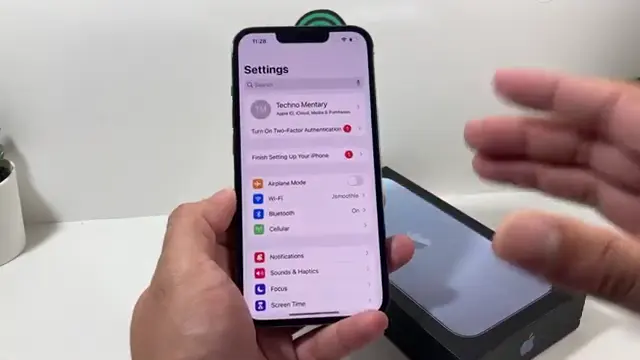
Step 1: Create Your Apple Account
To install apps, ensure you have an Apple account. If you don’t have one, create it for free. You won’t need a credit card and can select ‘none’ as a payment option when signing up.
Step 2: Access the App Store
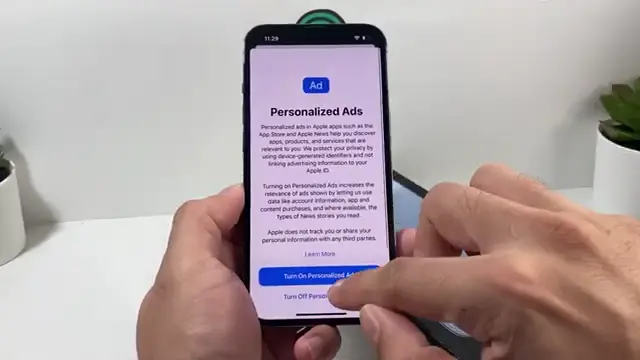
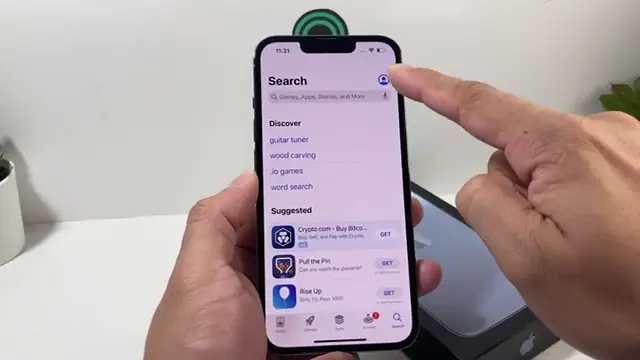
Open the App Store on your iPhone 13 Pro. You’ll find it as an icon on your home screen. If prompted, simply select through the welcome messages until you reach the main screen.
Step 3: Search for Your Desired App
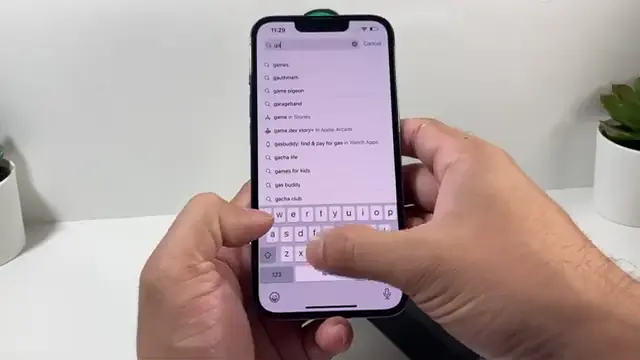
Use the search bar in the App Store to find the app you want. For instance, type ‘Facebook’ if you wish to download the Facebook app. Look for the app in the search results.
Step 4: Install the App
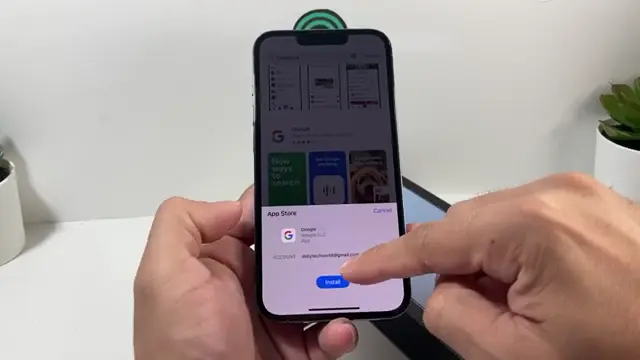
After selecting the app, click ‘Get’ or the cloud icon if you have downloaded it before. You’ll need to enter your Apple ID and authorize the installation, which can include using Face ID.
Step 5: Access Purchased Apps
If you’ve installed apps previously using the same Apple account, you can find them by going to your profile and selecting ‘Purchased.’ Here, you can reinstall apps that aren’t currently on your device.
Frequently Asked Questions
Do I need an Apple ID to install apps?
Yes, a valid Apple ID is required to download and install apps from the App Store.
Can I create an Apple ID without a credit card?
Yes, you can create an Apple ID without a credit card by selecting ‘none’ for the payment option.
How do I find apps I’ve previously downloaded?
You can find previously downloaded apps by going to your App Store profile and checking the ‘Purchased’ section.
What if my app download fails?
If your download fails, ensure you are signed into your Apple ID and have a stable internet connection.
Can I install multiple apps at once?
Yes, you can select multiple apps to download at the same time without issues.
Watch the Video Tutorial
Conclusion
With these simple steps, you can easily install apps on your iPhone 13 Pro. Always remember to check your Apple account settings and explore the App Store for your favorite applications.




Leave a comment