
Key Takeaways:
- Learn the steps to change your iPhone wallpaper.
- Discover how to customize your home screen wallpaper separately.
- Find out how to choose from different wallpaper designs.
Changing the wallpaper on your iPhone is a quick and simple process that can give your device a fresh look. In this guide, we will walk you through each step to change your wallpaper, allowing you to personalize your home screen and lock screen with your favorite images. Let’s dive in and explore how to change your iPhone wallpaper!
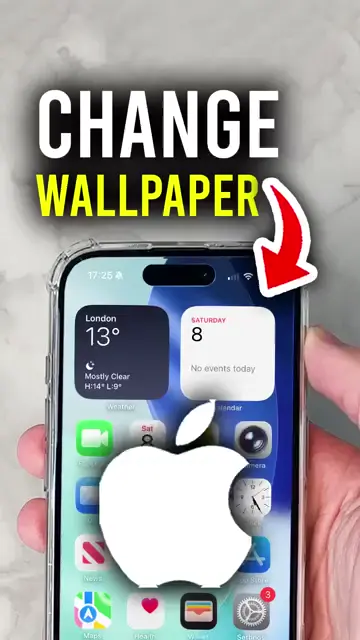
Step 1: Open Settings to Change Wallpaper
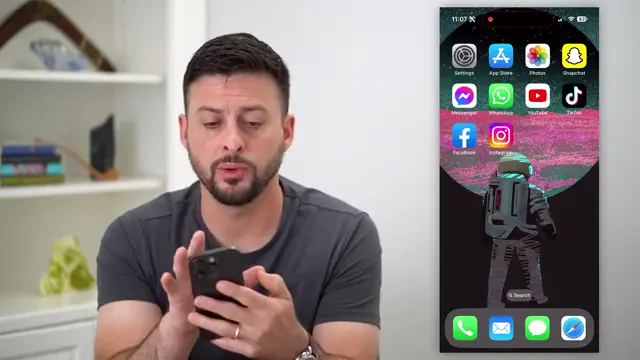
Begin by opening your iPhone’s Settings app. This is the hub for all configuration changes, including your wallpaper options. Tap the Settings icon to get started.
Step 2: Access the Wallpaper Settings
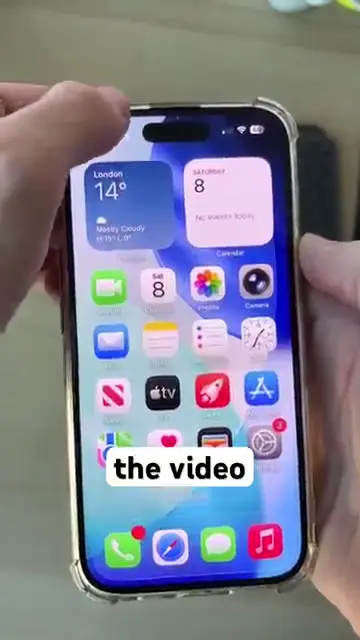
Swipe down from the top of your screen and tap on ‘Wallpaper’ in the Settings menu. This will open the wallpaper section where you can manage your backgrounds.
Step 3: Add a New Wallpaper
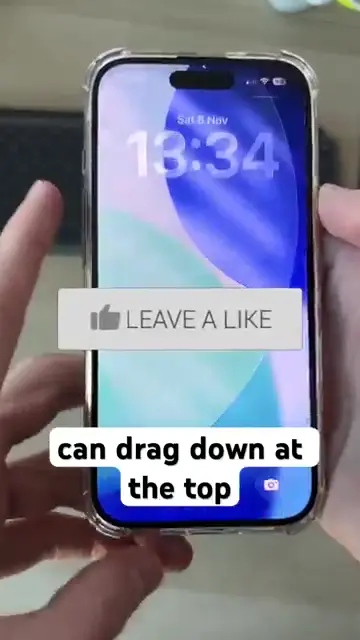
In the Wallpaper section, press the ‘+’ icon at the bottom right. This allows you to add a new wallpaper from your photo library or choose from available designs.
Step 4: Select a Wallpaper Design
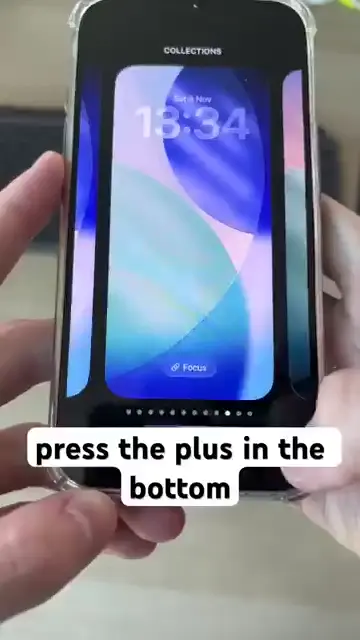
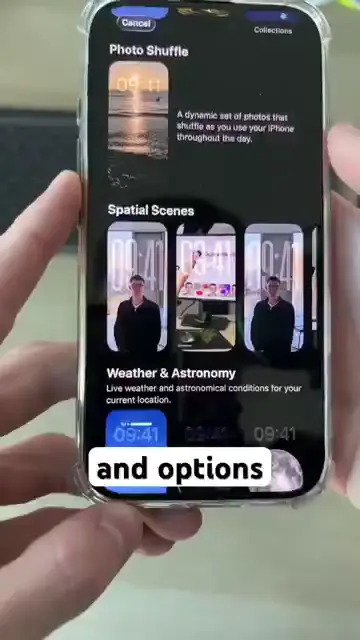
Browse through the various wallpaper designs. You’ll see a range of options; take your time to find a wallpaper that resonates with you. Tap on your chosen design to proceed.
Step 5: Choose Your Preferred Wallpaper
Once you find a wallpaper option you like, tap on it to view it in full. This is where you can decide if you want to set it as your lock screen, home screen, or both.
Step 6: Add and Confirm Your Selection
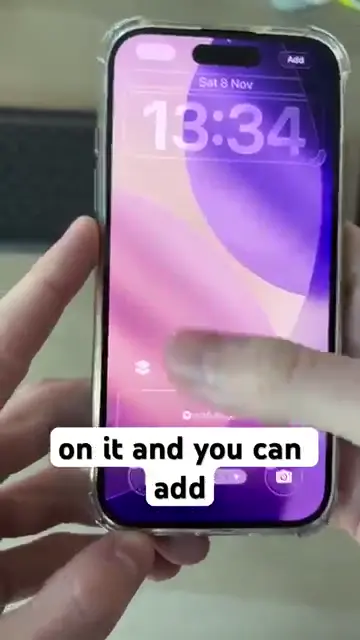
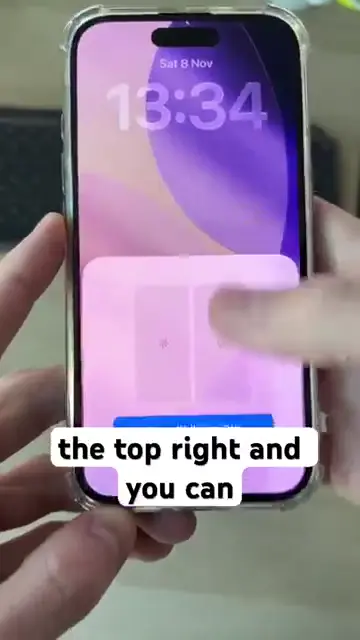
After making your choice, press ‘Add’ in the top right corner. This finalizes your selection and applies the new wallpaper to your iPhone.
Step 7: Customize Wallpaper Settings
You’ll have the option to set the wallpaper for both your home screen and lock screen, or customize each one separately. Decide how you want your backgrounds to appear.
Frequently Asked Questions
How do I change my iPhone wallpaper?
Open Settings, tap ‘Wallpaper’, then select ‘Choose a New Wallpaper’ and follow the prompts to set your new image.
Can I use my own photos as wallpaper?
Yes, you can select any photo from your photo library to use as your wallpaper on your iPhone.
How do I set different wallpapers for my home and lock screens?
After selecting a wallpaper, you can choose to set it for both screens or customize each one separately in the settings.
What types of wallpapers are available on iPhone?
iPhone offers various built-in designs, dynamic wallpapers, and options to choose from your personal photo library.
Watch the Video Tutorial
Conclusion
By following these straightforward steps, you can easily change your iPhone wallpaper and give your device a fresh look that reflects your personal style. Enjoy customizing your iPhone!





Leave a comment