
Key Takeaways:
- Learn how to connect your iPhone and Android devices.
- Step-by-step process to install necessary apps.
- Guide on transferring WhatsApp chats seamlessly.
Transferring WhatsApp chats from an iPhone to an Android device might seem challenging but it can be achieved with a few straightforward steps. This guide will help you move your chats easily using the Smart Switch app and a USB-C cable. Make sure to follow each step carefully to ensure a smooth transfer process without losing any important chat data.
Step 1: Check WhatsApp Installation
Before starting the transfer, ensure that WhatsApp is not installed on your Android phone. This prevents any conflicts during the data transfer procedure. You can check your apps by swiping through your home screen and app drawer.

Step 2: Connect Your Devices
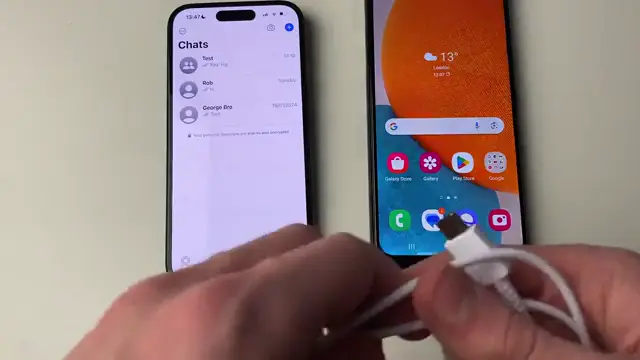
Use a USB-C to USB-C cable (or a Lightning to USB-C cable for older iPhones) to connect your iPhone and Android devices. Firmly plug them in to establish a proper connection for transferring data.
Step 3: Install Smart Switch on Android
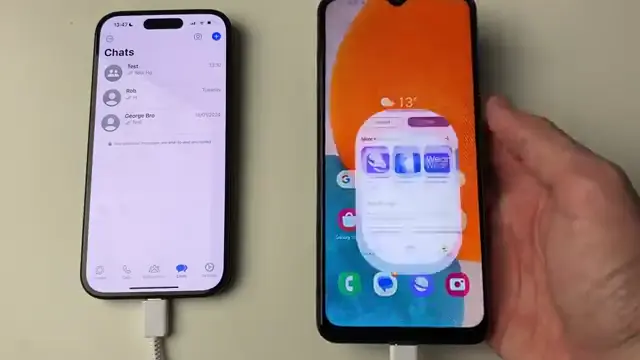
Open the Play Store on your Android device and search for ‘Smart Switch’. Install this app, as it is essential for transferring your WhatsApp data from iPhone to Android smoothly.
Step 4: Open WhatsApp Settings on iPhone
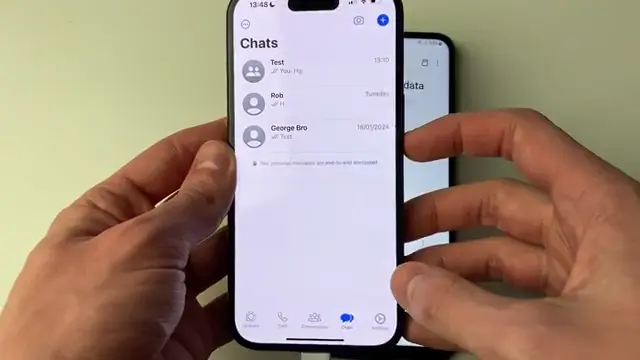
On your iPhone, launch WhatsApp and navigate to ‘Settings’. From there, select ‘Chats’ and then choose ‘Move Chats to Android’ to initiate the transfer process.
Step 5: Access Chats Settings
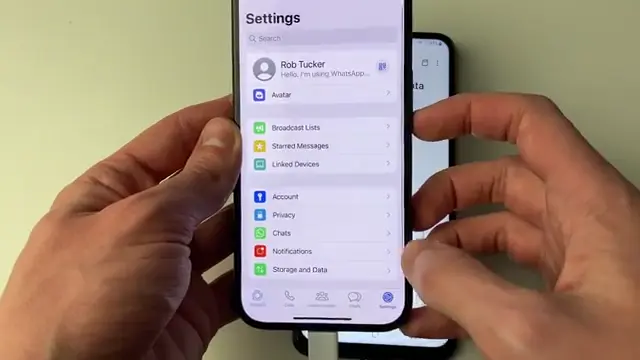
Inside WhatsApp settings, click on ‘Chats’ to proceed with moving your chats to your new Android device.
Step 6: Initiate Transfer to Android
In the Chats settings, click on ‘Move Chats to Android’ to start the process of transferring your chat history.
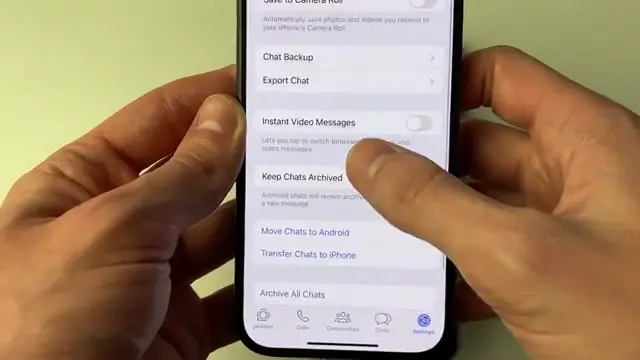
Step 7: Start the Transfer Process
After clicking ‘Move Chats to Android’, press ‘Start’ to prepare your chat history for the transfer to your Android device.
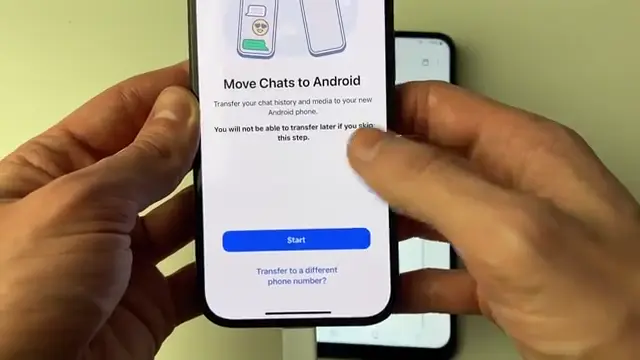
Step 8: Select Data To Transfer on Android
On your Android device, after setting up Smart Switch, select the option to ‘Receive Data’. Then, choose ‘iPhone/iPad’ as your source to start connecting for data transfer.
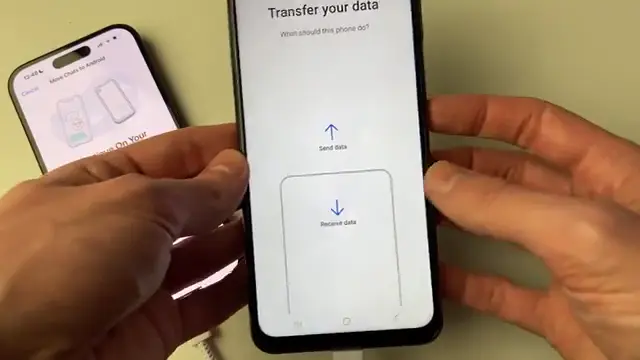
Step 9: Choose iPhone/iPad as Source
In Smart Switch, click on the ‘iPhone/iPad’ option to establish a connection and prepare for data transfer from your iPhone.
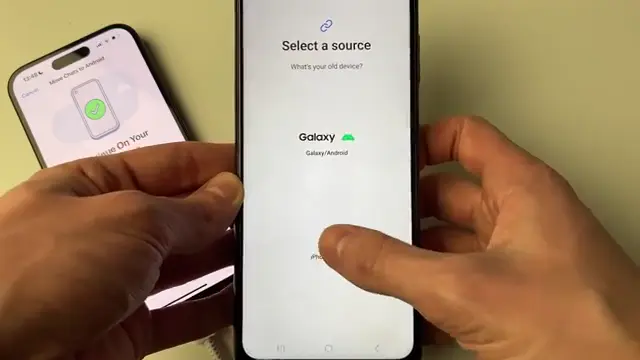
Step 10: Select WhatsApp for Transfer
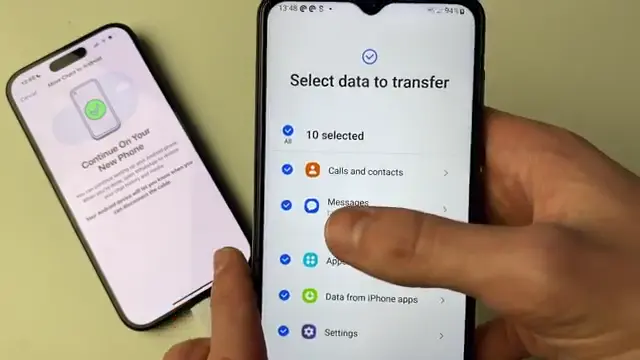
On the Smart Switch screen, choose the data you wish to transfer. Make sure to select WhatsApp to ensure your chats will be included in the process.
Step 11: Transfer Selected Data
After selecting WhatsApp, scroll down and click on ‘Transfer’ to commence the actual data transfer process from your iPhone to Android.
Step 12: Deselect Unwanted Data Types
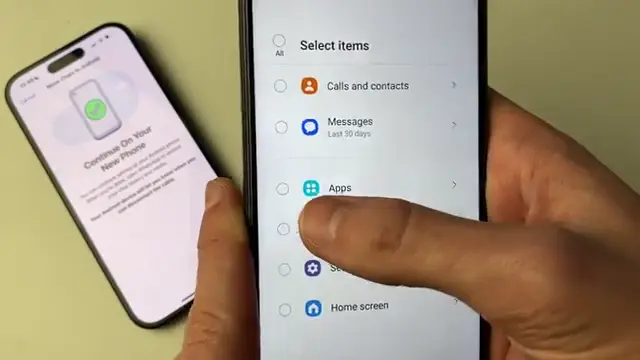
Before finalizing your transfer selection, unselect all options except for WhatsApp to ensure you’re only transferring the necessary data.
Step 13: Install WhatsApp on Android
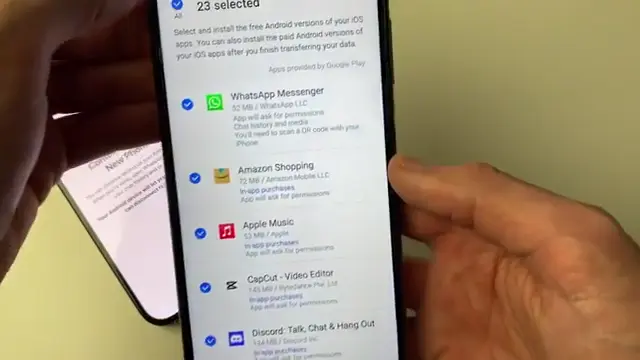
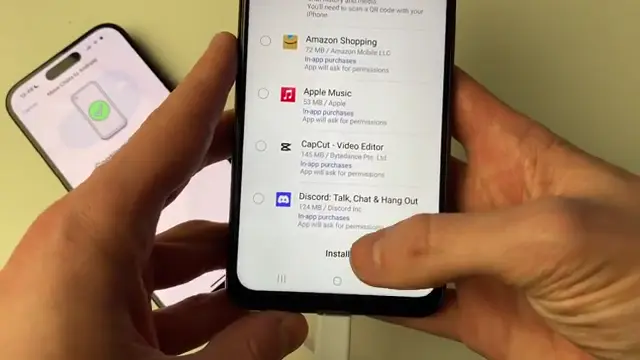
After confirming the data transfer, select ‘Install’ to download and set up WhatsApp on your new Android device before starting the actual transfer.
Frequently Asked Questions
Can I transfer WhatsApp chats without a cable?
No, a cable connection between the devices is required for the transfer.
Will my media files also be transferred with chats?
Yes, all media files associated with your chats will be transferred during the process.
Is the Smart Switch app free to download?
Yes, the Smart Switch app is free to download from the Google Play Store.
What should I do if the transfer fails?
Make sure both devices remain connected and that you follow the steps in order. Restart the devices and try again if necessary.
Watch the Video Tutorial
Conclusion
Following these steps will allow you to successfully transfer your WhatsApp chats from iPhone to Android. Ensure that you keep both devices connected and follow the prompts to minimize any potential issues.



Leave a comment