
Key Takeaways:
- Discover how to view your current Facebook password
- Learn alternative ways to find your saved passwords
- Enhance your password security effectively
If you’re struggling to remember your current Facebook password, you’re not alone. Fortunately, there are several straightforward methods to retrieve or check it. This guide will walk you through each method step-by-step, ensuring you can enhance your password security. Whether you’ve forgotten your password or need to double-check it for any reason, let’s explore the options that will help you find your Facebook password easily.
Step 1: Open Facebook and Access Settings
Begin by launching the Facebook app on your device. Next, tap the menu button located at the bottom right. This will lead you to your account settings, where you can manage various account details, including password security.

Step 2: Tap on Menu Button
In the bottom right corner of the app, find and tap on the menu button to access the account options.

Step 3: Tap on Gear Icon
In the menu, tap on the gear icon located at the top right to access the settings menu. This is where you will manage your password and security options.

Step 4: Tap on Account Center
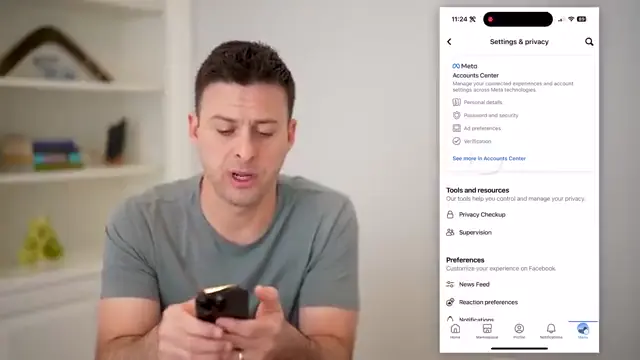
Within the settings menu, locate and tap on the ‘Account Center’ option to proceed to your password and security settings.
Step 5: Tap on Password and Security
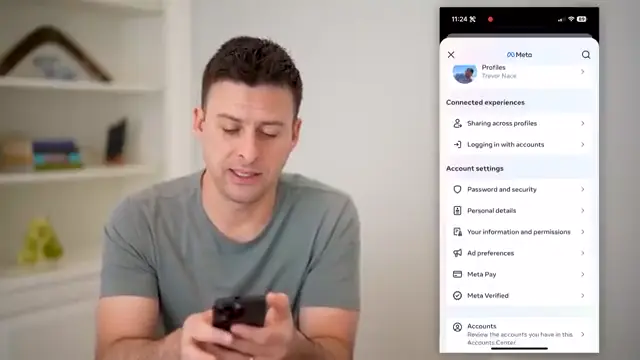
In the Account Center, find and tap on ‘Password and Security’ to access the section where you manage your passwords and view security settings.
Step 6: Change Password or Recall Password Update
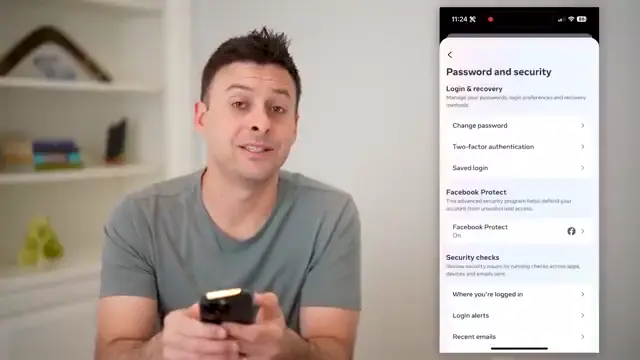
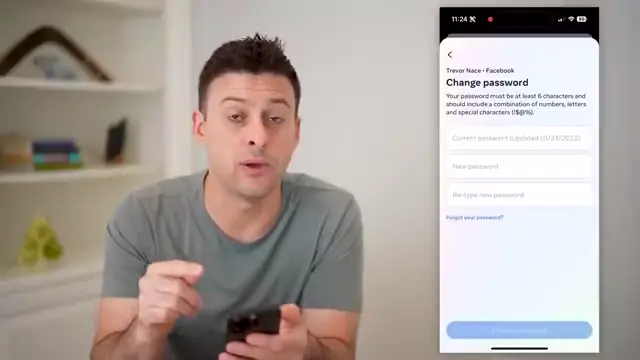
Here, you can select the option to change your password or recall information about your last password update, but understand that the password itself will not be visible.
Step 7: Understand Facebook’s Password Visibility Policy
Facebook prioritizes your password security, so it does not display your current password directly in the app. Instead, it shows when the password was last changed, which can help jog your memory if you’ve recently updated it. Consider using password managers for more efficient access to saved passwords.
Step 8: Scroll Down to Passwords Section
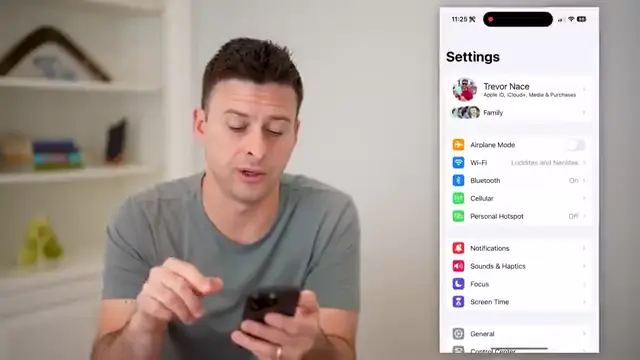
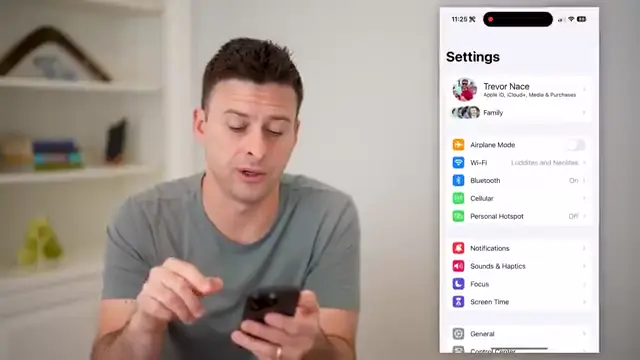
To further check your password, go to your phone’s settings. Scroll down to find the passwords section; tapping this will display all stored passwords on your phone.
Step 9: Search for Facebook
Once in the passwords section, you can search for Facebook among the list of saved passwords to find and view your login information.
Step 10: Retrieve Passwords from Google Chrome
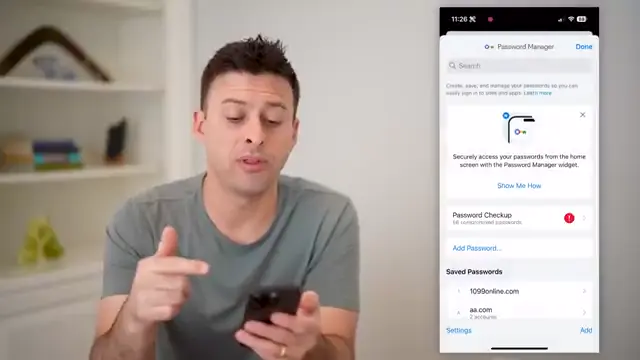
If your password is not stored on your phone, accessing Google Chrome is another alternative. Open Chrome and tap the three dots at the bottom right. Navigate to password manager settings, and search for Facebook to easily find your password and manage your login information without needing to reset it.

Step 11: Tap on Password Manager
In the Chrome menu, locate and tap on ‘Password Manager’. This will direct you to a list of stored passwords associated with your Google account.

Step 12: Search for Facebook in Password Manager
Now in the Password Manager, simply search for ‘Facebook’, and it will display your saved password, allowing you to use it without the need to reset it.
Also recommended: The Complete Guide to Understanding Password Manager for more step-by-step guidance.
Frequently Asked Questions
Can I retrieve my Facebook password if I forgot it?
Yes, you can reset your password using the ‘Forgot Password?’ link on the Facebook login page.
Is Facebook’s security policy for passwords effective?
Yes, Facebook’s policy prevents displaying passwords directly for user security, reducing the risk of unauthorized access.
What should I do if I can’t find my Facebook password in my password manager?
If you can’t find your password, you may need to reset it through Facebook’s password recovery process.
Are there safe ways to manage my passwords?
Using a reputable password manager can help you securely store and manage your passwords across different sites.
Watch the Video Tutorial
Conclusion
By following these steps, you should be able to easily check or recover your Facebook password without hassle. Always consider using a dedicated password manager for added security and easier access to your saved login credentials.





Leave a comment