
Key Takeaways:
- Understand how to enable QR code scanning on iPhone.
- Learn to use the built-in camera for QR codes.
- Discover a reliable QR scanner app for older iPhones.
Scanning QR codes with your iPhone can enhance your mobile experiences, whether you’re accessing websites or product information. With iOS 13 or later, the QR code scanner is built into the iPhone’s camera app. For users with older versions, a third-party app can still simplify the scanning process. In this guide, you’ll learn how to enable and use the QR code scanner on your iPhone and discover an alternative app if needed.
Step 1: Access Camera Settings
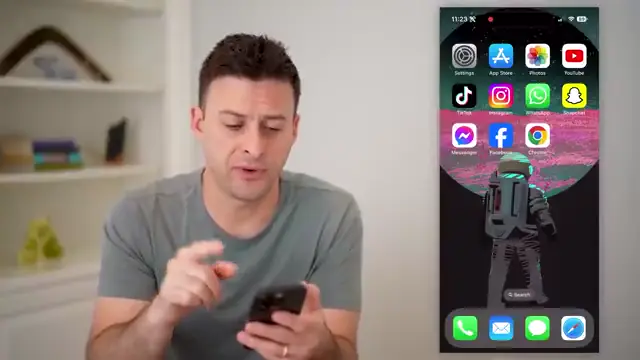
To start scanning QR codes, open the Settings app on your iPhone. Scroll down until you find the Camera settings and select it. This is where you can manage QR code scanning options.
Step 2: Enable QR Code Scanning
In the Camera settings, look for the “Scan QR Code” option. Ensure this setting is turned ON (the toggle should be green). This allows your iPhone to recognize QR codes using the Camera.
Step 3: Open Camera and Scan QR Code
Now, open the Camera app on your iPhone. Point the camera at the QR code you want to scan; your iPhone will detect it quickly and display a notification. Tap the notification to access the content, usually a website.
Step 4: Download Alternative QR Scanner App
If your iPhone doesn’t have the scan feature, open the App Store, search for “QR Code Reader,” and download a suitable app. Open it and use the camera icon to start scanning QR codes instantly.
Frequently Asked Questions
How do I scan QR codes on older iPhones?
If your iPhone doesn’t support built-in QR code scanning, you can download a QR code reader app from the App Store.
What if my QR code scan doesn’t work?
Ensure the camera is focused on the QR code and that the QR code scanner setting is enabled in the Camera settings.
Can I use third-party apps for QR scanning?
Yes, there are several third-party apps available that can scan QR codes, including barcode options.
Do I need an internet connection to scan a QR code?
You don’t need an internet connection to scan a QR code, but you need it to access the content the QR code links to.
Watch the Video Tutorial
Conclusion
In conclusion, scanning QR codes on your iPhone is a straightforward task that can be done using the built-in camera features. If you own an older iPhone model, alternative apps ensure you can still easily access QR code information.



Leave a comment