
Key Takeaways:
- Learn to create an Instagram page for business.
- Connect your Instagram with a Facebook business account.
- Optimize your Instagram profile to attract an audience.
Creating an Instagram page for your business is essential in today’s digital landscape. It allows you to reach a larger audience and engage effectively. In this guide, I’ll walk you through the simple steps to set up your Instagram account for business, ensuring all connections with Facebook are made for maximum outreach.
Step 1: Access Settings
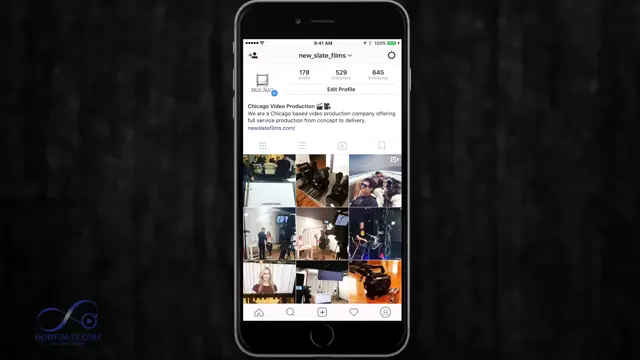
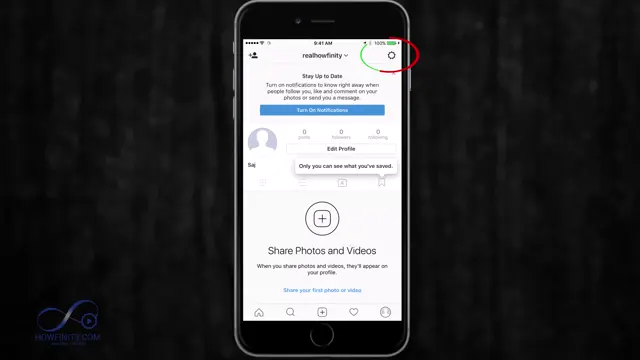
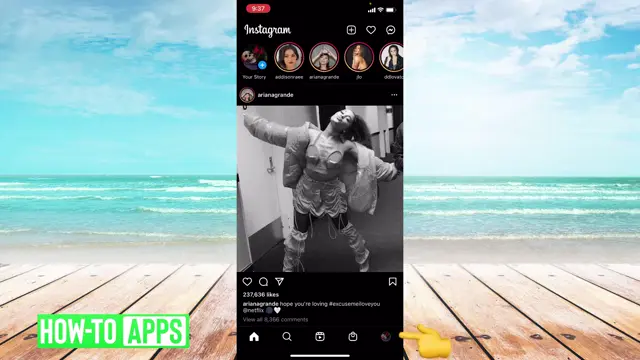
Open your Instagram app and log in to your personal account. Tap on the settings icon, resembling a wrench, located at the top right corner to initiate the setup process.
Step 2: Sign Up for a New Account
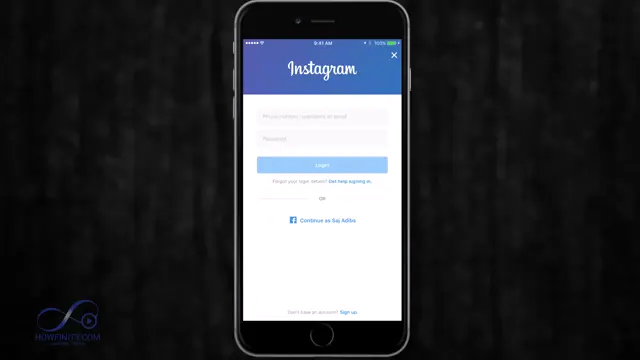
If you don’t have an Instagram account yet, press ‘Sign Up’ at the bottom of the login page to start creating your new account.
Step 3: Add Account
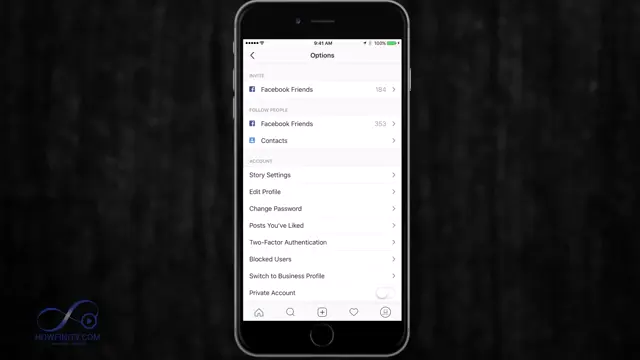
Scroll down in the settings menu and tap on ‘Add Account’ to start the registration process for a new Instagram account.
Step 4: Enter Name
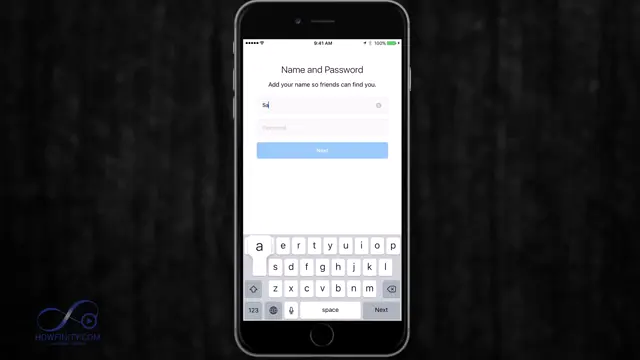
When prompted, type in your real name to help users recognize your business account.
Step 5: Choose a Username
Select a unique username for your business that reflects your brand identity, making sure it’s easy to remember.
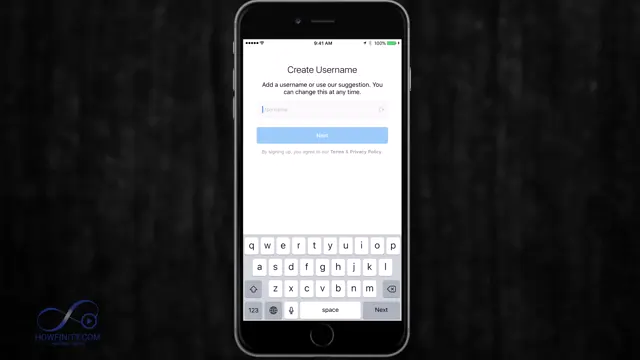
Step 6: Finalize Account Creation
After entering your details, press ‘Next’ to continue creating your Instagram business account.
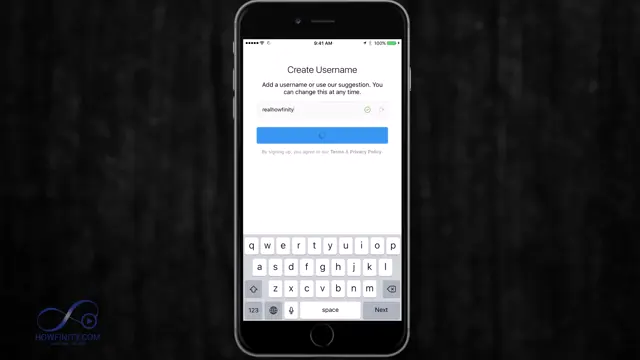
Step 7: Skip Initial Setup Steps
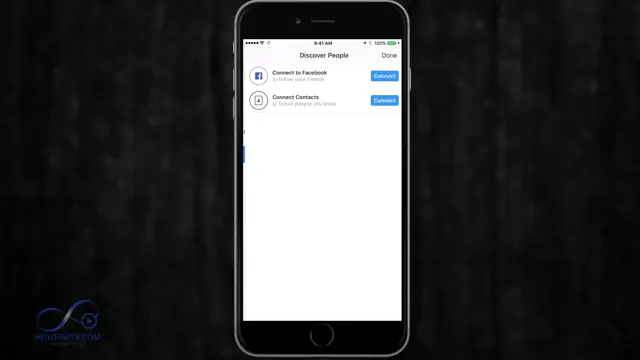
You can skip the initial setup steps for connecting to friends and sharing options; you can do this later.
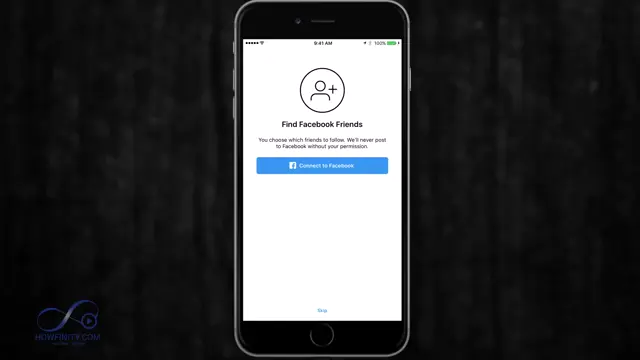
Step 8: Complete Initial Setup
Once you’ve entered your details and set up your profile, ensure to press ‘Done’ to complete the account setup process.
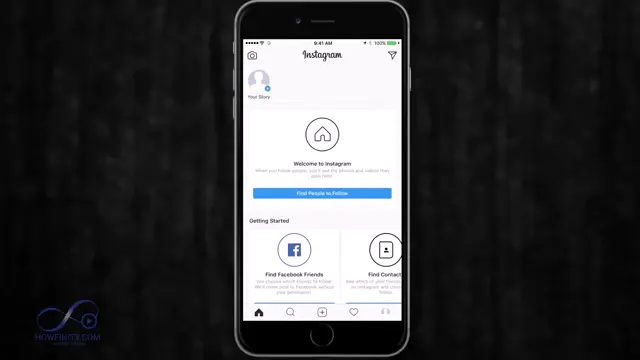
Step 9: Add a Profile Page
Make sure to add a profile picture that represents your business. This is vital for brand recognition.
Step 10: Access Your New Page
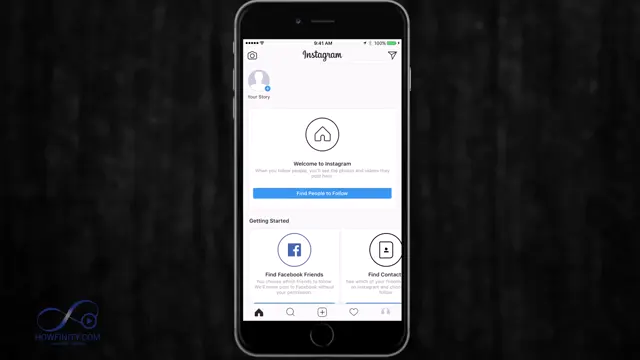
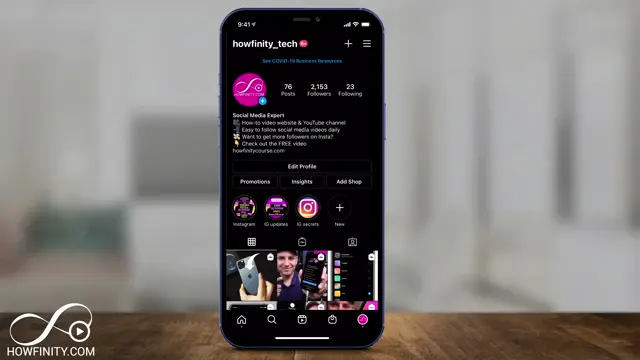
After completing the initial setup, you’ll be directed to your newly created Instagram business page.
Step 11: Access Profile Settings Again
Tap on your profile icon at the bottom right and access the settings wrench again to modify your account type.
Step 12: Switch to a Business Profile
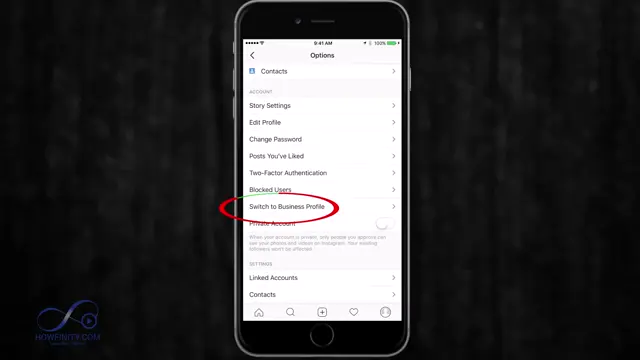
Choose the option to switch to a business profile to unlock features tailored for business accounts.
Step 13: Confirm Business Profile Switch
Press ‘Switch to Business Profile’ and follow the prompts to confirm the change.
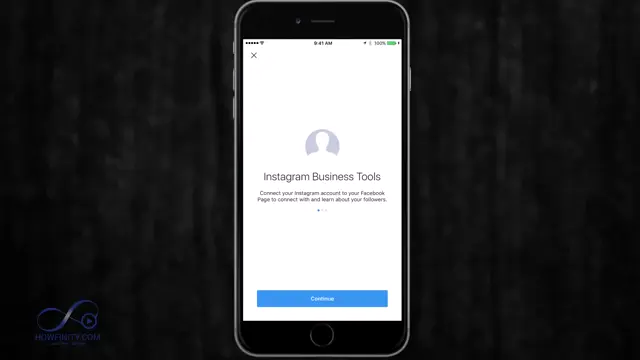
Step 14: Log in to Facebook
You’ll need to log in to your Facebook account to link it with your Instagram business page. Press ‘OK’ to continue.
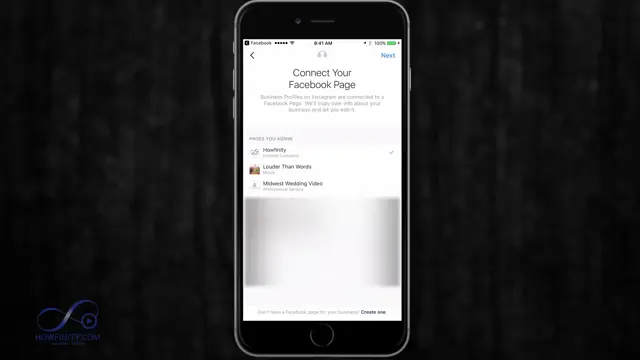
Step 15: Connect Facebook Page
Select your existing Facebook business page to connect it with your new Instagram account; this is essential for cross-promotion.
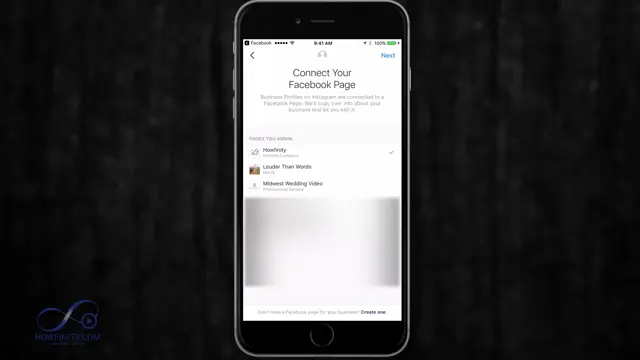
Step 16: Select Your Company
After logging in, ensure you select the correct Facebook business page that you want to associate with your Instagram account.
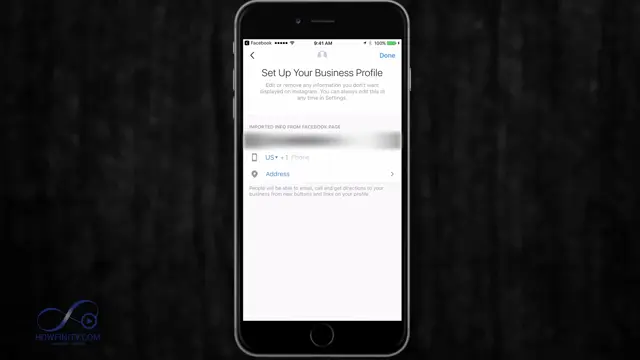
Frequently Asked Questions
Why should I create a business page on Instagram?
A business page on Instagram allows you to access marketing tools, analytics, and features tailored for businesses, improving engagement and reach.
Can I connect my Instagram business page to my Facebook page?
Yes, connecting your Instagram business page to a Facebook business page is essential for cross-promoting and accessing Facebook’s advertising tools.
What details should I include in my Instagram business profile?
Include your business name, a unique username, a clear profile picture, a website link, and a brief bio to attract potential followers.
How can I promote my new Instagram business page?
Promote your Instagram page through your Facebook account, utilize relevant hashtags, and create engaging content to attract your target audience.
Watch the Video Tutorial
Conclusion
By following these steps, you’ll have a functional Instagram page for your business ready to engage users and grow your online presence. Don’t forget to utilize the synergies between Facebook and Instagram for maximum exposure!




Leave a comment