
Key Takeaways:
- Discover essential privacy settings to change.
- Learn how to disable call forwarding.
- Understand the permissions your phone app requires.
When it comes to privacy, Android phones often have settings enabled that can give apps more access to your personal information than you realize. If you want to make and receive calls without compromising privacy, it’s crucial to adjust these settings. In this guide, you will learn how to deactivate unnecessary permissions and ensure that your data remains secure while using your phone.
Step 1: Access Your Phone Settings
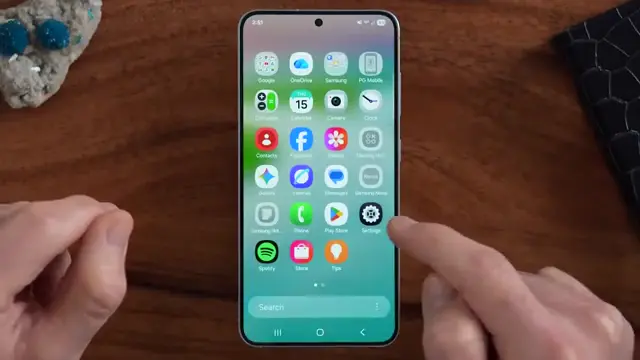
Start by swiping up and tapping on the ‘Settings’ icon on your Android device. This is crucial for adjusting your phone’s privacy settings.
Step 2: Navigate to App Settings
In the Settings menu, scroll down and select ‘Apps’ to access the list of applications on your device and their permissions.

Step 3: Select Phone App for Permissions
Scroll until you find the ‘Phone’ app in the list. This is where you will be able to adjust its permissions to enhance your privacy.

Step 4: Review App Permissions
Explore the list of permissions for the ‘Phone’ app to identify which ones you can disable for better privacy protection.

Step 5: Access All Permissions
To get a comprehensive view of the permissions, tap on the three dots at the top right corner and select ‘All Permissions’ for the Phone app.

Step 6: Access Phone App Settings
Within the Phone app, tap on the three dots at the top right and select ‘Settings’ to configure additional privacy options.

Step 7: Enable Caller ID and Spam Protection
In the settings menu of the Phone app, tap on ‘Caller ID and Spam Protection’ to enable it for better protection against unwanted calls.

Step 8: Check Call Recording Settings
If you’re concerned about privacy regarding recorded calls, tap on ‘Record Calls’ in the settings to manage this feature and delete recordings if necessary.

Step 9: Check Call Forwarding Status
To see if your calls are being forwarded, type *#21# and hit call to check the status of call forwarding on your device.

Step 10: Disable Call Forwarding
If call forwarding is activated and you want to disable it, dial **002# and hit call to ensure all forwarding is turned off.

Frequently Asked Questions
How can I change permissions for the phone app?
Navigate to ‘Settings’ > ‘Apps,’ find the ‘Phone’ app, and adjust permissions accordingly.
What do I dial to check call forwarding?
Dial *#21# to check if call forwarding is activated on your device.
Which permissions should I turn off on my Android phone?
Turn off permissions such as location, photos, and SMS for enhanced privacy.
What is the MMI code for turning off call forwarding?
Dialing ##002# will turn off call forwarding on your Android phone.
Watch the Video Tutorial
Conclusion
By adjusting these privacy settings on your Android phone, you can maintain better control over your personal information. Make sure to regularly check permissions and that call forwarding settings meet your needs.







Leave a comment