
Key Takeaways:
- Learn how to set up WhatsApp.
- Discover how to send messages and multimedia.
- Explore group chat and call features.
WhatsApp is a powerful messaging app that connects over 300 million users globally. Whether you’re new to WhatsApp or looking to enhance your app experience, this beginner’s guide will help you navigate its core features. From setting up your profile to sending messages and making calls, we’re covering everything you need to make the most of WhatsApp in this step-by-step tutorial. To further improve your messaging experience, consider using sticker packs for enhanced communication, explained in this guide.
Step 1: Install WhatsApp
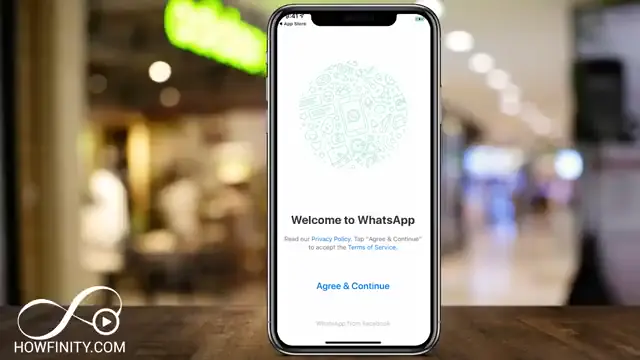
To start using WhatsApp, download it from the App Store or Google Play Store. After installation, open the app and press ‘Agree and Continue’ to proceed. WhatsApp will use your phone number to connect your account. Enter your phone number, choose your country, and wait for a verification code via SMS.
Step 2: Set Up Your Account
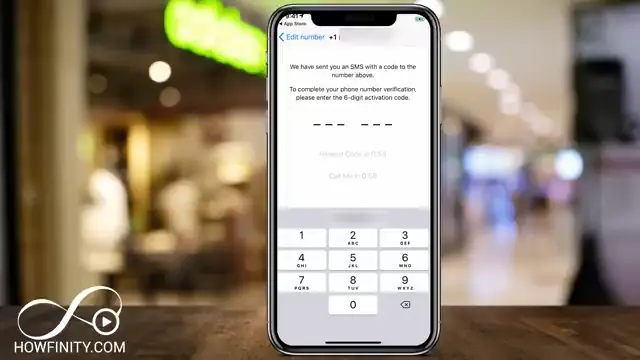
If you’re new to WhatsApp, after agreeing, enter your phone number. Wait for the verification code, check your messages, and input the code to verify your account. You can then add your name and upload a profile picture if you choose.
Step 3: Start a Chat
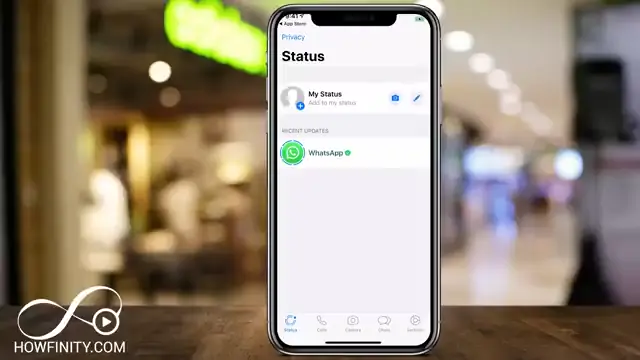
Tap the chat icon to send a message. You can start a new chat by selecting a contact from your list. If the contact isn’t on WhatsApp, you can invite them by pressing the invite option. To send a message, just type your text in the chat window and press the send icon.
Step 4: Send Multimedia
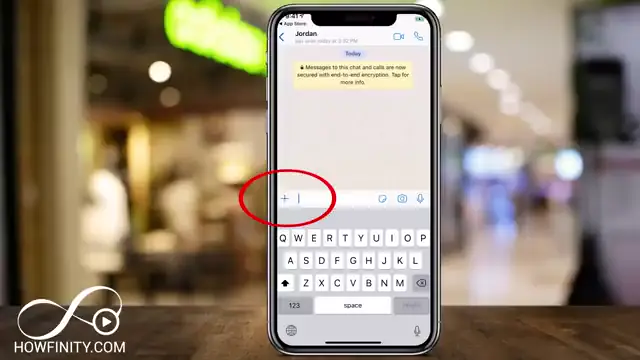
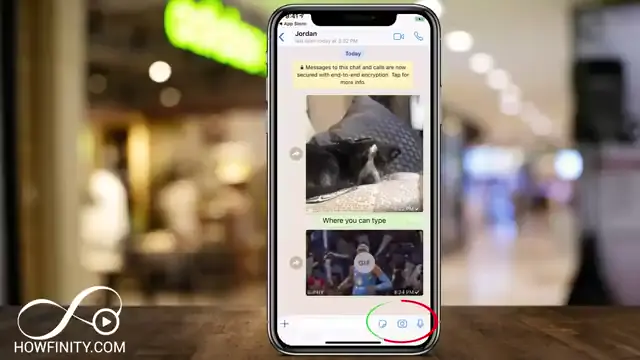
Inside the chat window, to send a photo or video, press the ‘+’ icon. You can select images or videos from your library, or take a new one using the camera icon. After selecting, press the send icon to share your multimedia, enhancing your chats with visual content. Enhance your chats further by exploring how to create custom stickers with this guide on creating custom sticker packs for WhatsApp.
Step 5: Use the Camera Feature
Quickly capture and send photos or videos by using the camera icon in the chat window. Press it to take a picture instantly, or hold to record a video. You can apply captions and editing options before sending.
Frequently Asked Questions
What is WhatsApp?
WhatsApp is a free messaging app that allows users to send texts, make calls, and share media over the internet.
Is WhatsApp free to use?
Yes, WhatsApp is free to use, relying only on your mobile data or Wi-Fi for connections.
Can I make video calls on WhatsApp?
Yes, WhatsApp allows users to make video calls to contacts who also have the app.
How do I create a group chat on WhatsApp?
To create a group chat, go to the chat screen, tap the group icon, and add contacts to include in the group.
Watch the Video Tutorial
Conclusion
WhatsApp can greatly enhance your communication experience. By following this beginner’s guide, you can set up your account, send messages, and explore features like multimedia sharing and video calls. Dive into WhatsApp and connect effortlessly! For additional tips on sending quality images using WhatsApp compared to other apps, check out WhatsApp vs. Other Messaging Apps: Which Sends the Best Photos?.





Leave a comment