
Key Takeaways:
- Add multiple pictures to your Instagram stories easily.
- Use solid color backgrounds for creative designs.
- Resize and position images as desired.
Instagram stories are a powerful way to engage with your followers, and adding multiple pictures can make your content stand out. In this guide, we’ll walk you through the simple steps to add multiple pictures to your Instagram stories on both iPhone and Android devices. Whether you want to create a collage or simply combine various moments, follow these easy instructions to enhance your stories with multiple pictures.
Step 1: Open Instagram and Start a Story
Launch the Instagram app and navigate to the story feature by tapping on your profile icon or the camera at the top left. This is where you begin to create your story by taking a picture or selecting one from your gallery.
Step 2: Take or Select a Picture
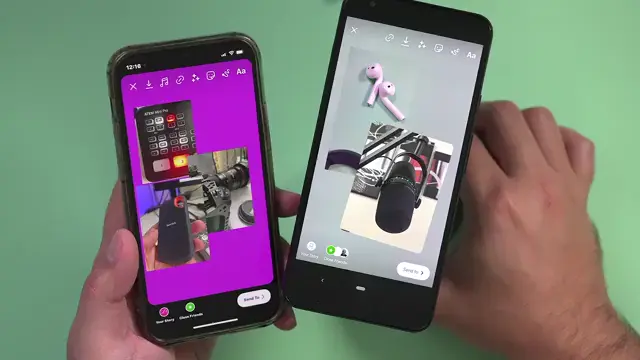
In the story feature, take a new picture or select one from your gallery. This will serve as the primary image or background for your story. You can also customize it by using a solid color background.

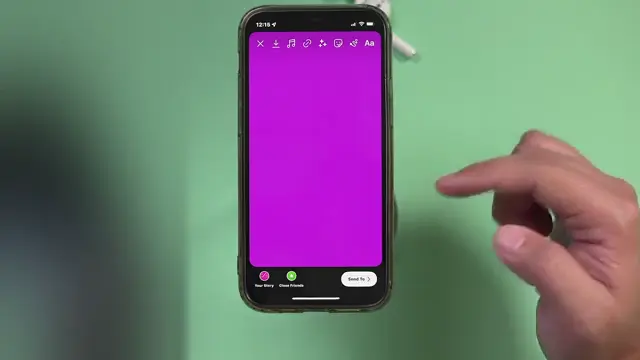
Step 3: Create a Solid Color Background
Use the marker tool to select a color and press and hold on the screen to create a solid background. This can add a creative touch when layering your pictures.

Step 4: Add Pictures Using Stickers
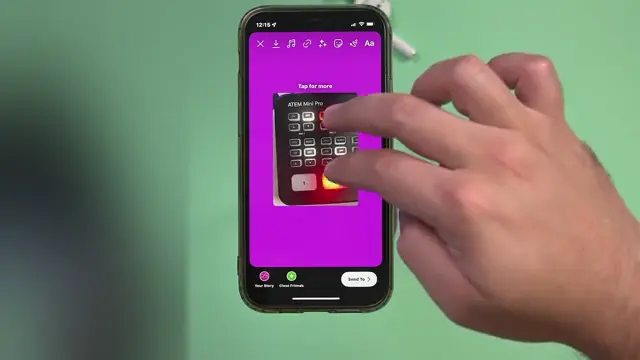
Tap the sticker icon and then select the picture option (it looks like a picture icon). This will allow you to choose from your gallery and add as many pictures as you like on top of your background.
Step 5: Resize and Position Pictures
Once you have your images added, you can pinch to resize them. Move your pictures around the screen to find the perfect layout that highlights your content.
Step 6: Ensure Images are Ready to Use
Before starting, make sure you have taken pictures with your phone. Only those images will be available for you to add to your Instagram story.

Frequently Asked Questions
How do I add multiple pictures to my Instagram story?
You can add multiple pictures by pressing the sticker option and selecting the picture icon to choose images from your gallery.
Can I use a solid color background for my Instagram story?
Yes, you can create a solid color background by using the marker tool to select your desired color before adding pictures.
Is the process the same on Android and iPhone?
Yes, the steps are similar on both Android and iPhone for adding multiple pictures to your stories.
Can I resize the pictures once I add them?
Absolutely! You can tap and resize the pictures in your Instagram story to fit your design preferences.
Watch the Video Tutorial
Conclusion
Adding multiple pictures to your Instagram stories is a great way to express creativity and share more moments. By following these simple steps, you’ll enhance your storytelling and engagement with your audience.








Leave a comment