
· By KAI
Key Takeaways:
- Transfer all data from one iPhone to another
- Learn the wireless transfer method
- Backup your old iPhone before transferring
Transferring data from an old iPhone to a new iPhone has never been easier. This tutorial provides a step-by-step guide on how to transfer your apps, contacts, and photos without needing a computer or iCloud. Follow these simple instructions to ensure a smooth transition to your new device.
Step 1: Prepare Your Devices
Start by ensuring both your old iPhone and new iPhone are fully charged and turned on. Place them next to each other to facilitate the wireless transfer process.
Step 2: Reset the New iPhone
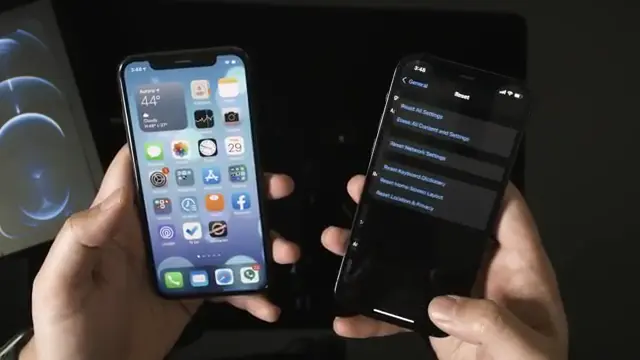
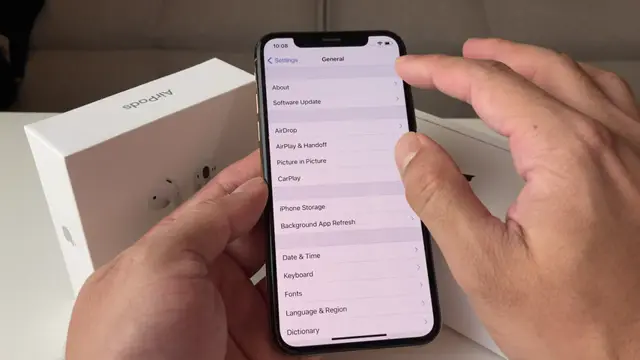
On your new iPhone, navigate to Settings > General > Reset. Select ‘Erase All Content and Settings’ to reset the device to its factory settings. This step is essential for starting the transfer process correctly.
Step 3: Backup Old iPhone Data (Optional)
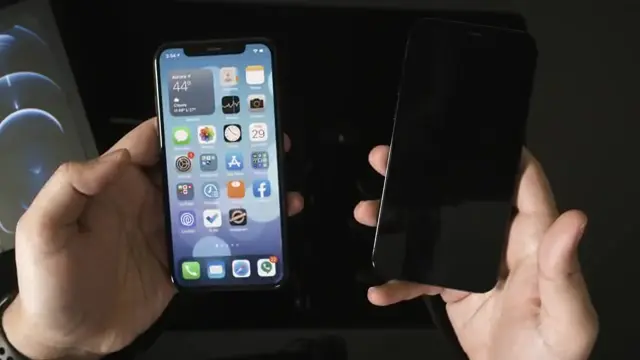
For safety, on your old iPhone, visit Settings > [Your Name] > iCloud > iCloud Backup. Ensure that backup is turned on and perform a manual backup. This is a precautionary step in case anything goes wrong during the transfer.
Step 4: Start the Transfer Process
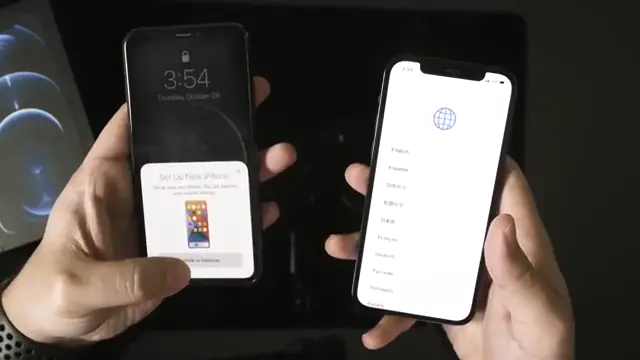
On your new iPhone, follow the on-screen prompt to ‘Set Up New iPhone.’ Unlock the phone and use your old iPhone to scan the QR code displayed on the new device. This initiates the data transfer between the two phones.
Step 5: Complete the Transfer
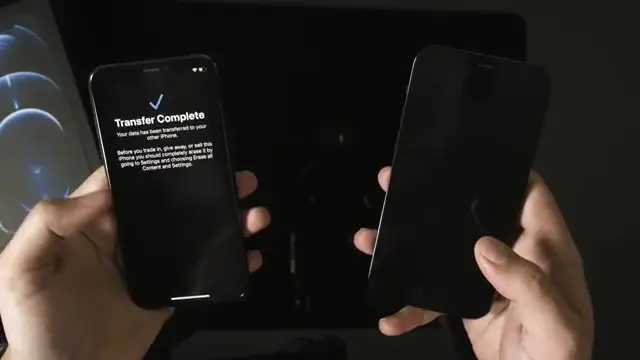
After approximately 20 to 30 minutes, the transfer will be complete. You will see a confirmation on your old iPhone. At this point, ensure that your new iPhone syncs all your data, including apps and photos, properly.
Is it possible to transfer data from an iPhone with a different iOS version?
Yes, data can be transferred between iPhones running different iOS versions, as long as the older device’s iOS is compatible with the new device.
Apple generally ensures that data transfer works smoothly between iPhones, regardless of version differences. However, it is recommended to have a device running an iOS version that is within one or two generations of the new device for optimal compatibility. For instance, transferring from iOS 14 to iOS 16 usually proceeds without issues, but moving from very old versions may prompt you to update before transfer. This applies to all data types such as apps, messages, and settings. Here’s a brief compatibility table:
| Old Device iOS | New Device iOS | Transfer Compatibility |
|---|---|---|
| iOS 15 | iOS 16 | Yes |
| iOS 13 | iOS 16 | Yes |
| iOS 12 | iOS 15 | Yes (may require update) |
| iOS 11 | iOS 16 | Potential Issues |
Steps to Reset New iPhone Before Data Transfer
To reset your new iPhone before data transfer, navigate to Settings > General > Reset. Select the option for ‘Erase All Content and Settings’ which will wipe your device clean.
It is crucial to perform this resetting step if the new iPhone has already been used or set up. This action ensures that your new iPhone will have a clean slate, allowing for a seamless transfer of data from your old iPhone. Once the reset is complete, you can begin the setup process and easily carry out the data transfer steps. It can help to have your devices fully charged and nearby to facilitate the connection. For reset instructions, you can refer to this guide on how to reset your iPhone to factory settings.
Frequently Asked Questions
Can I transfer data from an iPhone with a different iOS version?
You can transfer data as long as your old iPhone is on a version of iOS that is compatible with the new iPhone.
Do I need iCloud to transfer data between iPhones?
No, you can transfer data wirelessly without needing iCloud or a computer.
What if my new iPhone is already set up?
If your new iPhone is already set up, you will need to reset it to factory settings to start the transfer process.
Can I transfer specific types of data, like only contacts or photos?
The transfer process typically moves all data, but you can selectively restore content later from backups if necessary.
Watch the Video Tutorial
Conclusion
Transferring data from your old iPhone to a new iPhone can be accomplished with a few simple steps, making it more straightforward than ever. Remember to back up your old device and follow the prompts during the setup process to ensure all your important information is migrated smoothly.
{“@context”:”https://schema.org”,”@graph”:[{“@type”:”HowTo”,”name”:”How to Transfer Data from Old iPhone to New iPhone”,”description”:”Learn how to transfer data from an old iPhone to a new iPhone seamlessly, including apps, contacts, and photos. No need for iCloud or a computer!”,”step”:[{“@type”:”HowToStep”,”position”:1,”name”:”Prepare Your Devices”,”text”:”Start by ensuring both your old iPhone and new iPhone are fully charged and turned on. Place them next to each other to facilitate the wireless transfer process.”},{“@type”:”HowToStep”,”position”:2,”name”:”Reset the New iPhone”,”text”:”On your new iPhone, navigate to Settings > General > Reset. Select ‘Erase All Content and Settings’ to reset the device to its factory settings. This step is essential for starting the transfer process correctly.”},{“@type”:”HowToStep”,”position”:3,”name”:”Backup Old iPhone Data (Optional)”,”text”:”For safety, on your old iPhone, visit Settings > [Your Name] > iCloud > iCloud Backup. Ensure that backup is turned on and perform a manual backup. This is a precautionary step in case anything goes wrong during the transfer.”},{“@type”:”HowToStep”,”position”:4,”name”:”Start the Transfer Process”,”text”:”On your new iPhone, follow the on-screen prompt to ‘Set Up New iPhone.’ Unlock the phone and use your old iPhone to scan the QR code displayed on the new device. This initiates the data transfer between the two phones.”},{“@type”:”HowToStep”,”position”:5,”name”:”Complete the Transfer”,”text”:”After approximately 20 to 30 minutes, the transfer will be complete. You will see a confirmation on your old iPhone. At this point, ensure that your new iPhone syncs all your data, including apps and photos, properly.”}]},{“@type”:”FAQPage”,”mainEntity”:[{“@type”:”Question”,”name”:”Can I transfer data from an iPhone with a different iOS version?”,”acceptedAnswer”:{“@type”:”Answer”,”text”:”You can transfer data as long as your old iPhone is on a version of iOS that is compatible with the new iPhone.”}},{“@type”:”Question”,”name”:”Do I need iCloud to transfer data between iPhones?”,”acceptedAnswer”:{“@type”:”Answer”,”text”:”No, you can transfer data wirelessly without needing iCloud or a computer.”}},{“@type”:”Question”,”name”:”What if my new iPhone is already set up?”,”acceptedAnswer”:{“@type”:”Answer”,”text”:”If your new iPhone is already set up, you will need to reset it to factory settings to start the transfer process.”}},{“@type”:”Question”,”name”:”Can I transfer specific types of data, like only contacts or photos?”,”acceptedAnswer”:{“@type”:”Answer”,”text”:”The transfer process typically moves all data, but you can selectively restore content later from backups if necessary.”}}]}]}



Leave a comment