
Key Takeaways:
- Connect your iPhone with a lightning cable to your computer.
- Sync music from iTunes to your device easily.
- Manage music manually in iTunes to prevent automatic sync.
Are you looking to add music from your computer to your iPhone? This guide will walk you through the simple steps using iTunes, ensuring you have all your favorite tracks in one place. We’ll cover downloading iTunes, syncing your songs, and managing your library without any hassle. Let’s dive into the process of getting music onto your iPhone!
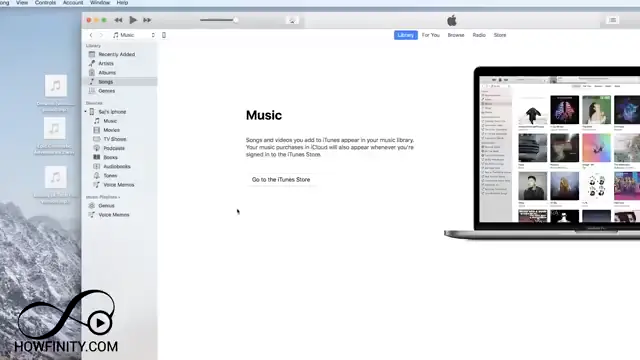
Step 1: Open iTunes on Your Computer
If you’re using a Mac, launch iTunes since it’s pre-installed. For PC users without iTunes, download it from apple.com/itunes/download and open it afterwards. This is your starting point for transferring music to your iPhone.
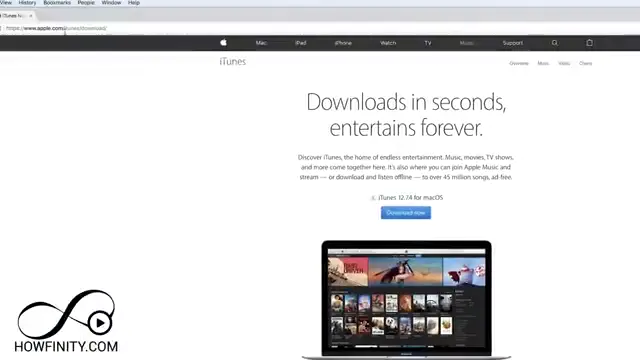
Step 2: Launching iTunes on a PC
On a PC, if you haven’t installed iTunes yet, visit the iTunes download page at apple.com/itunes/download. Download and install it before proceeding with the next steps.
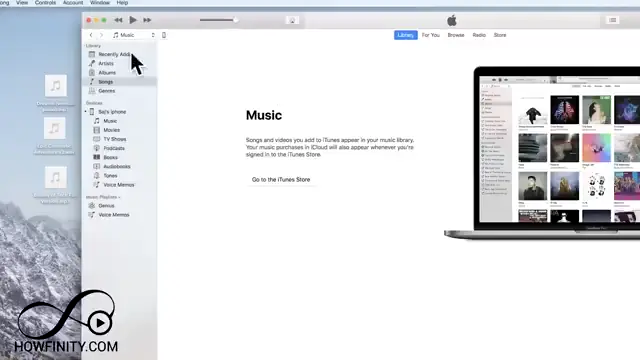
Step 3: Check iTunes Version
It’s important to have the latest version of iTunes for compatibility and smoother performance. Go to the ‘Library’ tab and check for any updates to ensure everything is current before adding songs.
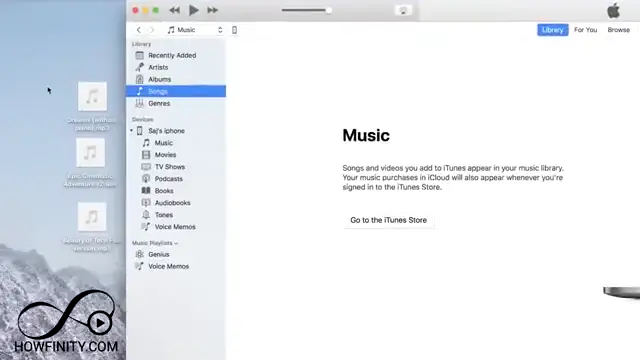
Step 4: Add Songs to iTunes Library
Locate the songs on your computer that you want to transfer. Either drag them from a folder or select them directly into the iTunes library. This builds your iTunes library with the tracks you love.
Step 5: Selecting Songs in the Library
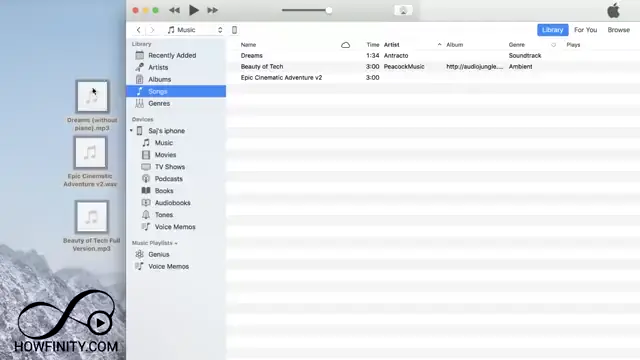
Find the songs you have recently added to your iTunes library. You can use shift-click to select multiple tracks easily.
Step 6: Connect Your iPhone
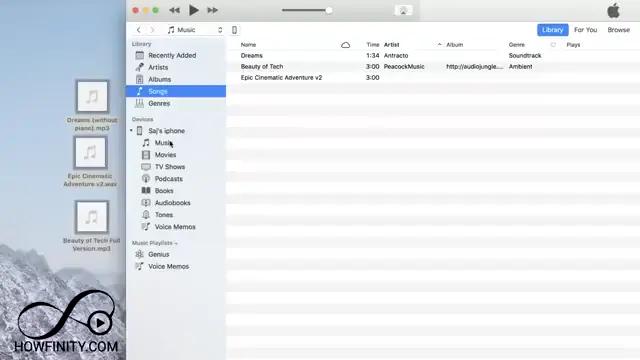
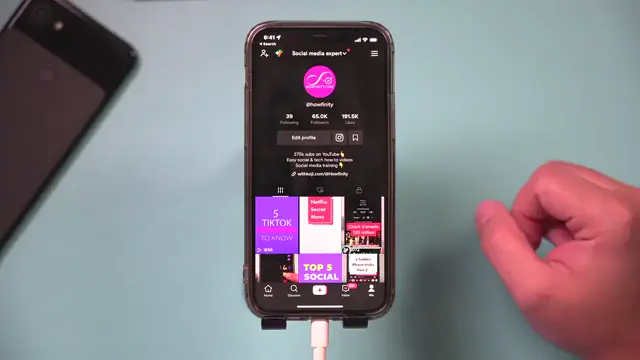
Using a lightning cable, plug your iPhone into the computer. Once connected, iTunes will recognize your device, and you should see your iPhone’s icon appear in the top left corner of iTunes.
Step 7: Access iPhone Settings in iTunes
Click on the iPhone icon in iTunes. This will take you to the settings for your device where you can manage the sync and music options.
Step 8: Change Sync Settings
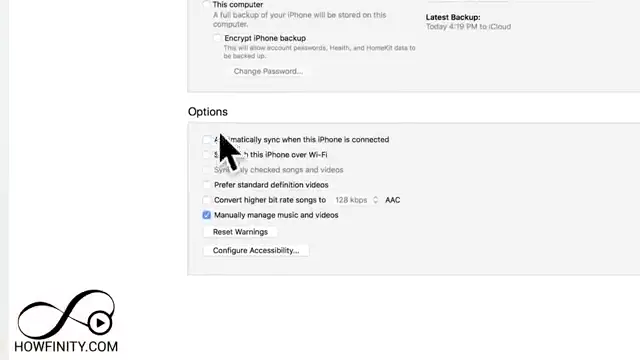
In the iPhone settings, look for the option labeled ‘Automatically sync’ and uncheck it. Make sure that ‘Manually manage music and videos’ is checked to avoid automatic syncing.
Step 9: Dragging and Dropping Songs into the iPhone Icon
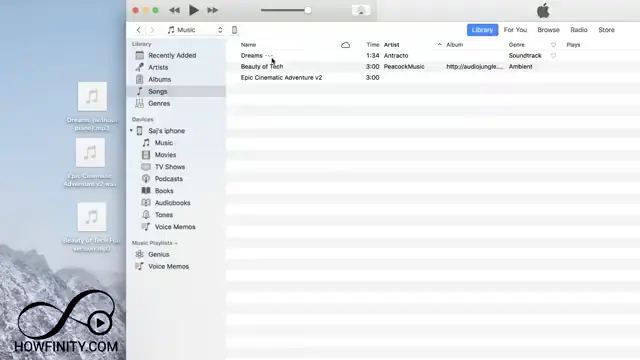
Once you have your songs selected, click and drag them over to the iPhone icon in iTunes and release them. This action initiates the transfer process for the selected songs to your device.
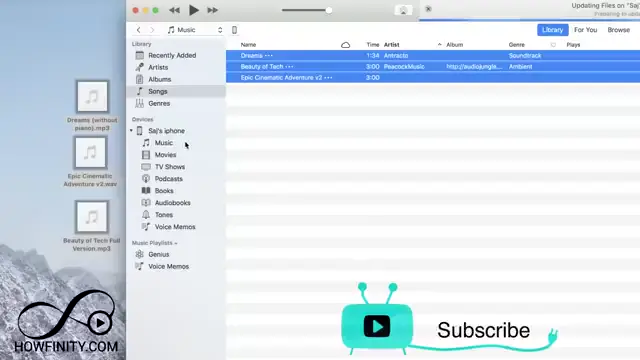
Step 10: Acknowledge Sync Warnings
If the songs on your iPhone were synced with a different iTunes library previously, a warning will appear indicating that existing songs may be replaced. Be sure you understand this before confirming the transfer.
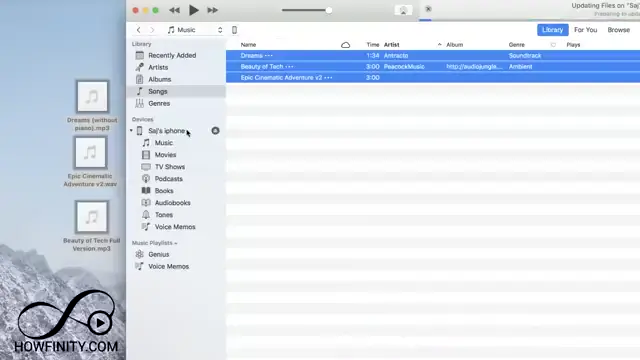
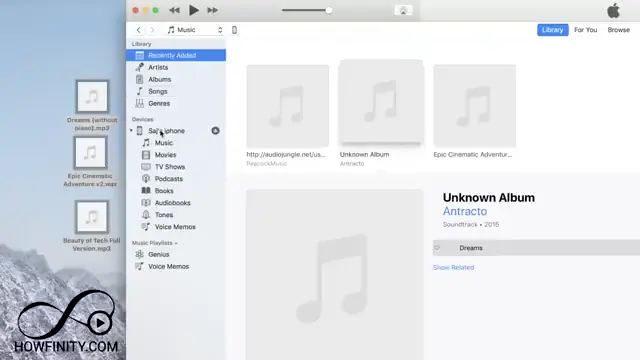
Step 11: Verify Songs on iPhone
After completing the transfer, check the Music app on your iPhone to confirm that the songs you added from iTunes are now available for playback.
Frequently Asked Questions
Can I add music to my iPhone without using iTunes?
Yes, you can use alternative methods such as Apple Music or third-party apps that allow direct file transfer.
What should I do if I receive a warning about replacing songs?
You should check which songs are on the device and decide if you’re okay with replacing the existing content with new tracks.
Is it possible to add music from streaming services directly to iTunes?
No, streaming services typically do not allow you to download songs directly to iTunes for syncing.
How can I avoid losing songs on my iPhone when syncing with a new computer?
Make sure to backup your iPhone and manually manage music to prevent automatic syncing that might overwrite your current tracks.
Watch the Video Tutorial
Conclusion
Transferring music from your computer to your iPhone can be straightforward when you follow these steps carefully. By using iTunes and ensuring proper settings, you can manage your music library effectively. Enjoy your playlists on the go!
{“@context”:”https://schema.org”,”@graph”:[{“@type”:”HowTo”,”name”:”Add Music from Computer to iPhone Simple Guide”,”description”:”Learn how to add music from computer to iPhone using iTunes in quick steps. Connect, sync, and enjoy your favorite songs today!”,”step”:[{“@type”:”HowToStep”,”position”:1,”name”:”Open iTunes on Your Computer”,”text”:”If you’re using a Mac, launch iTunes since it’s pre-installed. For PC users without iTunes, download it from apple.com/itunes/download and open it afterwards. This is your starting point for transferring music to your iPhone.”},{“@type”:”HowToStep”,”position”:2,”name”:”Launching iTunes on a PC”,”text”:”On a PC, if you haven’t installed iTunes yet, visit the iTunes download page at apple.com/itunes/download. Download and install it before proceeding with the next steps.”},{“@type”:”HowToStep”,”position”:3,”name”:”Check iTunes Version”,”text”:”It’s important to have the latest version of iTunes for compatibility and smoother performance. Go to the ‘Library’ tab and check for any updates to ensure everything is current before adding songs.”},{“@type”:”HowToStep”,”position”:4,”name”:”Add Songs to iTunes Library”,”text”:”Locate the songs on your computer that you want to transfer. Either drag them from a folder or select them directly into the iTunes library. This builds your iTunes library with the tracks you love.”},{“@type”:”HowToStep”,”position”:5,”name”:”Selecting Songs in the Library”,”text”:”Find the songs you have recently added to your iTunes library. You can use shift-click to select multiple tracks easily.”},{“@type”:”HowToStep”,”position”:6,”name”:”Connect Your iPhone”,”text”:”Using a lightning cable, plug your iPhone into the computer. Once connected, iTunes will recognize your device, and you should see your iPhone’s icon appear in the top left corner of iTunes.”},{“@type”:”HowToStep”,”position”:7,”name”:”Access iPhone Settings in iTunes”,”text”:”Click on the iPhone icon in iTunes. This will take you to the settings for your device where you can manage the sync and music options.”},{“@type”:”HowToStep”,”position”:8,”name”:”Change Sync Settings”,”text”:”In the iPhone settings, look for the option labeled ‘Automatically sync’ and uncheck it. Make sure that ‘Manually manage music and videos’ is checked to avoid automatic syncing.”},{“@type”:”HowToStep”,”position”:9,”name”:”Dragging and Dropping Songs into the iPhone Icon”,”text”:”Once you have your songs selected, click and drag them over to the iPhone icon in iTunes and release them. This action initiates the transfer process for the selected songs to your device.”},{“@type”:”HowToStep”,”position”:10,”name”:”Acknowledge Sync Warnings”,”text”:”If the songs on your iPhone were synced with a different iTunes library previously, a warning will appear indicating that existing songs may be replaced. Be sure you understand this before confirming the transfer.”},{“@type”:”HowToStep”,”position”:11,”name”:”Verify Songs on iPhone”,”text”:”After completing the transfer, check the Music app on your iPhone to confirm that the songs you added from iTunes are now available for playback.”}]},{“@type”:”FAQPage”,”mainEntity”:[{“@type”:”Question”,”name”:”Can I add music to my iPhone without using iTunes?”,”acceptedAnswer”:{“@type”:”Answer”,”text”:”Yes, you can use alternative methods such as Apple Music or third-party apps that allow direct file transfer.”}},{“@type”:”Question”,”name”:”What should I do if I receive a warning about replacing songs?”,”acceptedAnswer”:{“@type”:”Answer”,”text”:”You should check which songs are on the device and decide if you’re okay with replacing the existing content with new tracks.”}},{“@type”:”Question”,”name”:”Is it possible to add music from streaming services directly to iTunes?”,”acceptedAnswer”:{“@type”:”Answer”,”text”:”No, streaming services typically do not allow you to download songs directly to iTunes for syncing.”}},{“@type”:”Question”,”name”:”How can I avoid losing songs on my iPhone when syncing with a new computer?”,”acceptedAnswer”:{“@type”:”Answer”,”text”:”Make sure to backup your iPhone and manually manage music to prevent automatic syncing that might overwrite your current tracks.”}}]}]}



Leave a comment