
Key Takeaways:
- Understand the follower requirement for going live.
- Learn how to add a title and select topics for your live stream.
- Discover tips to potentially go live with fewer than 1000 followers.
Going live on TikTok can be a fantastic way to engage with your audience in real time. However, there are some key requirements to meet before you can start your live show. In this guide, we’ll detail exactly how to go live on TikTok, including the follower count needed and how to tackle any potential hurdles you may face along the way. Let’s dive into the steps to successfully launch your live broadcast!
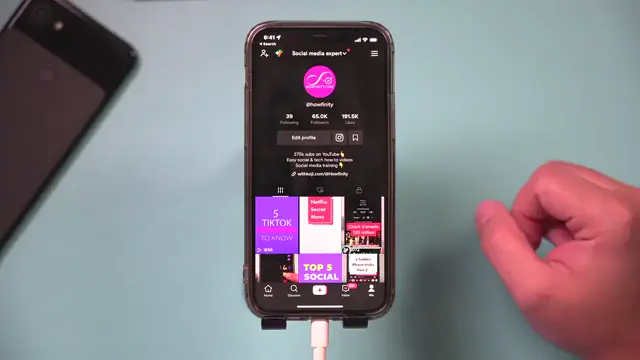
Step 1: Open the TikTok App
Begin by launching the TikTok app on your mobile device. Navigate to your profile page to access the options necessary for going live on TikTok.
Step 2: Check Follower Requirements
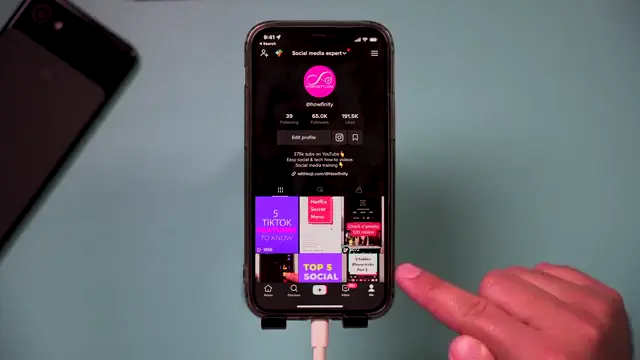
Before you can go live, ensure your TikTok account has at least 1,000 followers. This threshold is mandatory for unlocking the live feature on the platform.
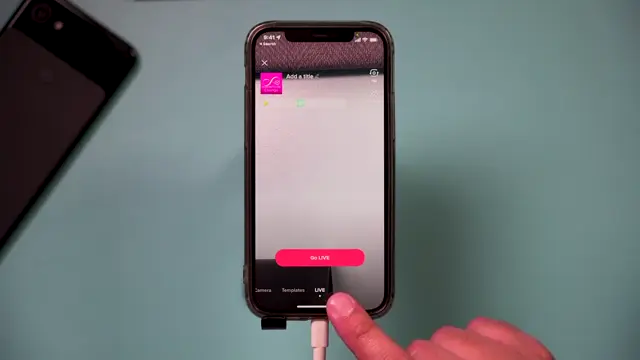
Step 3: Start Your Live Stream Setup
To initiate your live stream, press the plus sign. Choose ‘live’ from the options that appear.
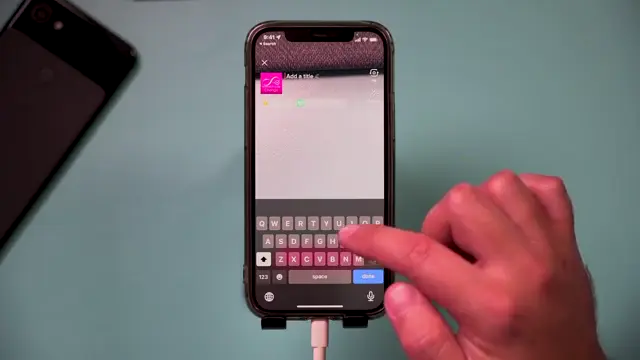
Step 4: Enter a Title for Your Live Stream
Once you select ‘live’, type out a title for your live stream to let viewers know what to expect.
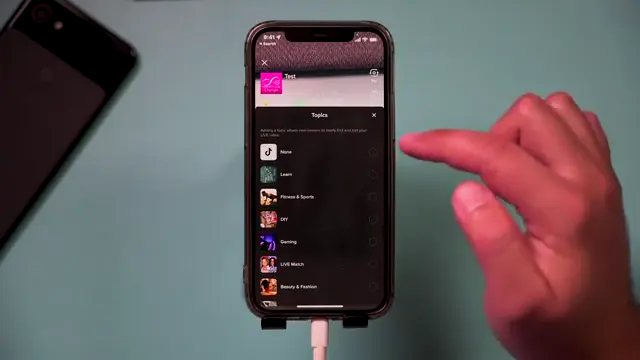
Step 5: Select a Topic (Optional)
If relevant, you can add a topic that fits your live stream. If you don’t want to specify a topic, simply select ‘none’.
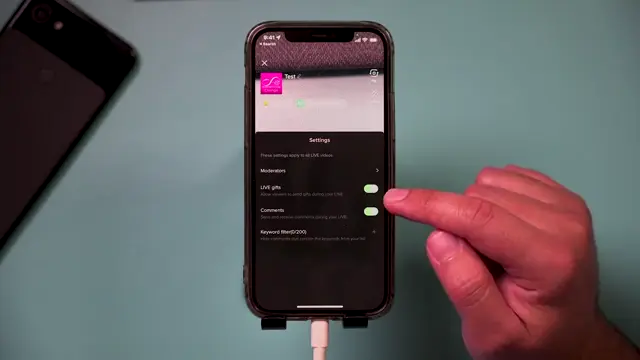
Step 6: Enable Live Gifting Options
If you’re 18 or older, make sure to turn on live gifting options in the settings. This feature allows your viewers to send gifts during your stream.
Step 7: Adjust Comment Settings
Consider turning on comments with some filtering to manage interactions during your live stream.
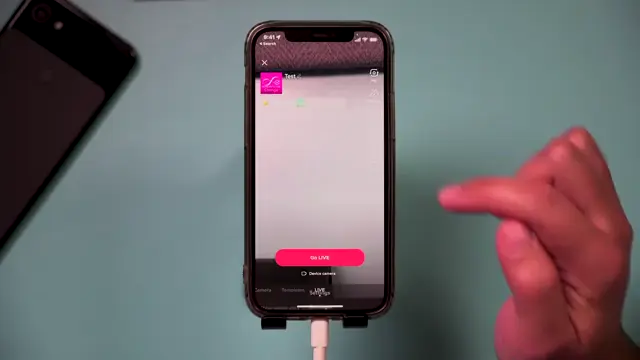
Step 8: Go Live
After setting up your title, topic, and options, simply press ‘go live’ to start broadcasting to your audience.
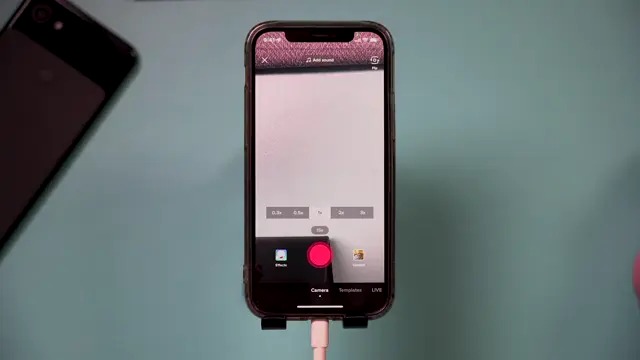
Step 9: Addressing Follower Count Concerns
If you don’t have 1,000 followers, I recommend focusing on growing your audience. Follow strategies from successful creators and consider watching my video on gaining followers quickly.
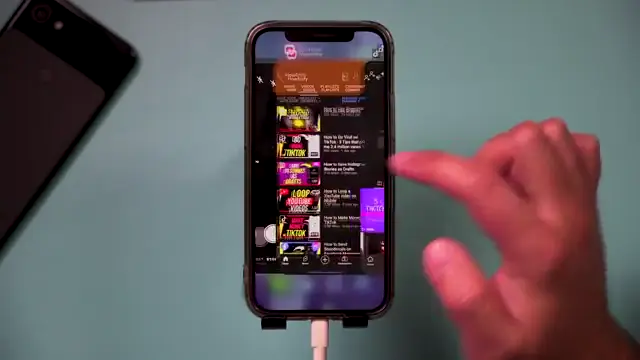
Step 10: Troubleshoot Live Access
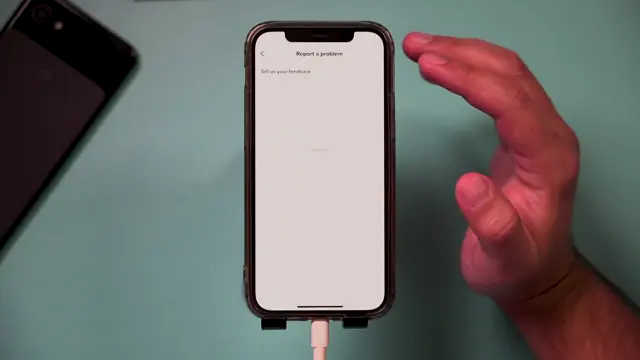
If the live option isn’t visible, consider reporting a problem via the settings menu. Navigate to the three dots and select ‘Report a Problem’ to inform TikTok about your issue with going live.
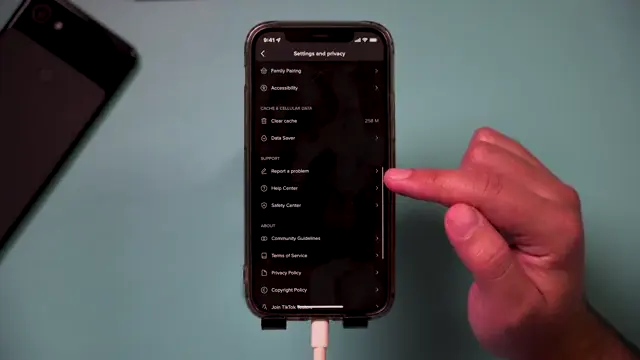
Step 11: Request Live Access
When reporting, select ‘I can start live’ and provide feedback on your inability to start a live video. This might help in certain cases where users still wish to go live without meeting the follower threshold.
Step 12: Provide Feedback to TikTok
You can type in your own feedback explaining your situation, such as ‘I can’t go live, can you help me’, which might help in resolving access issues.
Step 13: Submit Your Request
Finally, press ‘report’ to send your feedback to TikTok regarding the live access issue you are facing.
Frequently Asked Questions
What are the requirements to go live on TikTok?
You need at least 1,000 followers on TikTok to access the live feature.
Can I still go live if I have fewer than 1,000 followers?
Some users report being able to request live access even without 1,000 followers, but this is not guaranteed.
What should I consider when going live on TikTok?
Make sure to follow community guidelines, engage with your audience, and prepare a suitable title and topic for your stream.
How can I gain followers quickly on TikTok?
Focus on creating engaging content and follow strategies from successful TikTok creators to grow your followers.
Watch the Video Tutorial
Conclusion
Now that you know how to go live on TikTok, engage with your followers by sharing exciting content and experiences. Remember to monitor your follower count and adhere to TikTok’s guidelines for a successful live streaming experience.
{“@context”:”https://schema.org”,”@graph”:[{“@type”:”HowTo”,”name”:”Go Live on TikTok Step-by-Step Guide”,”description”:”Learn how to go live on TikTok by meeting follower requirements and using live features effectively.”,”step”:[{“@type”:”HowToStep”,”position”:1,”name”:”Open the TikTok App”,”text”:”Begin by launching the TikTok app on your mobile device. Navigate to your profile page to access the options necessary for going live on TikTok.”},{“@type”:”HowToStep”,”position”:2,”name”:”Check Follower Requirements”,”text”:”Before you can go live, ensure your TikTok account has at least 1,000 followers. This threshold is mandatory for unlocking the live feature on the platform.”},{“@type”:”HowToStep”,”position”:3,”name”:”Start Your Live Stream Setup”,”text”:”To initiate your live stream, press the plus sign. Choose ‘live’ from the options that appear.”},{“@type”:”HowToStep”,”position”:4,”name”:”Enter a Title for Your Live Stream”,”text”:”Once you select ‘live’, type out a title for your live stream to let viewers know what to expect.”},{“@type”:”HowToStep”,”position”:5,”name”:”Select a Topic (Optional)”,”text”:”If relevant, you can add a topic that fits your live stream. If you don’t want to specify a topic, simply select ‘none’.”},{“@type”:”HowToStep”,”position”:6,”name”:”Enable Live Gifting Options”,”text”:”If you’re 18 or older, make sure to turn on live gifting options in the settings. This feature allows your viewers to send gifts during your stream.”},{“@type”:”HowToStep”,”position”:7,”name”:”Adjust Comment Settings”,”text”:”Consider turning on comments with some filtering to manage interactions during your live stream.”},{“@type”:”HowToStep”,”position”:8,”name”:”Go Live”,”text”:”After setting up your title, topic, and options, simply press ‘go live’ to start broadcasting to your audience.”},{“@type”:”HowToStep”,”position”:9,”name”:”Addressing Follower Count Concerns”,”text”:”If you don’t have 1,000 followers, I recommend focusing on growing your audience. Follow strategies from successful creators and consider watching my video on gaining followers quickly.”},{“@type”:”HowToStep”,”position”:10,”name”:”Troubleshoot Live Access”,”text”:”If the live option isn’t visible, consider reporting a problem via the settings menu. Navigate to the three dots and select ‘Report a Problem’ to inform TikTok about your issue with going live.”},{“@type”:”HowToStep”,”position”:11,”name”:”Request Live Access”,”text”:”When reporting, select ‘I can start live’ and provide feedback on your inability to start a live video. This might help in certain cases where users still wish to go live without meeting the follower threshold.”},{“@type”:”HowToStep”,”position”:12,”name”:”Provide Feedback to TikTok”,”text”:”You can type in your own feedback explaining your situation, such as ‘I can’t go live, can you help me’, which might help in resolving access issues.”},{“@type”:”HowToStep”,”position”:13,”name”:”Submit Your Request”,”text”:”Finally, press ‘report’ to send your feedback to TikTok regarding the live access issue you are facing.”}]},{“@type”:”FAQPage”,”mainEntity”:[{“@type”:”Question”,”name”:”What are the requirements to go live on TikTok?”,”acceptedAnswer”:{“@type”:”Answer”,”text”:”You need at least 1,000 followers on TikTok to access the live feature.”}},{“@type”:”Question”,”name”:”Can I still go live if I have fewer than 1,000 followers?”,”acceptedAnswer”:{“@type”:”Answer”,”text”:”Some users report being able to request live access even without 1,000 followers, but this is not guaranteed.”}},{“@type”:”Question”,”name”:”What should I consider when going live on TikTok?”,”acceptedAnswer”:{“@type”:”Answer”,”text”:”Make sure to follow community guidelines, engage with your audience, and prepare a suitable title and topic for your stream.”}},{“@type”:”Question”,”name”:”How can I gain followers quickly on TikTok?”,”acceptedAnswer”:{“@type”:”Answer”,”text”:”Focus on creating engaging content and follow strategies from successful TikTok creators to grow your followers.”}}]}]}



Leave a comment