
Key Takeaways:
- Understand how to navigate Android settings.
- Learn to set data warnings for mobile usage.
- Prevent unexpected charges by setting data limits.
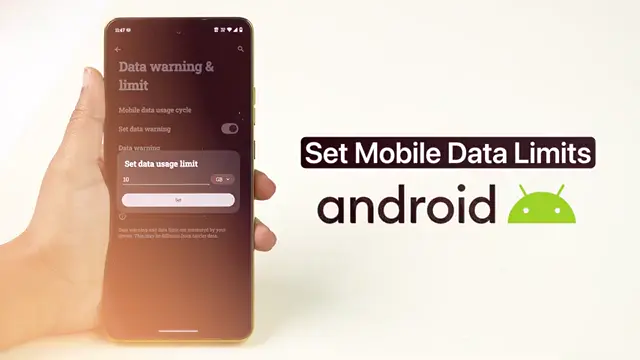
Are you tired of unexpected mobile data charges? In this guide, we will show you how to set mobile data limits on your Android phone to help you keep your data usage in check. Follow the steps below to easily manage your mobile data usage and avoid going over your data limit.
Step 1: Open Settings
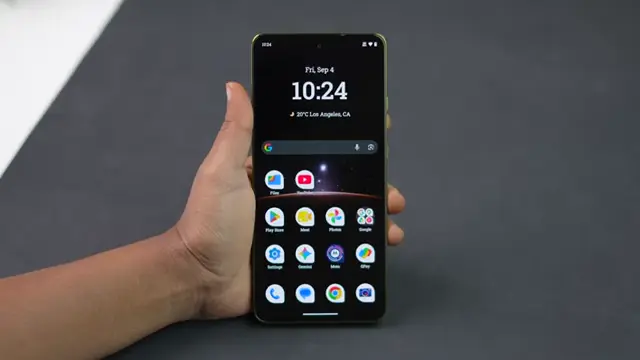
Begin by unlocking your Android device and tapping on the Settings app. This is where you will find all the options to manage your device’s features, including mobile data settings.
Step 2: Navigate to Network and Internet
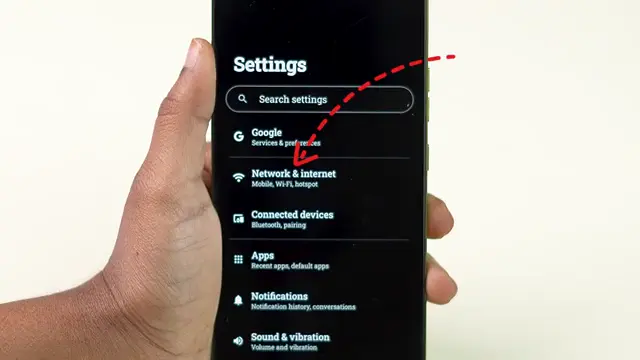
In the Settings menu, scroll down and select Network & Internet. Make sure that Mobile Data is turned on to access the data limit settings.
Step 3: Access Data Warning and Limit
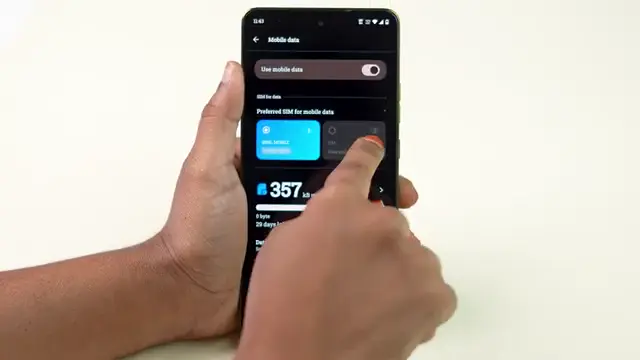
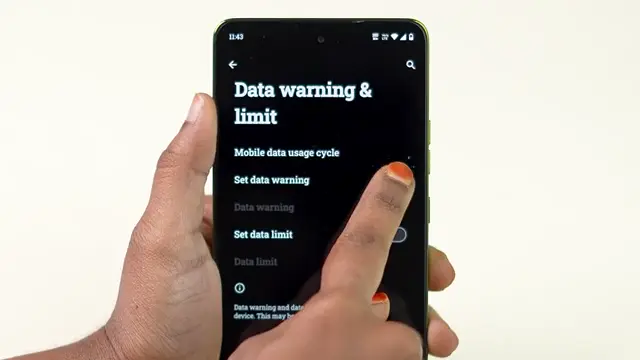
Scroll down until you see the Data warning & limit option. Tap on it to enter the settings where you can set your mobile data parameters.
Step 4: Set Your Data Billing Cycle
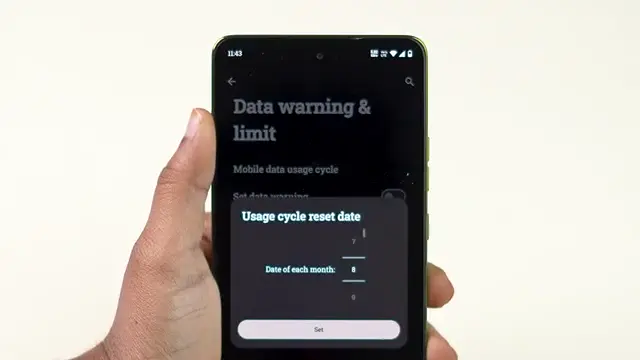
Specify the start date of your mobile data billing cycle. This helps the device calculate your data usage accurately within each period. After setting the date, make sure to tap on Set to confirm your selection.
Step 5: Configure Data Warning and Limit
Turn on the toggle for Data warning option first, and then tap on it to specify the amount of data (like 2 GB or 3 GB) that will trigger a warning message when you reach that usage level. Lastly, enable the Set data limit toggle and specify the total data limit, for example, 10 GB. Your phone will stop using mobile data after you reach this limit, preventing any unexpected charges.
Frequently Asked Questions
What happens if I reach my data limit?
Once you reach your set mobile data limit, your device will automatically stop using mobile data to prevent overage charges.
Can I adjust my data limit later?
Yes, you can always go back into the settings and adjust your data limit or warning thresholds as needed.
Will I receive a warning before reaching my data limit?
Yes, if you have set a data warning, your device will notify you when you approach the specified data usage.
How do I check my current data usage on Android?
You can check your current mobile data usage under the Data usage section in the Network & Internet settings.
Watch the Video Tutorial
Conclusion
Setting mobile data limits on your Android device is essential for managing your data usage effectively. By following these easy steps, you can gain better control over your mobile data and avoid unforeseen charges.









Leave a comment