
Key Takeaways:
- Learn how to adjust Safari settings to turn off suggestions.
- Understand how to clear existing Safari history and website data.
- Customize your Safari start page for a cleaner browsing experience.
Struggling with unwanted website suggestions in Safari? Follow this guide to turn off Safari suggestions on your iPhone and enjoy a cleaner browsing experience.
Step 1: Open the Settings App
To start off, find the Settings app on your iPhone. Tap on it to access various settings including Safari. This is where you can manage how suggestions appear while you use Safari.

Step 2: Navigate to Safari Settings
In the Settings app, utilize the search bar at the top. Type ‘Safari’ and select it from the options that appear. This will lead you to the settings specific to the Safari browser.

Step 3: Turn Off Suggestions
Under the Safari settings, you’ll see options for turning off suggestions. First, turn off both search engine suggestions and Safari suggestions to prevent unwanted suggestions from appearing while browsing.
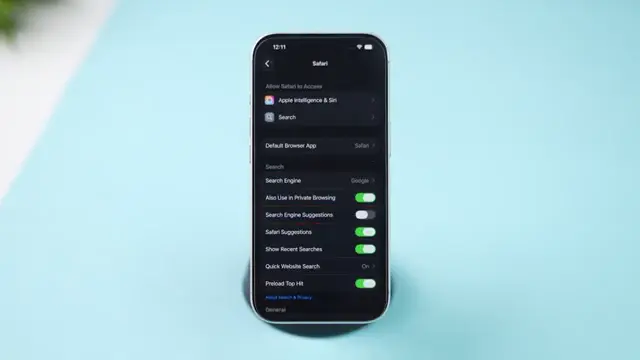
Step 4: Clear History and Website Data
To remove existing suggestions, scroll down and tap on ‘Clear History and Website Data’. Select the desired time range and confirm by tapping ‘Clear History’. This removes Safari’s data contributing to previous suggestions you’ve seen.
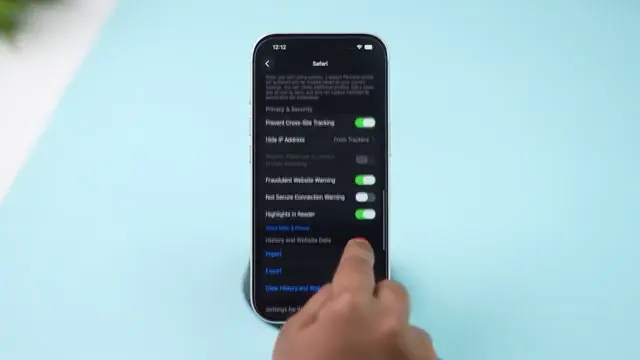
Step 5: Edit Safari Start Page
Open the Safari app and navigate to your start page. Tap on ‘Edit’ and find the suggestions option. Turn it off along with other sections you don’t want to see on your start page for a more personalized experience.
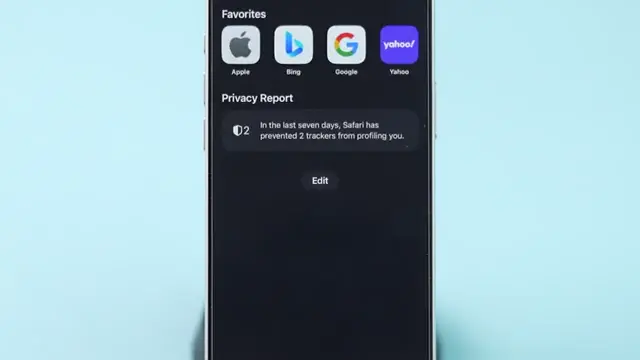
Frequently Asked Questions
How do I stop Safari from suggesting websites?
Open the Settings app, navigate to Safari, and turn off both search engine and Safari suggestions.
What happens when I clear Safari history?
Clearing Safari history removes all browsing data, which can help stop unwanted suggestions appearing based on your past activity.
Can I customize my Safari start page?
Yes, you can edit your start page settings to turn off suggestions and other elements you don’t want to appear.
Will turning off suggestions improve my browsing experience?
Yes, disabling suggestions can declutter your browsing experience and reduce distractions from unwanted website recommendations.
Watch the Video Tutorial
Conclusion
By following these straightforward steps, you can effectively turn off Safari suggestions and enjoy a more tailored and distraction-free browsing experience.









Leave a comment