
Key Takeaways:
- Learn how to open and edit videos in the Photos app.
- Understand how to use the play button to preview and adjust video length.
- Master the trimming process with the left and right arrows.
Trimming videos on your iPhone is a straightforward process that can enhance your video content significantly. In just a few steps, you can cut out unwanted parts and keep your best moments using the Photos app.
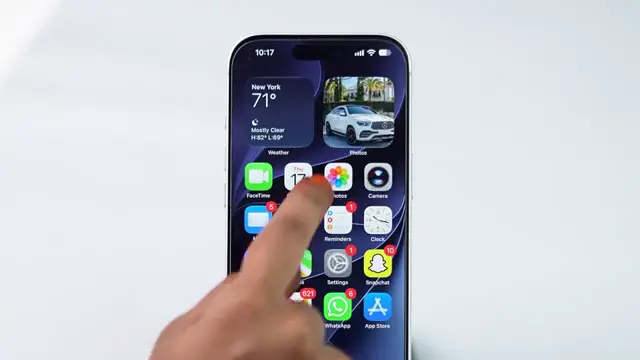
Step 1: Open the Photos App and Select Your Video
Start by launching the Photos app on your iPhone. Once inside, locate and open the video you wish to trim. This is the first step in managing your video content effectively. Tap on the video thumbnail to view it.
Step 2: Access the Edit Menu
Next, on the video screen, look for the edit icon next to the trash icon. Tap on it to access the editing tools available for your video, preparing you for the trimming process.
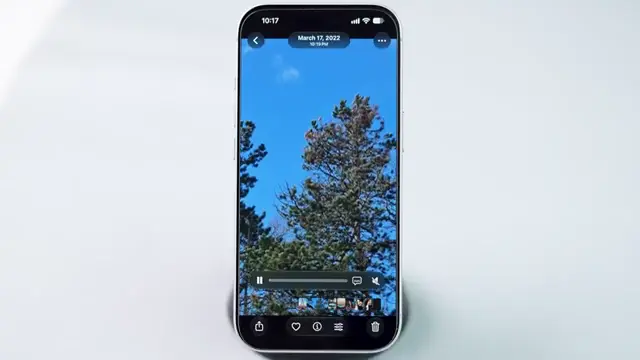
Step 3: Preview the Video
After entering edit mode, tap on the play button to preview the video. This is crucial, as it allows you to visualize where you want to make your cuts and adjustments effectively.
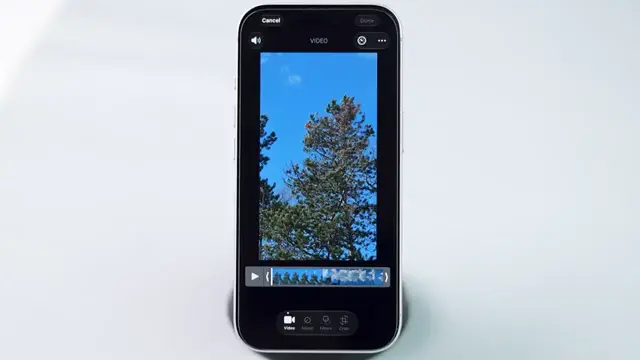
Step 4: Trim the Beginning of the Video
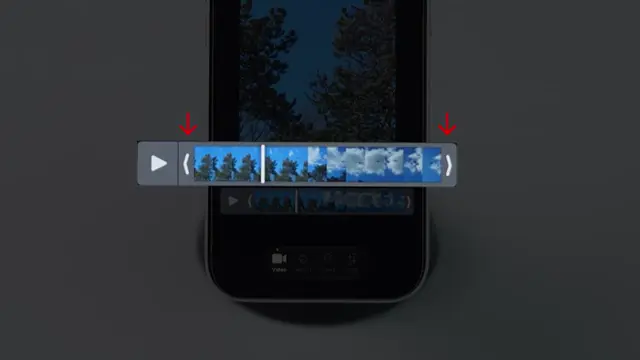
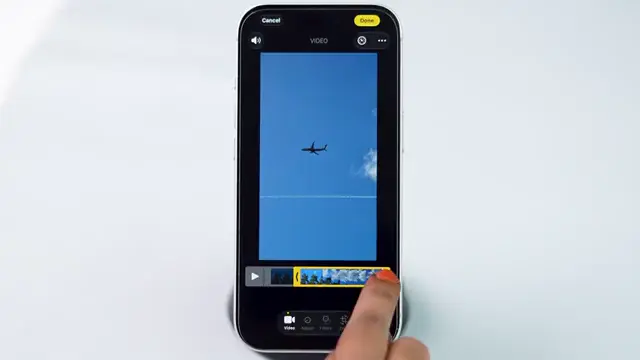
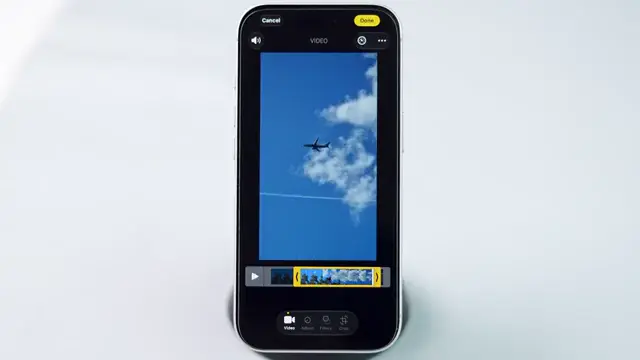
To trim the beginning of your video, adjust the left arrow on the timeline. Scrubbing back and forth will help you find the perfect starting point for your video trim.
Step 5: Trim the End of the Video
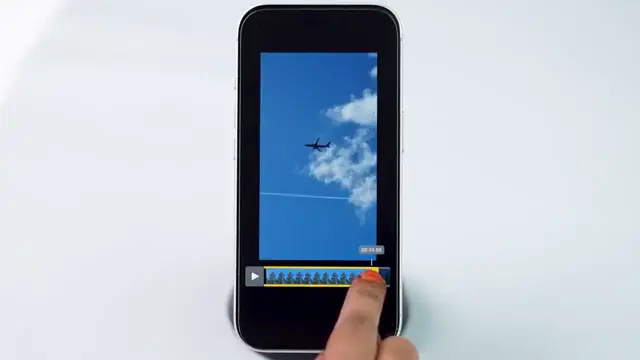
Similarly, to trim the end of the video, adjust the right arrow. This adjustment allows you to cut out unwanted footage at the end, ensuring your video is just right before reviewing it again.
Step 6: Final Preview and Save
Once you have made your trims, tap on the play button again to preview the edited video. Ensure that you are satisfied with the changes before saving it as a new clip.
Step 7: Save Your Trimmed Video
Finally, when you’re happy with the result, tap the done button located at the top right of the screen. From the options available, select ‘save as new clip’ to preserve your original video as well.
Frequently Asked Questions
How do I access the video editing features on my iPhone?
Open the Photos app, select the video you want to edit, then tap the edit icon to access video editing features.
Can I undo a trim on my iPhone?
Yes, if you choose ‘save as a new clip’, your original video will remain intact, allowing you to keep the untrimmed version.
What if I want to trim a video longer than 1 minute?
The trimming process is the same regardless of the video’s duration; just use the arrows to adjust your trim to any length.
Can I share the trimmed video directly from the Photos app?
Yes, once saved, you can easily share the trimmed video directly from the Photos app using the share options.
Conclusion
Trimming videos on your iPhone is an easy way to edit and enhance your video content. With a few simple steps, you can make your videos more engaging by cutting out unnecessary parts. Now you’re ready to showcase your trimmed videos!









Leave a comment