
Are you frustrated because your apps won’t open on your Android device? Don’t worry! We’ve compiled an easy step-by-step guide to help you troubleshoot and fix this common issue. Let’s get those apps up and running again!
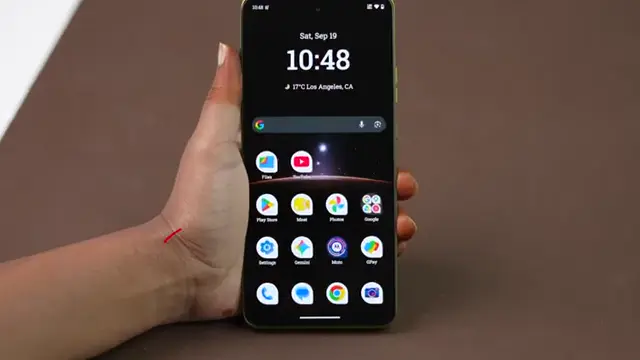
Step 1: Open the Settings App
Start by unlocking your Android phone and finding the Settings app. Tap to open it.
Step 2: Access the Apps Menu
Scroll down in the Settings menu and tap on ‘Apps’ to view the list of installed applications on your device.
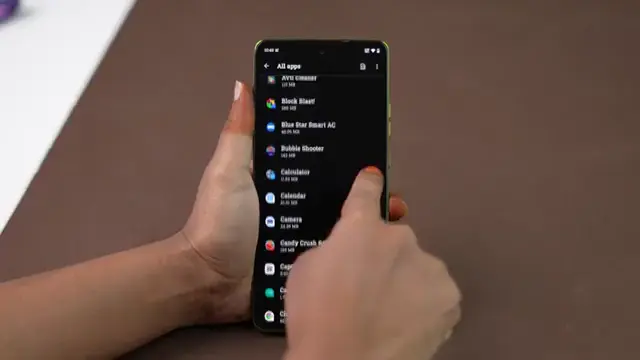
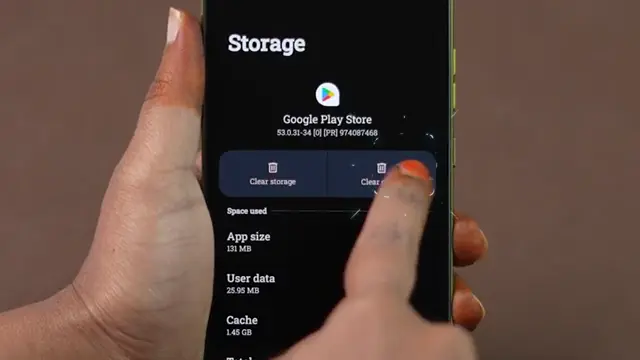
Step 3: Locate Google Play Store
Scroll through the list of apps until you find ‘Google Play Store.’ Tap on it to access storage settings.
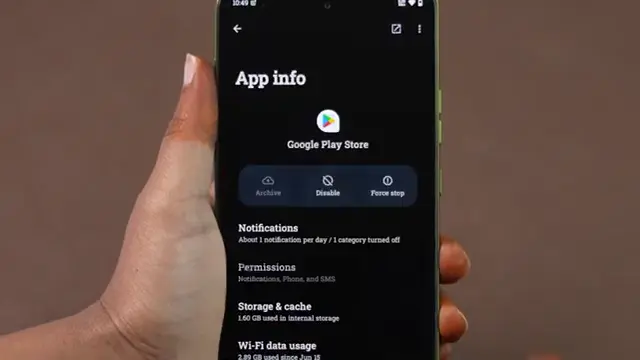
Step 4: Clear Google Play Store Cache
Select ‘Storage and cache’ and tap on ‘Clear cache’ to remove temporary files.
Step 5: Clear Google Play Store Storage
Next, tap on ‘Clear storage’ to reset the Play Store settings, then confirm the action.
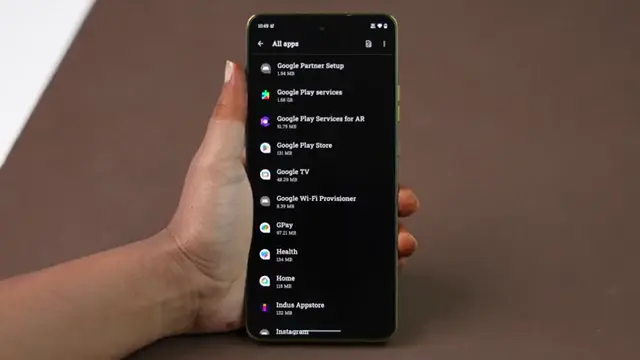
Step 6: Clear Google Play Services Cache
Return to the Apps menu and locate ‘Google Play Services.’ Tap on it and repeat the cache clearing process.
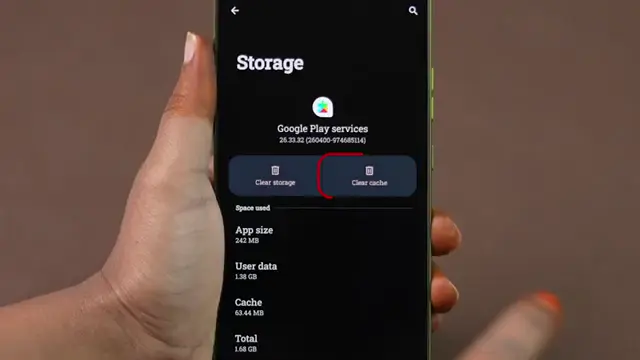
Step 7: Clear Google Play Services Storage
Select ‘Storage and cache’ again for Google Play Services, and this time clear the storage as well. Confirm the action.
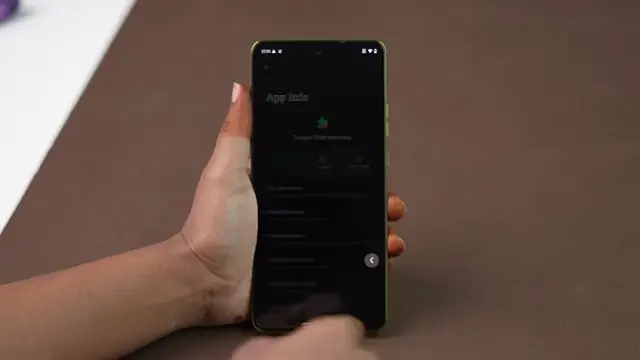
Step 8: Clear Cache for the Problematic App
Find the specific app that is not opening and tap on it. Access ‘Storage and cache’ to clear its cache.
Step 9: Restart Your Android Phone
Press and hold the side button on your device. Tap ‘Restart’ and wait for your phone to reboot.
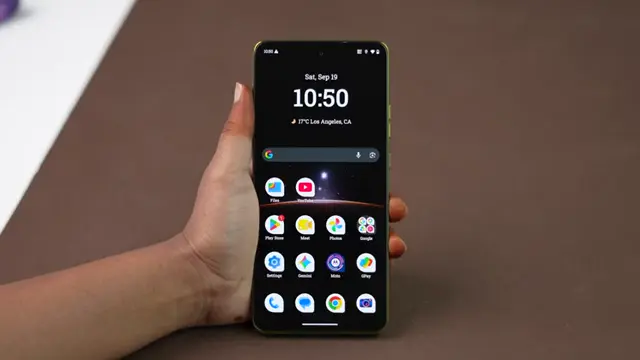
Step 10: Check the App Functionality
Once your phone has rebooted, try opening the app that was previously not working. It should now open normally.
Conclusion
By following these steps, you should be able to fix the issue of apps not opening on your Android device. If the problem persists, consider checking for software updates or seeking technical support.





Leave a comment