
Key Takeaways:
- Learn how to access privacy settings on Android
- Turn off data sharing and tracking features
- Reset advertising ID for better control
Your Android phone may be tracking your every move and listening to your conversations without your explicit consent. It’s important to manage these settings to protect your privacy. In this guide, we will walk you through the simple steps to turn off these features. By following our instructions, you can regain control over what information is shared with Google and other apps, ensuring your personal data remains private and secure.
Step 1: Access the Settings Menu
Swipe up from the home screen to open the app drawer. From here, simply tap on the ‘Settings’ icon to access all your phone settings and privacy options.

Step 2: Locate Google Settings
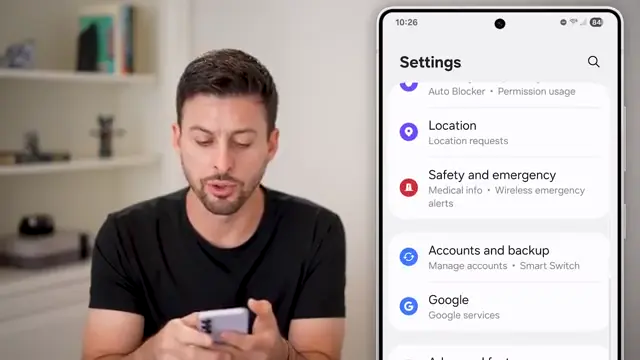
Scroll down in the Settings menu until you find ‘Google’ located just under ‘Accounts’ and ‘Backup’. Tap on it to enter Google settings where you can manage your data and privacy options.
Step 3: Select All Services
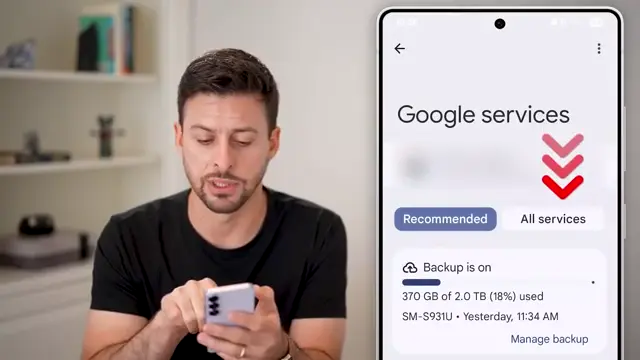
In the Google settings menu, look for ‘All Services’. This section encompasses all Google services that may access your data. Tap on this option to proceed with reviewing your data management preferences.
Step 4: Turn Off Data Sharing
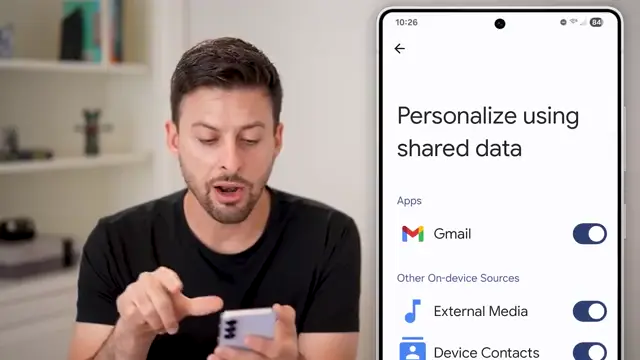
In the section for ‘Personalize using shared data’, toggle off the option to prevent Google apps from sharing your data like location history, messages, and searches. This step is crucial for maintaining your privacy.
Step 5: Disable Usage Diagnostics
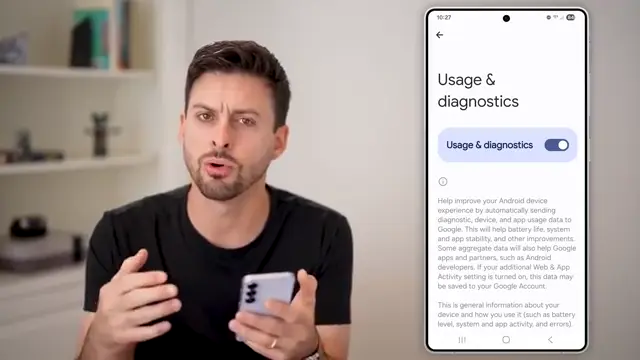
Next, tap on ‘Usage and Diagnostics’ and toggle it off. This prevents usage statistics from being sent to Google, helping you keep your phone usage private.
Step 6: Manage Advertising ID
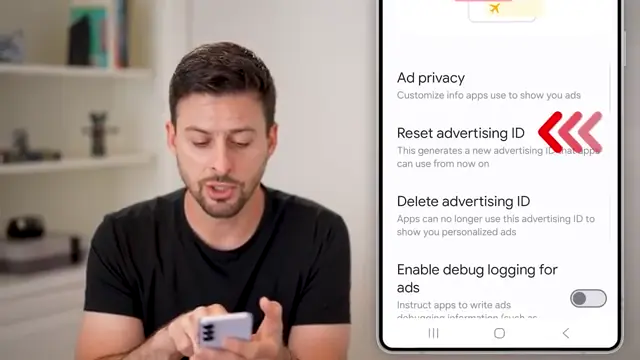
In the ads section, select ‘Reset Advertising ID’ and confirm. This action allows you to reset and manage the tracking information used for ad personalization on your device.
Step 7: Access More Privacy Settings
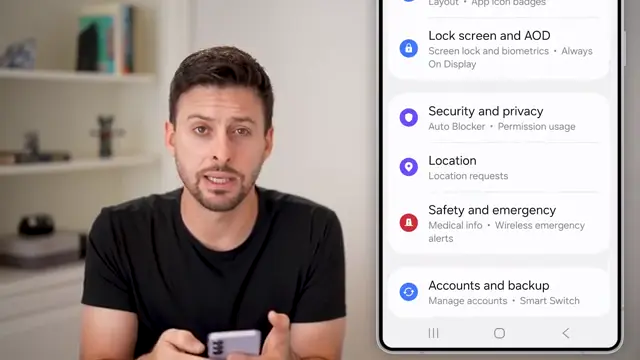
Navigate back to the main settings menu and select ‘Security and Privacy’. Scroll down to the ‘More Privacy Settings’ section for further options that influence app data sharing.
Step 8: Turn Off Personal Data Intelligence
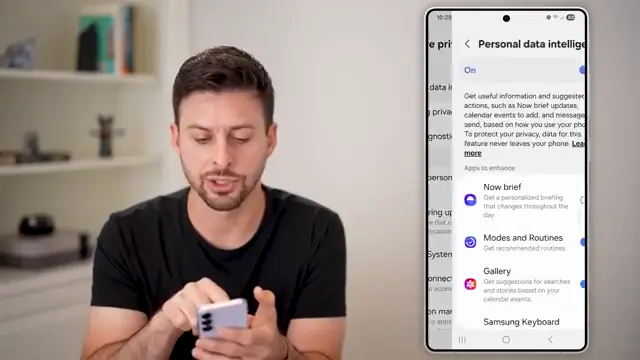
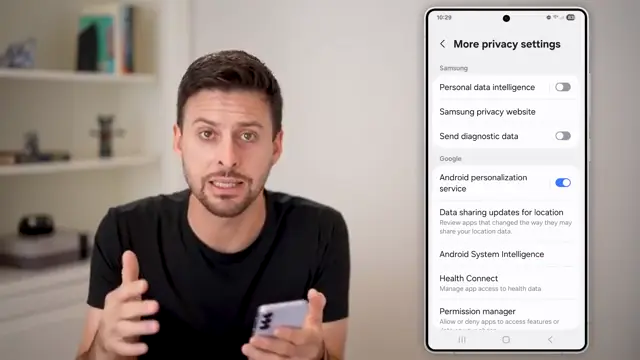
In the ‘More Privacy Settings’, find ‘Personal Data Intelligence’. Toggle this off to prevent apps and Android from accessing your personal data for content recommendations.
Step 9: Disable Sending Diagnostic Data
Look for the ‘Send Diagnostic Data’ option and uncheck it. This ensures that Samsung or Google do not collect information about your device usage.
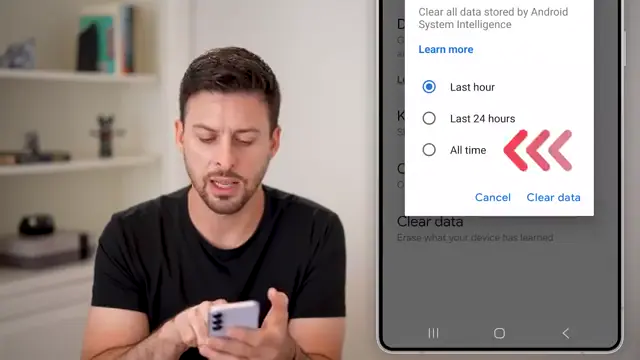
Step 10: Clear Device Learning Data
Navigate to ‘Android System Intelligence’ and tap on it. Then, select ‘Clear Data’ at the very bottom and confirm to remove any stored learning data associated with your device.
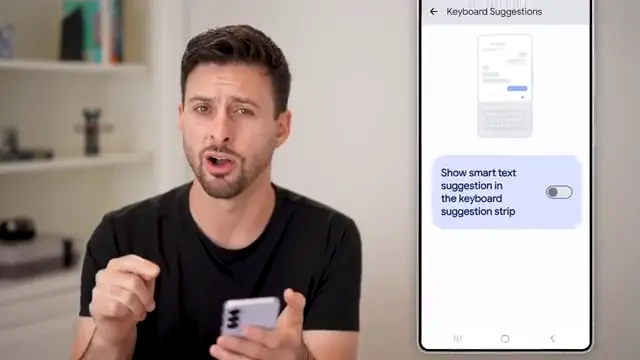
Step 11: Disable Smart Text Suggestions
Ensure that ‘Show Smart Text Suggestions’ is turned off in your keyboard settings. This prevents the keyboard from accessing and sharing your message content for improving suggestions.
Frequently Asked Questions
How can I stop my Android phone from listening to me?
You can disable features in the Google settings related to voice recognition and data sharing to prevent the phone from listening to conversations.
What does resetting the advertising ID do?
Resetting the advertising ID allows your phone to forget the gathered data associated with your device and prevents personalized ads based on your previous activity.
Are there any drawbacks to turning off tracking and listening features?
While privacy is enhanced, you may receive less personalized content and ads, which some users may find less relevant to their interests.
Can I completely stop Google from tracking my activities?
Yes, you can adjust multiple settings in your Google account on your Android phone to significantly limit tracking.
Watch the Video Tutorial
Conclusion
By following these steps, you can effectively turn off tracking and listening features on your Android phone. Taking control of your privacy is essential in today’s digital landscape.




Leave a comment