
· By KAI
Key Takeaways:
- Understand how to navigate Spotify’s interface.
- Learn how to create and manage playlists.
- Discover artist and song search functionalities.
Spotify is a powerful music streaming service offering access to millions of songs across various platforms. This beginner’s guide will walk you through the essential features of Spotify, including how to create playlists, search for songs, and customize your listening experience. Whether you are using the mobile app or the desktop version, these steps will help you get started and maximize your Spotify experience.
Step 1: Create a Spotify Account
To start using Spotify, download the app on your mobile device or visit spotify.com. Sign up for a free account with your email, date of birth, and username. This will enable you to explore millions of songs and playlists available.

Step 2: Sign Up with Your Email
Once you have the app downloaded, type in your email address and confirm your account. You will also need to provide your date of birth and select a username that will appear on your Spotify profile.

Step 3: Complete Your Account Setup
After entering your details, press ‘Create’ to finish setting up your account. This will allow you to start exploring Spotify’s music library and features.

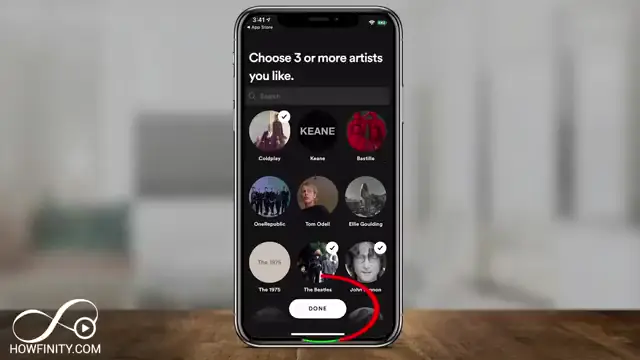
Step 4: Select Your Favorite Artists
Once registered, Spotify will prompt you to select three artists that you like. Choose your favorites to help Spotify tailor music recommendations for you. You can always refine your choices later based on your listening habits.

Step 5: Search for Artists or Songs
To find specific music, use the search bar at the top of the app. You can type in the name of artists, songs, or albums. Select what you want to listen to from the search results.

Step 6: Select a Song to Play
After searching for an artist or song, select the result to view more details. You can play the song directly from the artist or song page.

Step 7: Finalize Artist Selection
After you’ve made your choices, press ‘Done’ to finalize your selection of favorite artists. This helps Spotify understand your music preferences.
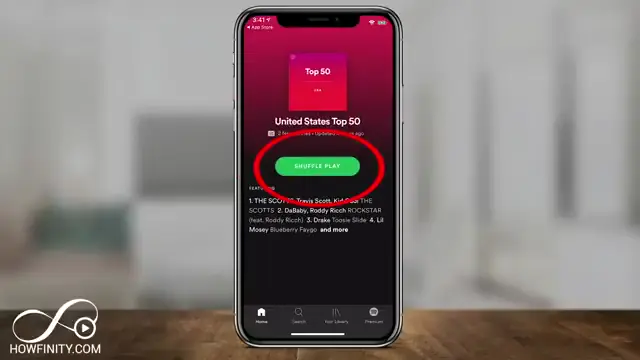
Step 8: Listen to Playlists
Explore playlists on the homepage. When you find a playlist you’d like to hear, click ‘Shuffle Play’ to listen to the songs in a random order.
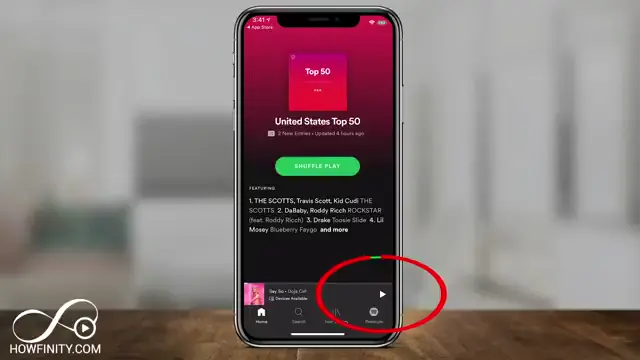
Step 9: Pause Playback
If you want to stop the music temporarily, simply press ‘Pause’. This allows you to take a break before continuing your listening session.
Step 10: Minimize the Music Player
To minimize the music player while browsing, press the down arrow. This gives you more space to explore other features in the app.

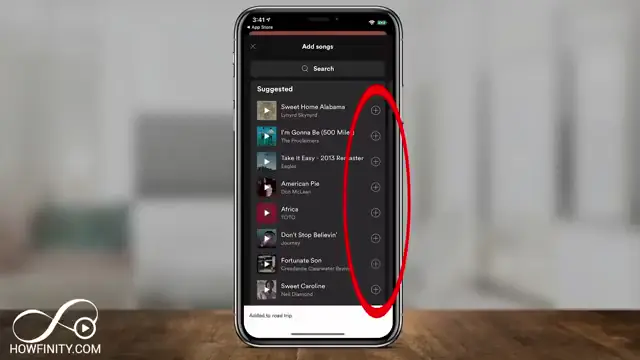
Step 11: Add Songs to Your Playlist
When creating a new playlist or adding to an existing one, go through the song list and press the plus sign next to the songs you want to add.
Step 12: Exit the Playlist Creation Screen
After adding songs to your playlist, press ‘X’ to exit the current screen and return to your library of playlists.
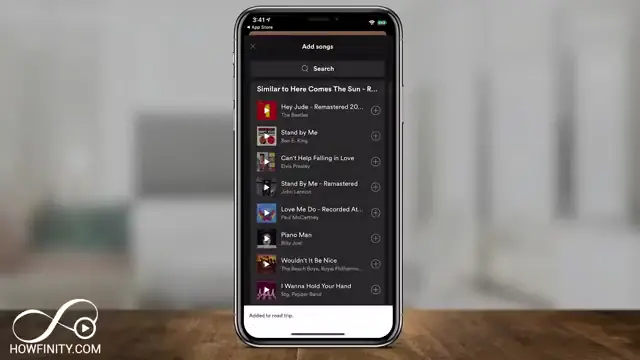
Step 13: Start Your Playlist
Once your playlist is ready, press ‘Play’ to start listening. The songs will play in a shuffle format unless you select a specific order.
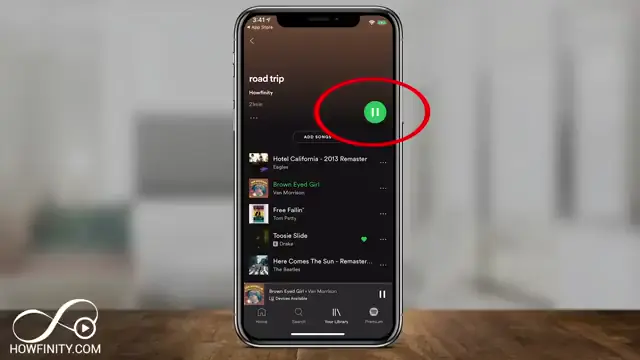
Step 14: View Song Options
To see more details about the currently playing song, click on it. This will show you options like sharing, adding to playlists, or viewing the album.
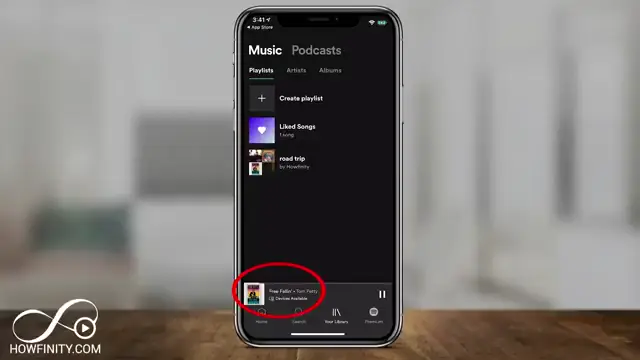
Step 15: Explore Song Details
Pause the song to explore various options available on the song page, including favorite, queue, and playlist features.
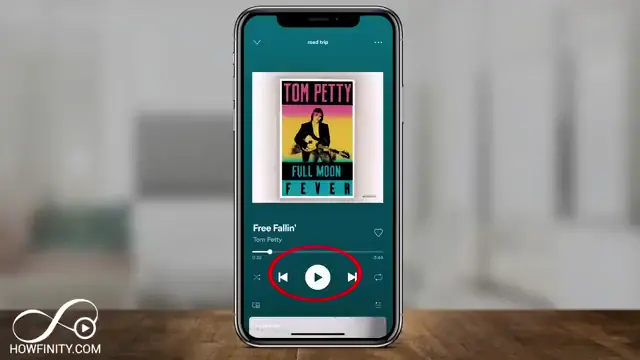
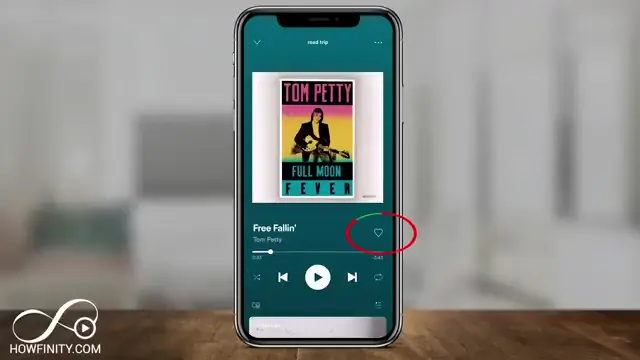
Step 16: Favorite a Song
If you really like a song, press the heart icon to add it to your favorites. This will make it easier to find your favorite tracks later.
Step 17: Add Song to Playlist or Queue
Use the three dots menu on the song page to add the song to a playlist or the queue for upcoming playback.

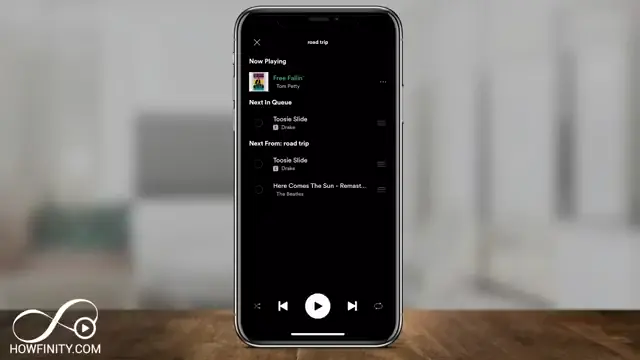
Step 18: View the Queue
If you’ve added songs to your queue, press ‘Go to Q’ to see the list of songs that will play next.

Step 19: Close the Options Menu
Once you’ve finished selecting options for your song, press ‘X’ on the three dots menu to close it and return to the song screen.
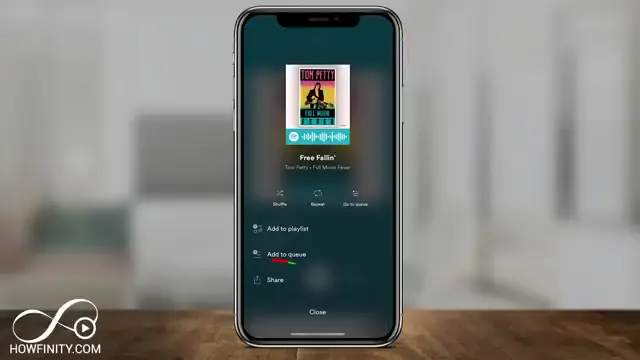
Step 20: Share a Song
To share a song with friends or on social media, press the ‘Share’ option and choose how you would like to share it.
How to Create a Playlist on Spotify?
To create a playlist on Spotify, simply click “New Playlist” in the app, where you can name it and start adding songs.
Creating playlists is straightforward whether you are using the mobile app or desktop version. In the mobile app, tap “Your Library,” then select “Playlists” and hit “Create Playlist.” On desktop, click “New Playlist” found on the left sidebar. You will have the option to name your playlist, customize its description, and even upload a cover image. Here is how you can do it:
- Choose a name for your playlist
- Add songs by either using the search feature or selecting from your liked songs
- Hit “Save” to create and finalize your playlist
This feature is perfect for organizing your music for different moods, events, or activities, making it easier to find what you love!
How to Use Spotify on Mobile vs Desktop?
Spotify functions similarly on mobile and desktop, allowing users to stream music and manage playlists seamlessly across both platforms.
While Spotify offers a consistent experience, some differences exist between the mobile app and the desktop application. For instance, the interface is optimized for mobile with vertical scrolling, while the desktop version allows for horizontal views and more extensive playlist management. Here’s a quick comparison:
| Feature | Mobile | Desktop |
|---|---|---|
| Navigation | Vertical scroll | Horizontal layout |
| Playlist Creation | Tap “Your Library” | Click “New Playlist” |
| Song Sharing | Share via social media | Direct link sharing |
Both platforms offer the same underlying features so you can enjoy a cohesive experience whether you are on your phone or computer.
How to Share Music on Spotify?
You can share music on Spotify easily by clicking the “Share” option associated with any song, playlist, or artist.
When you want to share a track, simply click on the song or playlist, and look for the “Share” option. This will show you various sharing options, including social media platforms like Facebook, Twitter, or your messaging apps. Here’s how to do it:
- Click the three dots next to the song or playlist.
- Select “Share.”
- Choose your preferred platform or copy the link.
This feature makes it simple to recommend tracks to friends or even promote your playlists on social media, enhancing your music-sharing experience.
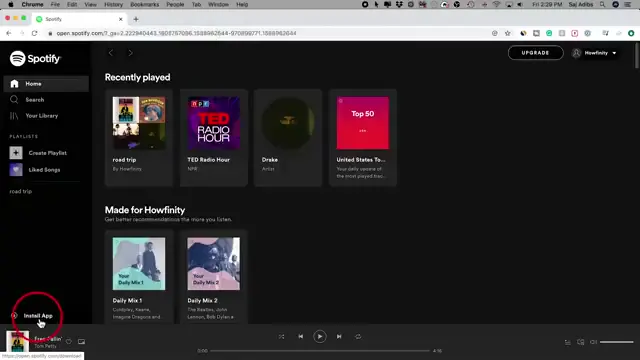
Step 21: Install Spotify on Desktop
For desktop users, visit spotify.com to download and install the app specifically designed for Mac or PC, providing you access to the same features available in the mobile app.
Step 22: Play a Song on Desktop
Once you’ve installed the desktop app, navigate to your favorite song and press ‘Play’ to enjoy your music just like you would on the mobile version.

Step 23: Like a Song on Desktop
To like a song on the desktop, click the heart icon. This function works similarly to the mobile app, saving your preferred tracks.
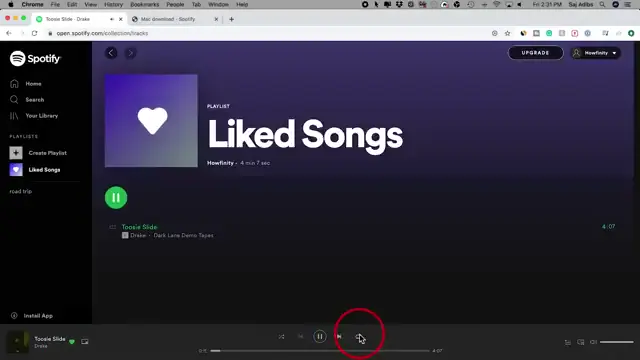
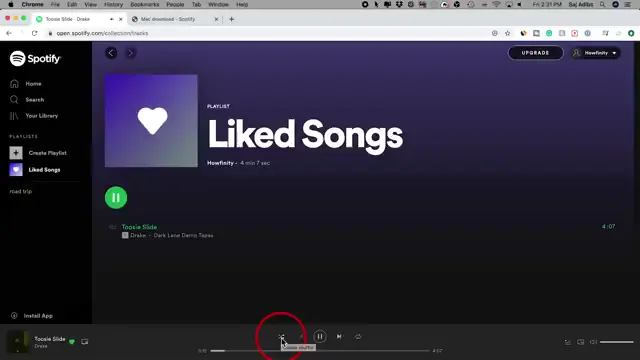
Step 24: Enable Shuffle on Desktop
When listening to music on the desktop version, you can toggle the ‘Shuffle’ option on and off, allowing for varied playback of your playlists.
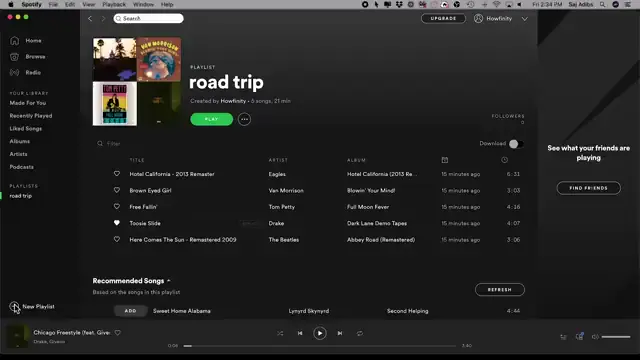
Step 25: Create New Playlist on Desktop
On the left side of the desktop app, you can create new playlists by clicking ‘New Playlist’. Start building your music collection from this area.
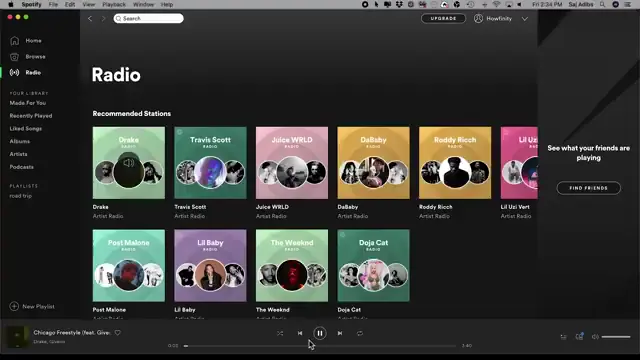
Step 26: Play a Radio Station
If you want to listen to a playlist like a radio station, select it and press ‘Play’. The app will play songs similar to the selected playlist.
Frequently Asked Questions
Can I use Spotify for free?
Yes, Spotify offers a free version with ads, but with limited features compared to the premium version.
How do I download music to listen offline?
You need a premium account to download songs for offline listening.
Can I create multiple playlists on Spotify?
Yes, you can create as many playlists as you like and organize your favorite songs.
Is Spotify available on all devices?
Yes, you can use Spotify on desktop, mobile, and web browsers at spotify.com.
Watch the Video Tutorial
Conclusion
Spotify is a versatile platform that allows you to enjoy music and podcasts anytime and anywhere. By following these steps, you’ll be able to set up your account, explore content, and create personalized playlists tailored to your preferences.





Leave a comment