
Key Takeaways:
- Understand the requirements for streaming on TikTok.
- Learn how to install and set up PlayStation Remote Play.
- Follow steps to start streaming your PS5 games live on TikTok.
In this guide, we will walk you through the steps to stream your PS5 on TikTok. If you’re eager to share your gameplay with followers, you’ll need to have a few things in place. Primarily, ensure you have the PlayStation Remote Play app installed on your mobile device. This guide will detail everything from app installation to going live on TikTok!
Step 1: Gather Your Required Devices
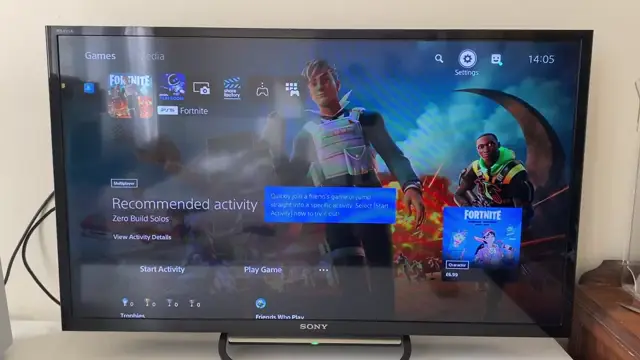
To stream your PS5 on TikTok, you’ll need a mobile device or tablet, such as an Android or iOS device. Make sure your device meets TikTok’s streaming requirements by having enough followers to go live.
Step 2: Download the Remote Play App
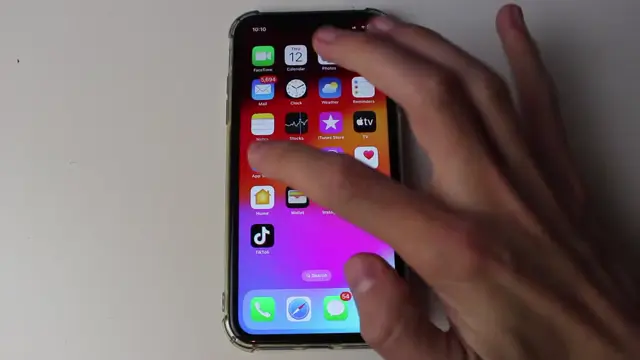
Open your device’s app store and search for ‘PS Remote Play.’ Install the app, which allows you to access your PlayStation screen on your phone, enabling you to stream on TikTok.
Step 3: Sign In to PlayStation Network
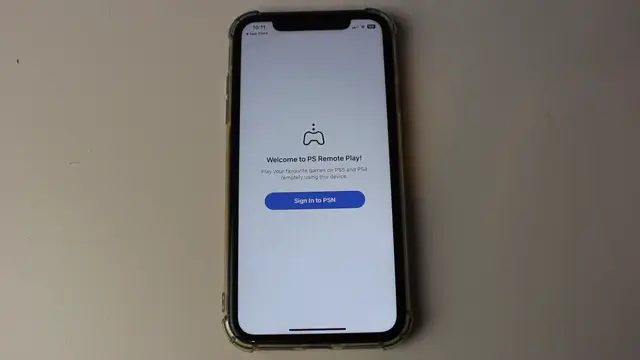
After downloading, open the app and sign in using your PlayStation Network (PSN) account. Ensure this is the same account linked to your PS5 to establish a successful connection.
Step 4: Configure PS5 Remote Play Settings
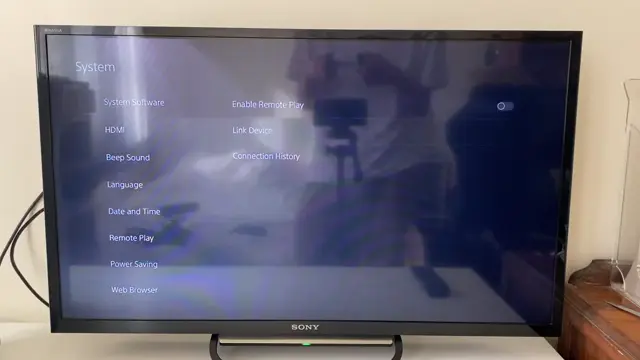
On your PS5, navigate to Settings > System > Remote Play. Toggle Remote Play to ‘On’. If you encounter issues, check Console Sharing settings under Users and Accounts and enable them.
Step 5: Search for PS Remote Play App
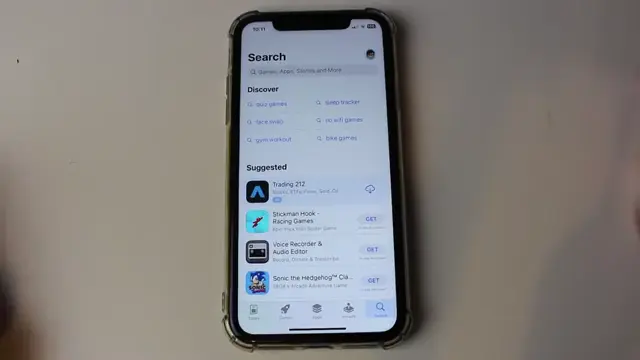
Tap on search in the app store and type in PS Remote Play. You should easily find the app once you search for it.
Step 6: Open the Remote Play App
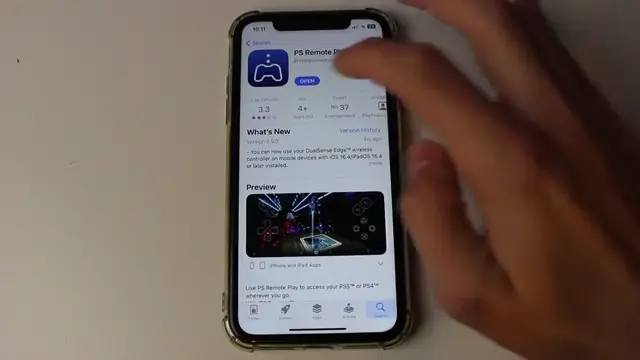
After installation, click on ‘Open’ to launch the PS Remote Play app on your device.
Step 7: Sign Into Your PSN Account
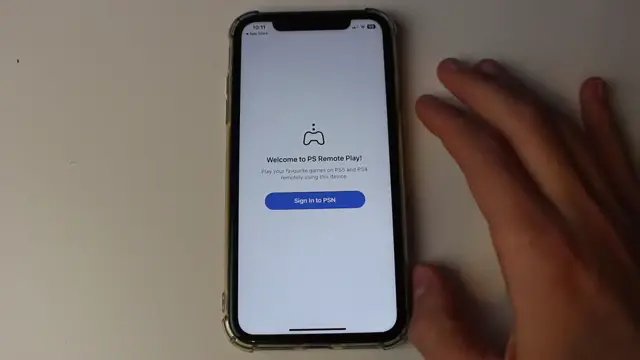
In the app, click on ‘Sign In to PSN’ and enter the credentials for the same PSN account linked to your PS5.
Step 8: Use Same PSN Account for Connection
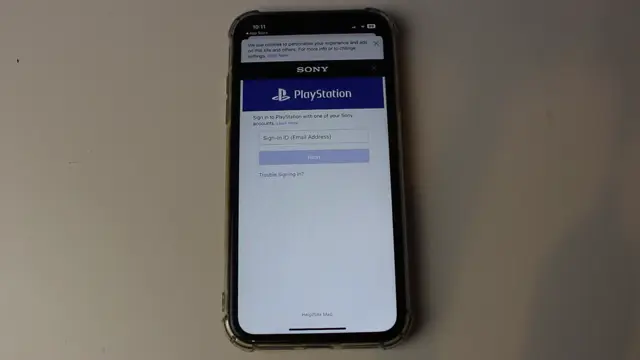
Make sure to sign in using the exact PSN account that you use on your PS5 for a seamless connection.
Step 9: Connect Your Controller to Your Mobile Device
Connect your PlayStation controller to your mobile phone so that you can use it while streaming your games on TikTok.
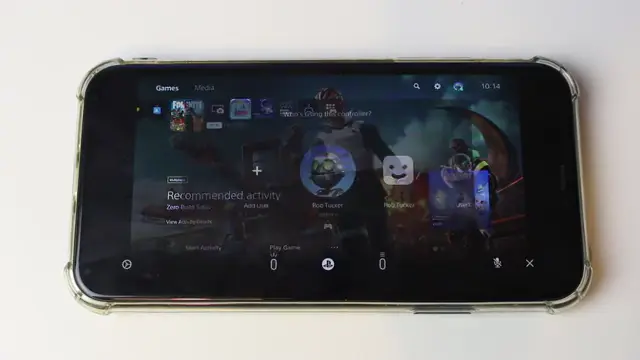
Step 10: Connect Your Controller to Your PS5
Alternatively, you can connect the controller directly to your PS5 console instead of your phone for gameplay control.
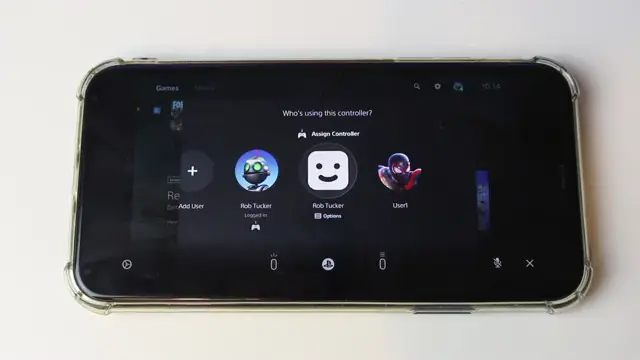
Step 11: Confirm Controller Connection
After selecting the console on the app, tap ‘Okay’ to confirm the connection to your PS5.
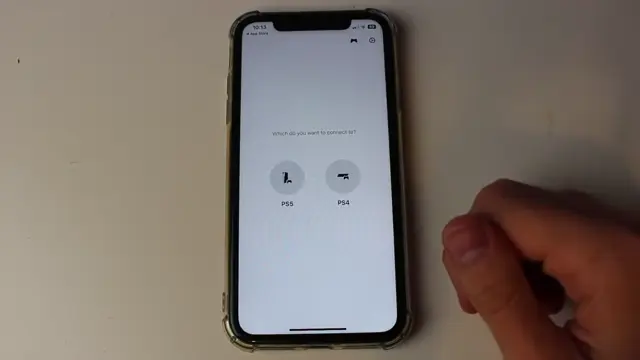
Step 12: Select Your PS5 for Connection
When asked what console to connect to, click on ‘PS5’ to establish a link between your device and the console.
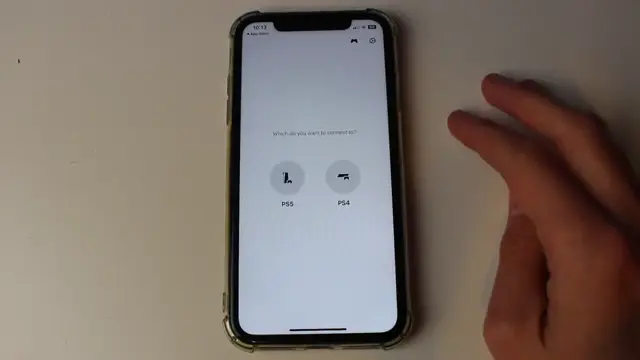
Step 13: Enable Remote Play on Your PS5
Ensure that you toggle on Remote Play in your PS5 settings, allowing the app to connect and function properly.
Step 14: Enable Console Sharing Settings
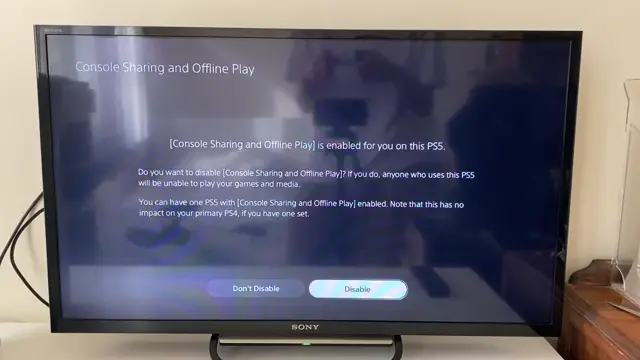
Within the Console Sharing settings on your PS5, make sure it’s enabled to facilitate remote play from other devices.
Step 15: Start Your TikTok Stream
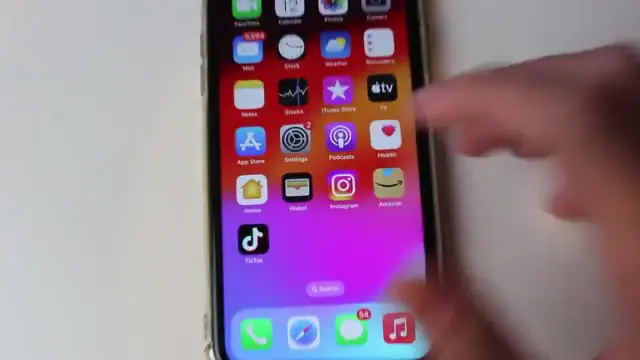
Open the TikTok app, access the camera, and select ‘Live’. Choose ‘Mobile Gaming’ as your streaming option, name your stream, then click ‘Go Live’ to start broadcasting your gameplay.
Step 16: Initiate The Broadcast on TikTok
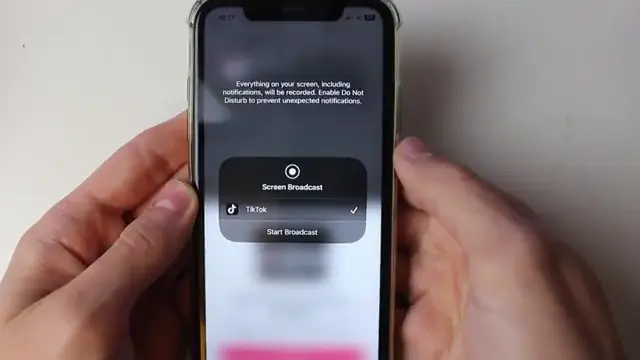
After naming your stream, click on ‘Start Broadcast.’ A countdown will appear before you go live.
Step 17: Return to Remote Play App if Necessary
After starting your TikTok stream, you may need to swipe back to the Remote Play app to start connecting your PS5 again.
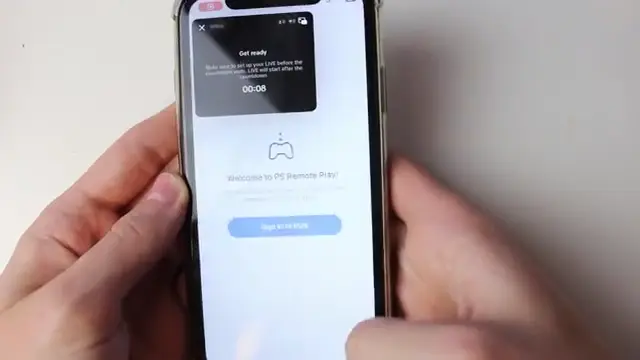
Step 18: Reconnect Your PS5 During the Stream
If needed, start the connection process to your PS5 again while you are live on TikTok to ensure things are working smoothly.
Step 19: Adjust Your Screen View
Once live, rotate your screen to provide the best view for your TikTok audience, aligning with your gameplay orientation.
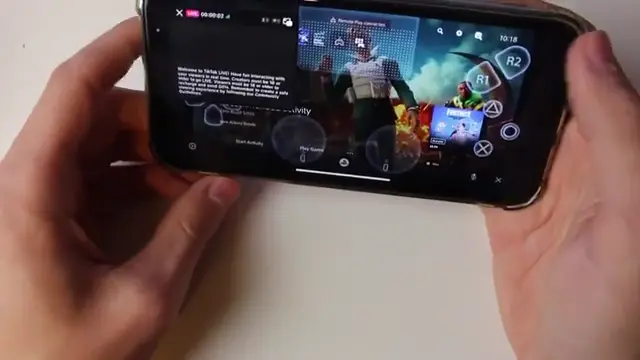
Step 20: Adjust Stream Overlay
Swipe across on the overlay to make it smaller for better visibility of your gameplay while streaming.
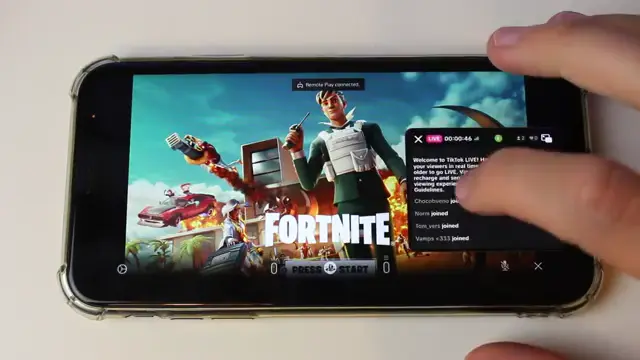
Step 21: End the Stream and Review
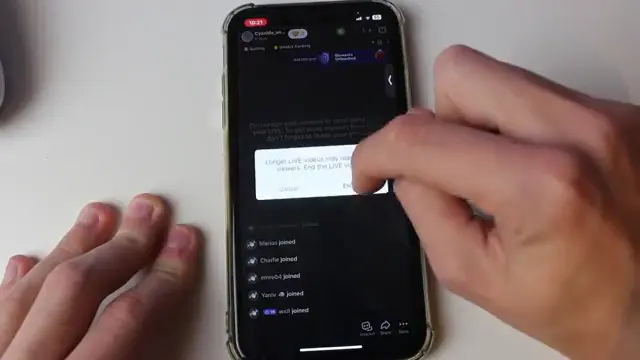
When you finish streaming, press ‘N’ on your device to see info about your stream and look at the replay options.
Step 22: Access Stream Controls
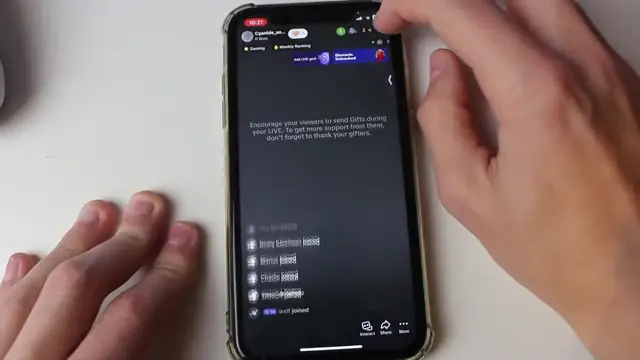
Click on the power button at the top of the screen to end your live stream and check the replay of your session.
Frequently Asked Questions
What do I need to stream my PS5 on TikTok?
You need a mobile device or tablet, the PS Remote Play app, and a TikTok account with enough followers for live streaming.
Can I connect my controller to my phone?
Yes, you can either connect your controller to your phone or directly to your PS5 for gameplay.
What are the TikTok streaming requirements?
You typically need at least 1,000 followers to go live on TikTok.
How do I end my live stream on TikTok?
Tap the power button at the top of the screen to end your live stream and access replay options.
Watch the Video Tutorial
Conclusion
Streaming your PS5 gameplay on TikTok is a straightforward process when you follow these steps. Remember to engage with your viewers for a great streaming experience!



Leave a comment