
Key Takeaways:
- Learn to mute iPhone camera shutter sound
- Discover how to use live photos effectively
- Understand settings for taking silent pictures
If you’re tired of hearing the shutter sound when taking photos with your iPhone, you’re not alone! Fortunately, there are simple ways to mute that sound while still capturing memories. This guide will show you how to turn off the shutter sound using popular methods that don’t require fiddling in the settings app.
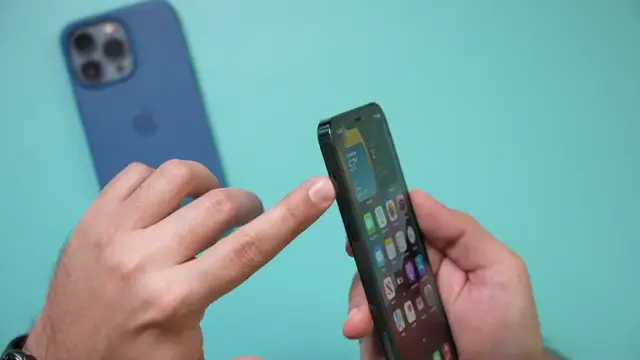
Step 1: Put Your Phone on Mute
The simplest method to silence the shutter sound is to put your iPhone on mute. This can be accomplished by sliding the mute switch on the side of your iPhone. This will silence all sounds, including your camera shutter, ensuring you won’t hear the sound when using your camera app.
Step 2: Activate Live Photo Mode
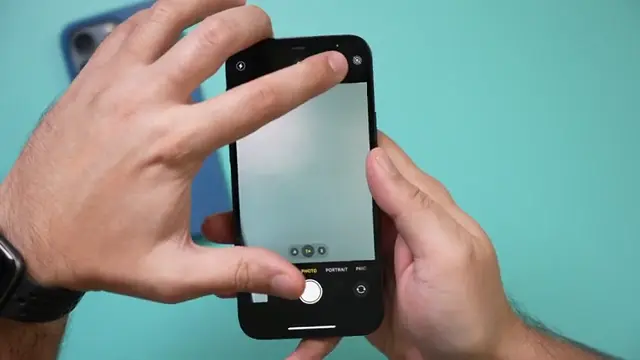
Instead of using silent mode, you can also use the Live Photo feature on your iPhone. To enable this, open the camera app and tap the Live Photo icon. When this mode is active, taking a picture will not produce any shutter sound, allowing you to capture images discreetly.
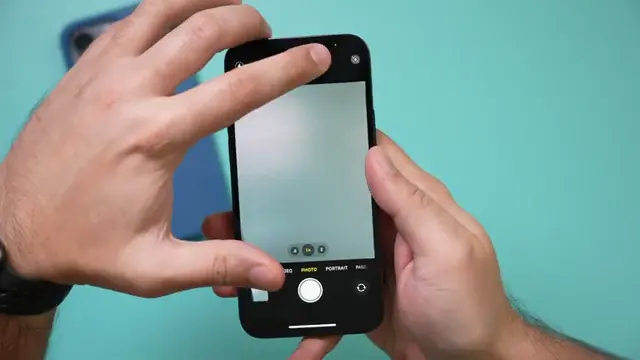
Step 3: Take Pictures Without Shutter Sound
With Live Photos activated, you can take pictures without the shutter sound, even if your phone is not on mute. This makes it an ideal option for capturing live moments without attracting attention. Simply press the shutter button to take a photo, and enjoy the silence!
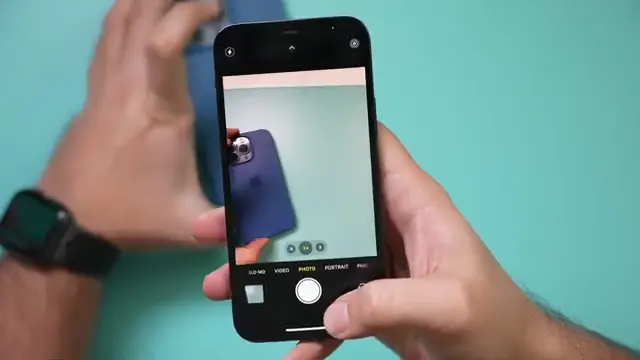
Step 4: Slide the Mute Switch
To put your iPhone on mute, locate the mute switch on the side of your device and slide it over. When correctly activated, you will see a red indicator confirming the mute mode is engaged.
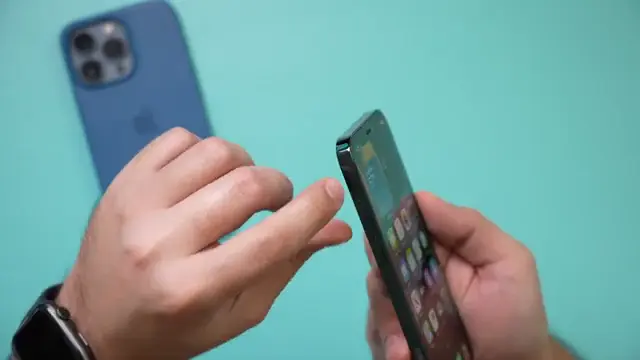
Step 5: Turn on Live Photo
To enable the Live Photo feature, open your camera app and locate the small Live Photo icon on the screen. Tap on this icon to turn it on, which will allow you to take photos without hearing the shutter sound.
Frequently Asked Questions
How can I turn off the shutter sound on my iPhone?
You can turn off the shutter sound by either putting your iPhone on mute or using the Live Photo feature.
What is Live Photo on the iPhone?
Live Photo captures a short video along with the image, allowing you to take pictures without hearing the shutter sound.
Will putting my iPhone on mute silence all sounds?
Yes, enabling mute will silence all sounds, including notifications, calls, and the camera shutter.
Do I need to change settings to use Live Photo?
No, you just need to tap the Live Photo icon in the camera app to activate it before taking pictures.
Watch the Video Tutorial
Conclusion
In summary, silencing your iPhone camera shutter sound is easy with the right methods. Whether you choose to use the mute switch or the Live Photo feature, you can capture your moments without interruption.







Leave a comment