
Key Takeaways:
- Back up your iPhone data before resetting.
- Sign out of iCloud for a safe reset.
- Remove your SIM card after erasing.
Resetting your iPhone to factory settings is a crucial step if you’re selling, giving it away, or simply want a fresh start. In this guide, we’ll walk you through the essential steps to ensure your data is safely backed up and your phone is erased correctly. Follow these instructions carefully to reset your iPhone properly.
Step 1: Backup Your iPhone Data
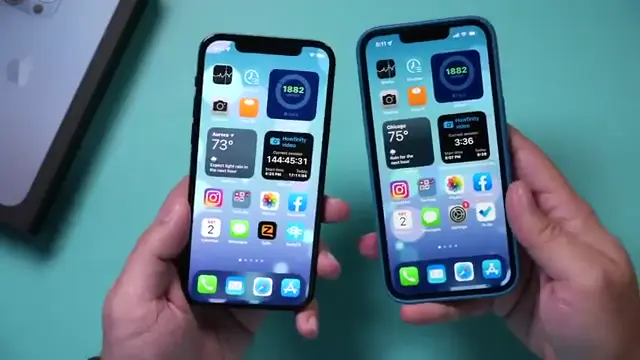
Before resetting your iPhone, ensure you back up your data. Go to the Settings app, tap your name, then iCloud. Make sure iCloud Backup is on and tap ‘Back Up Now’ to save your latest data. This is just in case you lose something; it will always be available on that backup after you erase your phone using iCloud that you could access on your new phone or on icloud.com.
Step 2: Check the Backup Settings
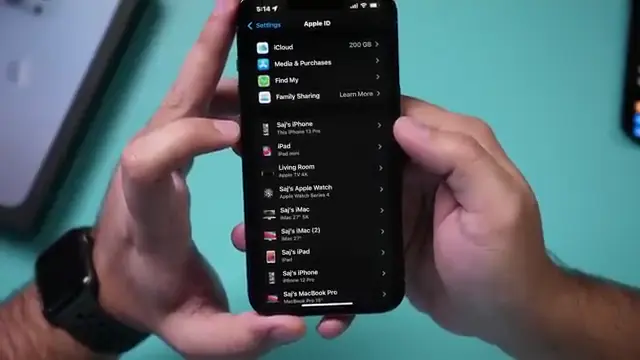
Once in iCloud settings, find the phone you want to back up. Make sure that iCloud Backup is enabled and confirm that you perform a backup now or that your latest backup was recent.
Step 3: Sign Out of iCloud
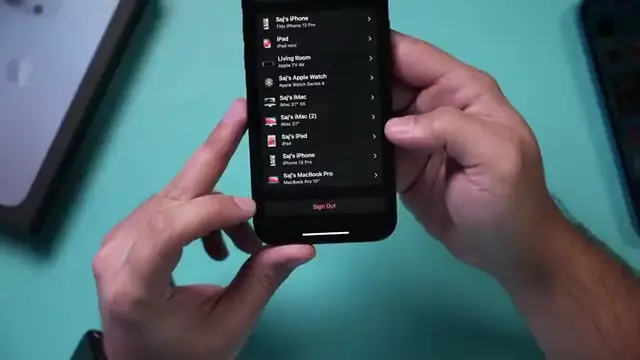
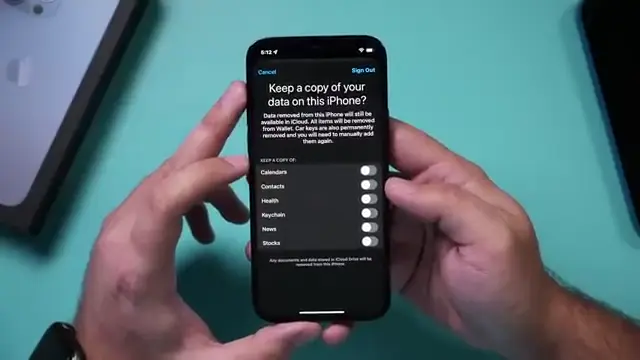
Next, sign out of iCloud to remove your account details. In the Settings app, tap your name, scroll down, and choose ‘Sign Out’. Enter your Apple ID password to complete the process and confirm you want to keep no copies of data.
Step 4: Remove iCloud Data
When you sign out of iCloud, the system will remove any iCloud-related data from your old phone. This helps in ensuring all your personal information is cleared.
Step 5: Erase Your iPhone
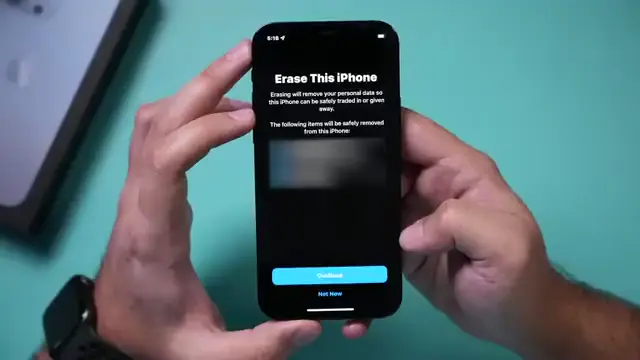
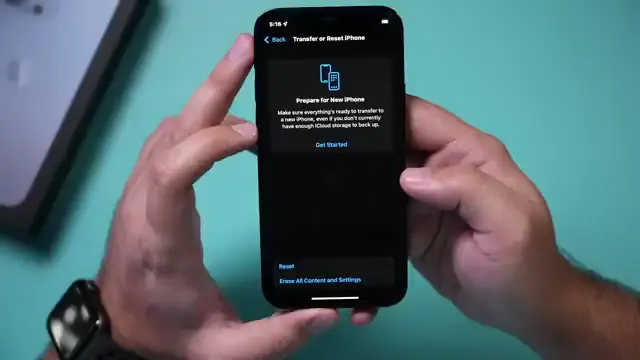
Finally, erase your iPhone to reset it to factory settings. In Settings, go to General, scroll down to ‘Reset’, and select ‘Erase All Content and Settings’. Follow the prompts and enter your passcode to proceed. If it’s someone else’s phone, you do need to get the passcode from them. If you have set up your new phone, press ‘Get Started’ when prompted to continue the setup. Then it’s going to ask you one more time to erase all content here so erase phone.
Step 6: Remove the SIM Card
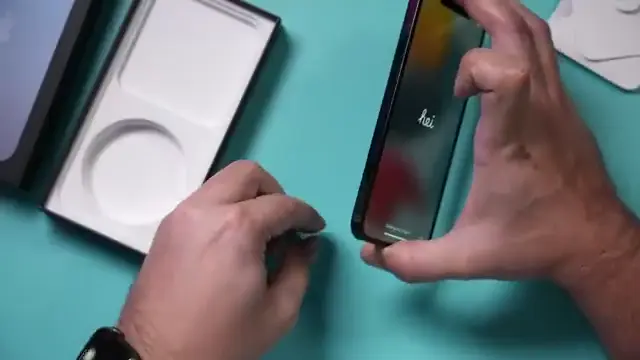
After your iPhone is reset, remove your SIM card by using the SIM card removal tool. Locate the SIM tray on the side of your iPhone, press the tool into the tray to eject it, and take out the SIM card. Replace the tray in your old phone before selling or giving it away. If you have a case on your phone, make sure you remove it so you can access this right here on the side.
Step 7: Transfer Data to Your New Phone
If you’re setting up a new phone, ensure that you have transferred your data from your old phone before erasing it. Follow the prompts on your new device to transfer everything, and once complete, continue with the factory reset of your old device.
Frequently Asked Questions
What should I do before resetting my iPhone?
You should back up your data to iCloud and sign out of your iCloud account to ensure your information is secure.
How do I reset my iPhone without losing data?
Back up your iPhone using iCloud or iTunes before resetting to prevent data loss.
Can I remove my SIM card after resetting my iPhone?
Yes, it’s recommended to remove your SIM card after resetting the phone to protect your personal information.
Will resetting my iPhone delete everything?
Yes, a factory reset will erase all data, so remember to back up any important information beforehand.
Watch the Video Tutorial
Conclusion
Following these steps will help ensure your iPhone is reset to factory settings safely. Remember to back up your data and remove your SIM card, especially if you’re passing the device to someone else.
{“@context”:”https://schema.org”,”@graph”:[{“@type”:”HowTo”,”name”:”How to Reset Your iPhone to Factory Settings”,”description”:”Learn how to reset your iPhone to factory settings safely, ensuring your iCloud data is backed up and old information is removed.”,”step”:[{“@type”:”HowToStep”,”position”:1,”name”:”Backup Your iPhone Data”,”text”:”Before resetting your iPhone, ensure you back up your data. Go to the Settings app, tap your name, then iCloud. Make sure iCloud Backup is on and tap ‘Back Up Now’ to save your latest data. This is just in case you lose something; it will always be available on that backup after you erase your phone using iCloud that you could access on your new phone or on icloud.com.”},{“@type”:”HowToStep”,”position”:2,”name”:”Check the Backup Settings”,”text”:”Once in iCloud settings, find the phone you want to back up. Make sure that iCloud Backup is enabled and confirm that you perform a backup now or that your latest backup was recent.”},{“@type”:”HowToStep”,”position”:3,”name”:”Sign Out of iCloud”,”text”:”Next, sign out of iCloud to remove your account details. In the Settings app, tap your name, scroll down, and choose ‘Sign Out’. Enter your Apple ID password to complete the process and confirm you want to keep no copies of data.”},{“@type”:”HowToStep”,”position”:4,”name”:”Remove iCloud Data”,”text”:”When you sign out of iCloud, the system will remove any iCloud-related data from your old phone. This helps in ensuring all your personal information is cleared.”},{“@type”:”HowToStep”,”position”:5,”name”:”Erase Your iPhone”,”text”:”Finally, erase your iPhone to reset it to factory settings. In Settings, go to General, scroll down to ‘Reset’, and select ‘Erase All Content and Settings’. Follow the prompts and enter your passcode to proceed. If it’s someone else’s phone, you do need to get the passcode from them. If you have set up your new phone, press ‘Get Started’ when prompted to continue the setup. Then it’s going to ask you one more time to erase all content here so erase phone.”},{“@type”:”HowToStep”,”position”:6,”name”:”Remove the SIM Card”,”text”:”After your iPhone is reset, remove your SIM card by using the SIM card removal tool. Locate the SIM tray on the side of your iPhone, press the tool into the tray to eject it, and take out the SIM card. Replace the tray in your old phone before selling or giving it away. If you have a case on your phone, make sure you remove it so you can access this right here on the side.”},{“@type”:”HowToStep”,”position”:7,”name”:”Transfer Data to Your New Phone”,”text”:”If you’re setting up a new phone, ensure that you have transferred your data from your old phone before erasing it. Follow the prompts on your new device to transfer everything, and once complete, continue with the factory reset of your old device.”}]},{“@type”:”FAQPage”,”mainEntity”:[{“@type”:”Question”,”name”:”What should I do before resetting my iPhone?”,”acceptedAnswer”:{“@type”:”Answer”,”text”:”You should back up your data to iCloud and sign out of your iCloud account to ensure your information is secure.”}},{“@type”:”Question”,”name”:”How do I reset my iPhone without losing data?”,”acceptedAnswer”:{“@type”:”Answer”,”text”:”Back up your iPhone using iCloud or iTunes before resetting to prevent data loss.”}},{“@type”:”Question”,”name”:”Can I remove my SIM card after resetting my iPhone?”,”acceptedAnswer”:{“@type”:”Answer”,”text”:”Yes, itu2019s recommended to remove your SIM card after resetting the phone to protect your personal information.”}},{“@type”:”Question”,”name”:”Will resetting my iPhone delete everything?”,”acceptedAnswer”:{“@type”:”Answer”,”text”:”Yes, a factory reset will erase all data, so remember to back up any important information beforehand.”}}]}]}




Leave a comment