
Key Takeaways:
- Learn how to access account settings in Windows 11.
- Switch from a Microsoft account to a local account.
- Understand how this change affects your files.
If you’ve set up Windows 11 with a Microsoft account and now wish to switch to a local account, you’re in the right place. This guide will take you through each step required to remove your Microsoft account while keeping all your data intact. By following these instructions, you can easily manage your account settings and preferences on your Windows device.
Step 1: Open Settings in Windows 11
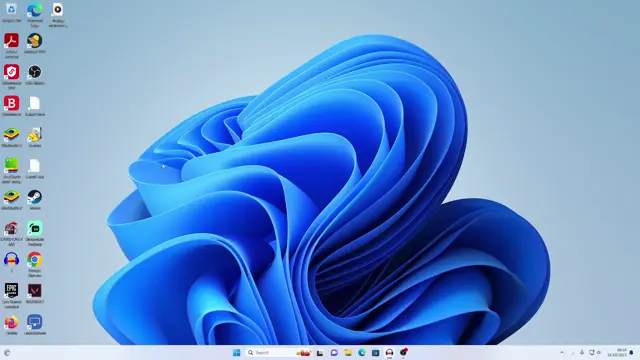
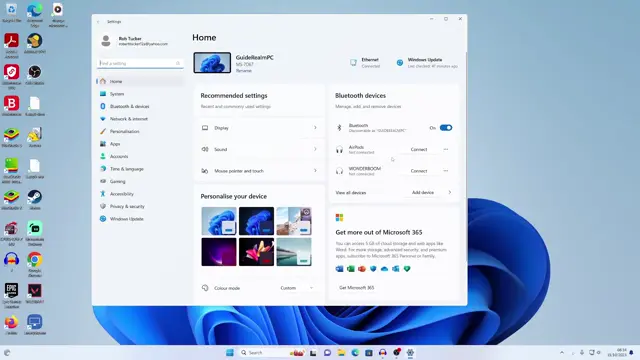
To start the process, click on the Windows icon at the bottom of your screen to open the Start menu. Then, select ‘Settings’ to access the account configuration options.
Step 2: Navigate to Accounts Settings
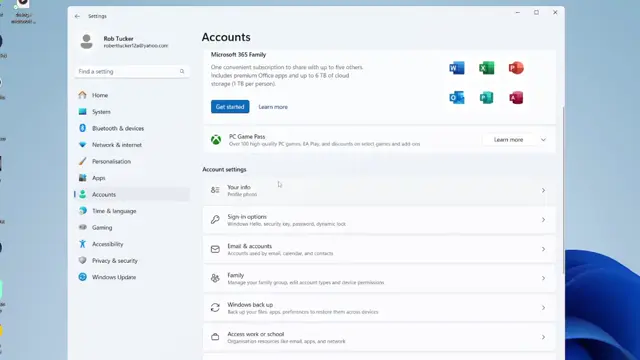
In the Settings window, navigate to the left sidebar and click on ‘Accounts’. This will take you to all account-related settings, including your account info.
Step 3: Access Your Info
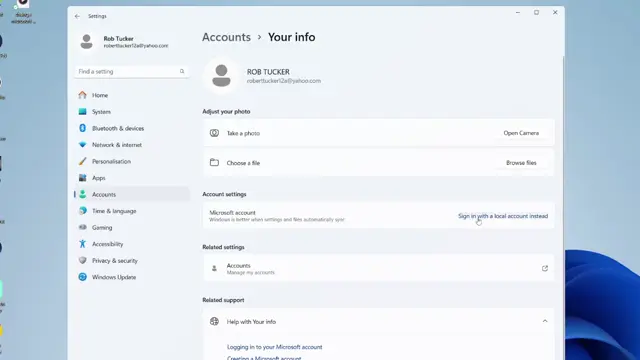
Under the Accounts section, find and click on ‘Your Info’. Here, you’ll see your current Microsoft account details and the option to switch your account type.
Step 4: Switch to Local Account
To proceed with removing your Microsoft account, click on ‘Sign in with a local account instead’. This action allows you to create a local account without losing your files.
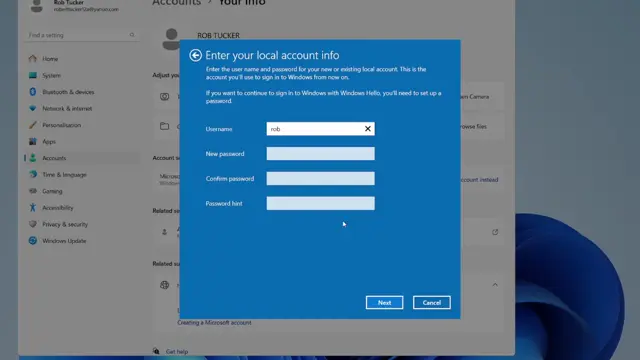
Step 5: Enter Local Account Information
You will be prompted to enter your current PIN followed by creating a new username and password for your local account. Choose a secure password to protect your account.
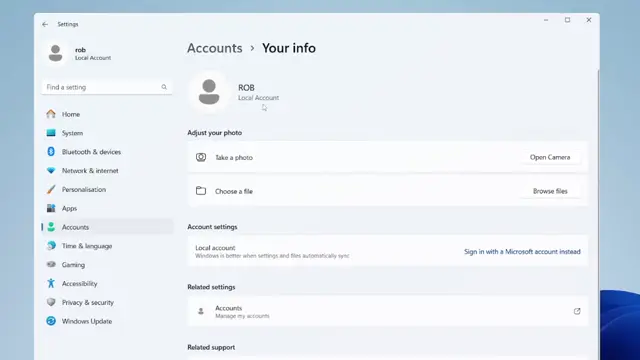
Step 6: Confirm Local Account Success
After signing back in, navigate to the Settings > Accounts > Your Info again. You should now see that your account type has changed to a local account without losing any files or data.
Frequently Asked Questions
Can I revert back to a Microsoft account after switching?
Yes, you can always sign in with a Microsoft account again anytime from the account settings.
Will my files be deleted when switching to a local account?
No, switching to a local account will not result in any loss of files; all your data will remain intact.
Is a local account more secure than a Microsoft account?
A local account does not rely on internet connectivity, which may enhance privacy, but a Microsoft account offers additional security features like two-factor authentication.
What if I forget my local account password?
You’ll need to follow the account recovery steps for Windows, which may involve resetting your password using security questions or recovery media.
Watch the Video Tutorial
Conclusion
By following these steps, you’ve successfully removed your Microsoft account from Windows 11 and created a local account. This process helps manage your privacy and access levels conveniently. If you ever need to switch back to a Microsoft account, simply follow the appropriate link in the account settings.



Leave a comment