
Target Audience: Beginners | Estimated Read Time: 2 min
Key Takeaways:
- Learn to access notification settings
- Understand options for hiding notifications
- Enhance privacy on your Android device
Do you want to maintain your privacy by hiding notification content on your Android lock screen? This guide will walk you through the necessary settings to keep your sensitive information secure.
Step 1: Open Settings App
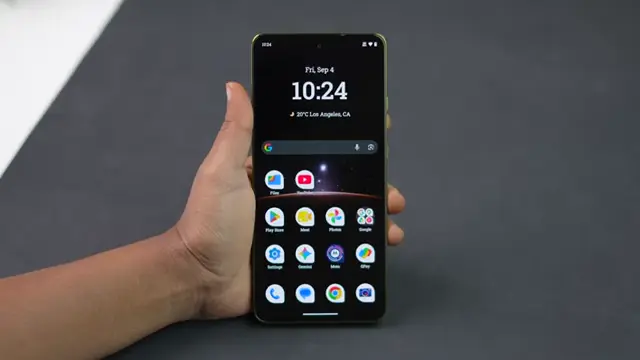
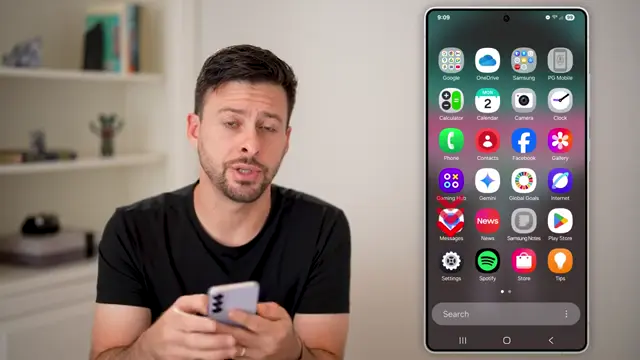
First, tap on the Settings app on your Android phone. This is where you will manage your notifications and other privacy settings.
Step 2: Access Notifications Settings
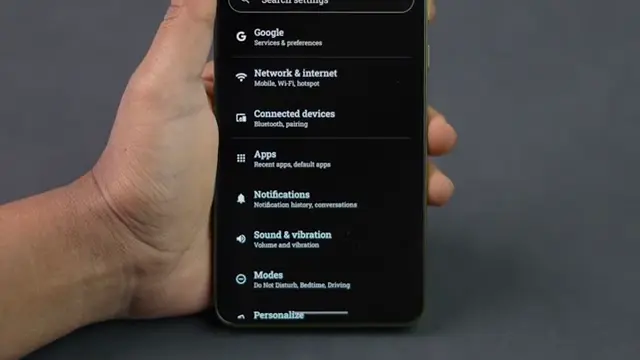
Next, scroll down and tap on ‘Notifications.’ Here, you’ll find various settings related to how your notifications are displayed.
Step 3: Adjust Lock Screen Notification Preferences
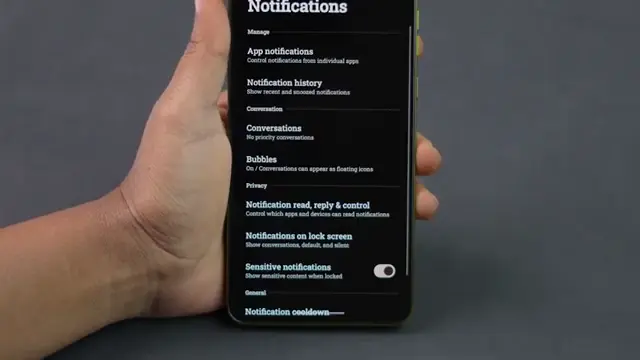
Under the privacy section, tap on ‘Notifications on the lock screen.’ This section allows you to control what appears on your lock screen regarding notifications.
Step 4: Choose Notification Display Option
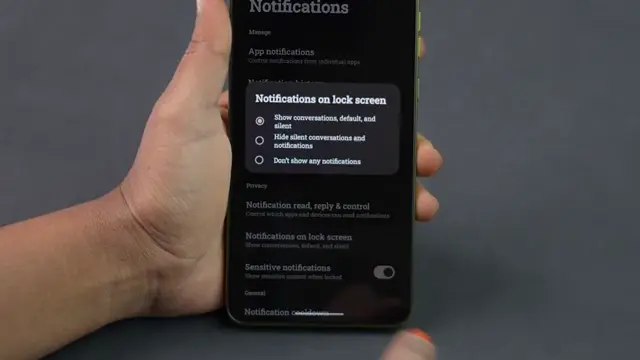
To hide all lock screen notifications, select ‘Don’t show any notifications.’ Alternatively, to keep notifications visible but hide their content, select ‘Hide silent conversations and notifications.’
Step 5: Confirm Changes
Your notification content will now no longer be visible on the lock screen, providing you with increased privacy on your device.
Frequently Asked Questions
What is the benefit of hiding notifications on the lock screen?
Hiding notifications on the lock screen enhances your privacy by preventing sensitive information from being displayed to anyone who sees your phone.
Can I still receive notifications if I hide their content?
Yes, you can continue to receive notifications, but their content will be hidden from view on the lock screen.
How do I access the notifications settings on my Android phone?
You can access the notifications settings by opening the Settings app and selecting ‘Notifications’ from the menu.
Is it easy to revert changes if I decide to show notifications again?
Yes, you can easily revert the changes by going back to the Notifications settings and selecting the desired option.
Watch the Video Tutorial
Conclusion
Now you can confidently hide notification content on your Android lock screen, ensuring your personal information remains private.






Leave a comment