
Key Takeaways:
- Add text to specific times in TikTok videos.
- Animate text to enter and exit at different times.
- Use multiple text files in one video.
Adding text to your TikTok videos is a powerful way to engage viewers and highlight key moments. This tutorial explains how to schedule text to appear at specific times in your video, making it visually appealing and informative. Whether you want text to pop up at the beginning, middle, or end, this guide covers everything you need to know to master text duration in TikTok.
Step 1: Start By Opening Your TikTok Video
Open the TikTok app and choose the video you want to edit. This could be a fresh recording or an existing video from your library.
Step 2: Access the Text Option
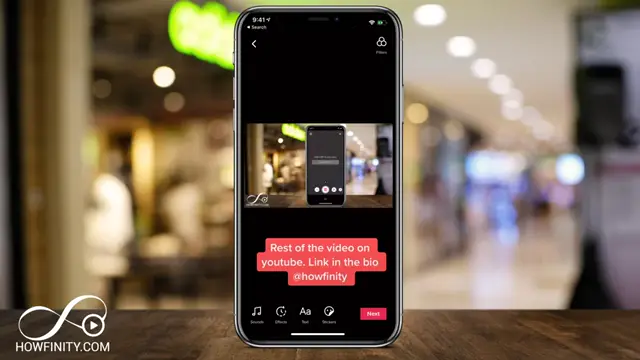
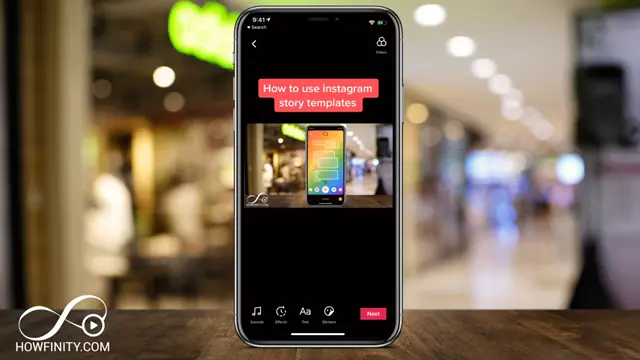
After your video is ready, press ‘Text’ on your editing screen. This option allows you to enter and customize the text for your video.
Step 3: Process Your Video
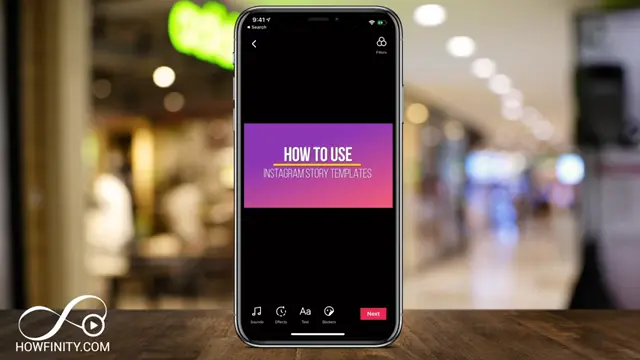
Once you’ve finished editing your video, press ‘Next’ on top to process your video before adding text.
Step 4: Set Text Duration
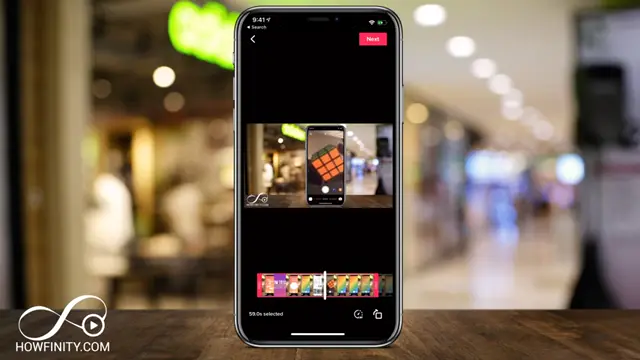
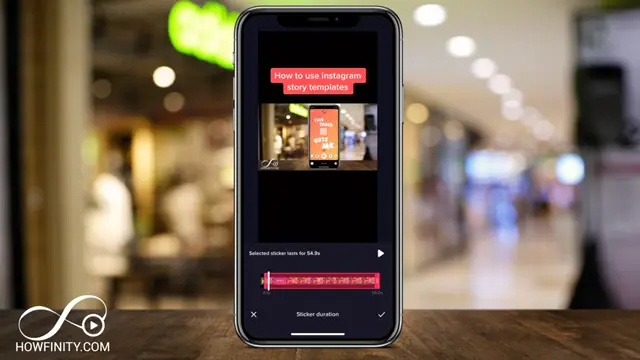
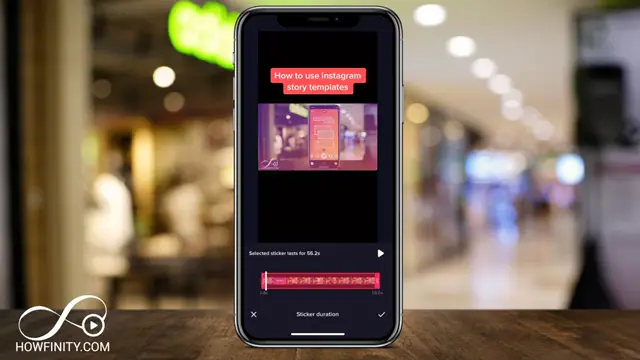
Tap the text you’ve added, then select ‘Set Duration.’ Adjust the start and end times to control how long the text appears in your video.

Step 5: Timing Your Text Appearance
Choose when you want your text to appear. For example, set it to show at the 3-second mark for optimal visibility in your TikTok video.
Step 6: Finalize Text Editing
After you’ve set the duration, press ‘Done’ to confirm your text settings and go back to the editing screen.
Step 7: Confirm Your Changes
Press the check mark at the bottom of the screen to save your text changes to the video.
Step 8: Proceed to Post your Video
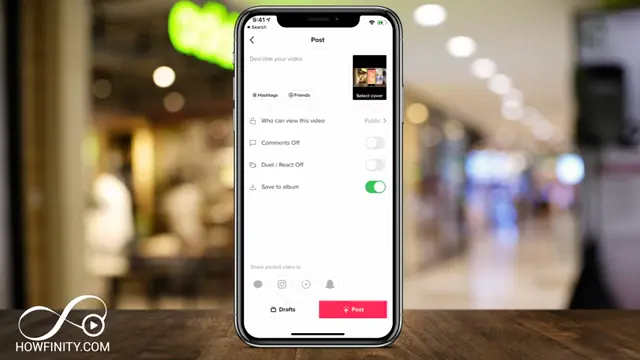
When you’re ready, press ‘Next’ on top to move to the final step of posting your video.
Step 9: Post Your Video
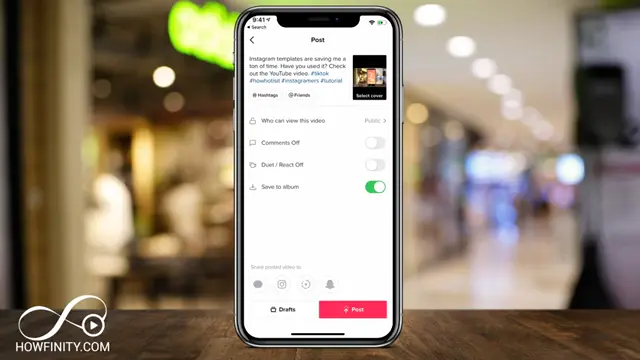
When you are ready to share your video, input a description and press ‘Post’ at the bottom of the page to upload it to your profile.
Frequently Asked Questions
How do I add text on TikTok?
Open your video on TikTok and tap the ‘Text’ option to enter your desired text.
Can I adjust how long text is visible?
Yes, you can set the duration for when text appears by selecting ‘Set Duration’ after you add text.
Is it possible to use multiple text files in one video?
Absolutely! You can add multiple text files and set different timings for each.
Can text animations be customized on TikTok?
Text animations are limited, but you can choose when they appear and disappear for effective engagement.
Watch the Video Tutorial
Conclusion
Adding timed text to your TikTok videos enhances your content’s clarity and keeps viewers engaged. Experiment with different durations to find what works best for your style!



Leave a comment