
Key Takeaways:
- Master TikTok’s editing options.
- Learn to record and edit clips seamlessly.
- Understand sound mixing and effects.
Editing TikTok videos can be both fun and crucial for creating engaging content. The TikTok app offers powerful features that allow users to record and edit clips directly within the platform, making it accessible for everyone, regardless of their video editing experience. In this guide, we’ll walk you through the essential steps to efficiently edit your TikTok videos, from recording clips to adding sound and effects.
Step 1: Start Recording a New Video
Open the TikTok app and tap the plus sign at the bottom of your profile page. This will take you to the recording page where you can start creating your video. Once there, you can either record clips directly or upload pre-recorded videos.

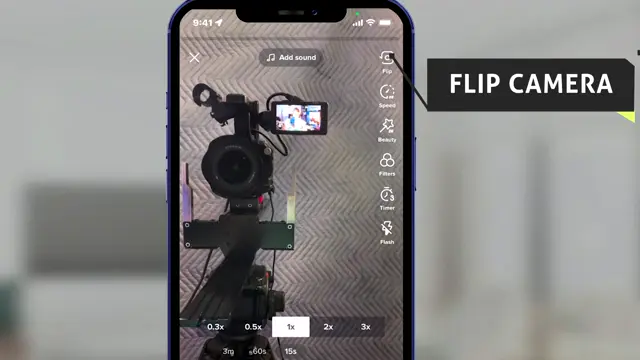
Step 2: Flip the Camera for Front-Facing View
Before recording, ensure you’re in front of the camera by tapping the flip icon to switch to the front-facing camera. This is important for capturing yourself while you record.
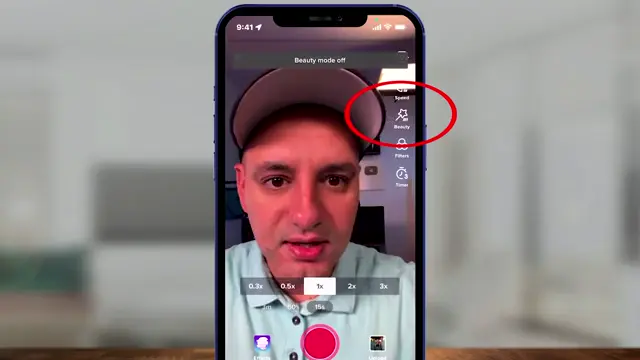
Step 3: Set a Beauty Filter if Desired
If you wish to enhance your appearance in the video, choose the beauty filter option. This can smooth out your skin and provide a polished look.
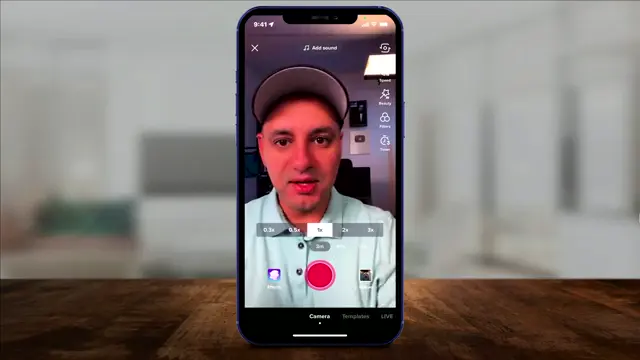
Step 4: Select the Duration for Your TikTok Video
Decide the length of your video by selecting either 15 seconds, 60 seconds, or 3 minutes. This choice affects how you structure your content, so make it according to your needs.
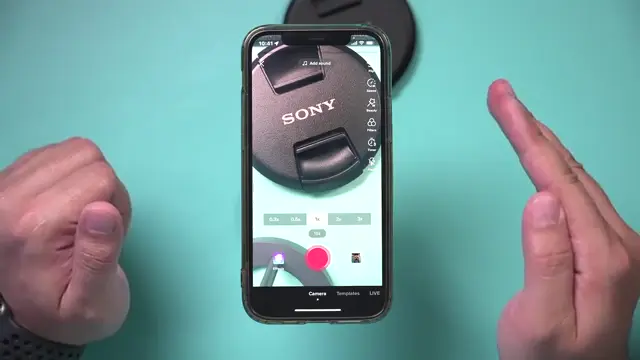
Step 5: Navigate to the Editing Page
After recording your clips, you’ll see the editing page. Here, you can add filters, adjust clip lengths, and combine your recorded segments into one cohesive video. Make sure to familiarize yourself with all editing tools for the best results.
Step 6: Add Sound and Adjust Clips
On the editing page, tap ‘Add sound’ to add background music. Use the volume controls to balance your original sound and added music. Adjust individual clip lengths by dragging the sides of each clip in your timeline to optimize your video flow.

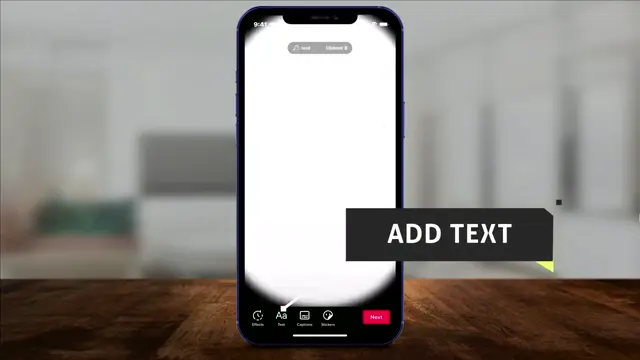
Step 7: Add Text and Effects
While still on the editing page, tap ‘Text’ to add captions or titles to your video. Customize the text style, duration, and apply speech options to enhance viewer engagement. Utilize effects for visual flair to keep your audience entertained.
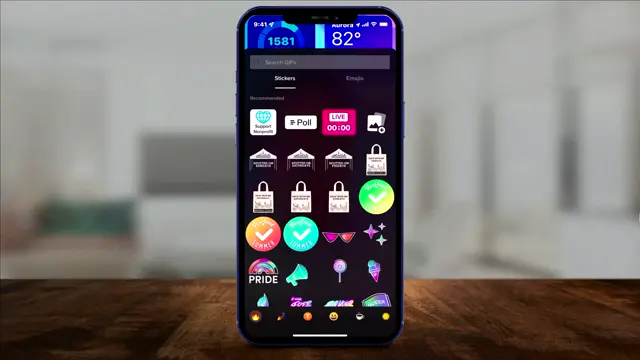
Step 8: Incorporate Stickers for Enhanced Engagement
To make your video more attractive, tap on the sticker icon at the bottom. Choose from various stickers and hold to apply them to your clip wherever you want. Adjust the size and position of your stickers as needed.
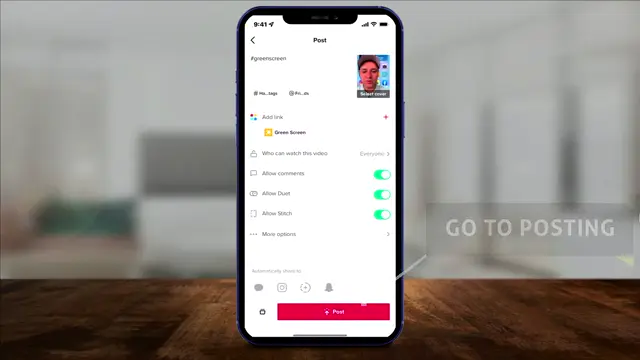
Step 9: Complete Your Video and Post
Once you’re satisfied with your edits, tap ‘Next’ to go to the posting page. Here, you can write a caption, add hashtags, and choose a cover image before sharing your video with the TikTok community.
Frequently Asked Questions
What are the best practices for editing TikTok videos?
Use the editing tools to trim clips, add music, and include text for enhanced engagement. Keep your content concise and captivating.
Can I add effects to my videos after recording?
Yes, TikTok allows you to add various effects and filters during the editing phase after recording your clips.
How can I adjust the volume of my video and music?
On the editing page, you can use the volume controls to set your original sound and added music to balance the audio levels.
Is it easy to edit videos on TikTok?
Absolutely! TikTok offers user-friendly editing tools that enable even beginners to create engaging videos quickly.
Watch the Video Tutorial
Conclusion
Editing TikTok videos using the app’s built-in features can create high-quality content without the need for external software. By following these steps, you can enhance your videos and engage your audience effectively.





Leave a comment