
Key Takeaways:
- Learn how to access the Control Center on iPhone.
- Discover how to add the screen record button for easy use.
- Understand the process of starting screen recording.
If you want to effortlessly record your iPhone screen, adding the screen record button is essential. This guide will walk you through the steps to easily add this feature. With just a few taps in the Control Center, you’ll be ready to capture everything on your screen, making tutorials or saving memorable moments a breeze.
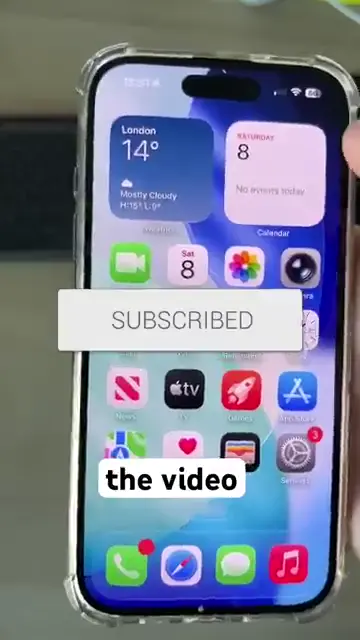
Step 1: Access Control Center
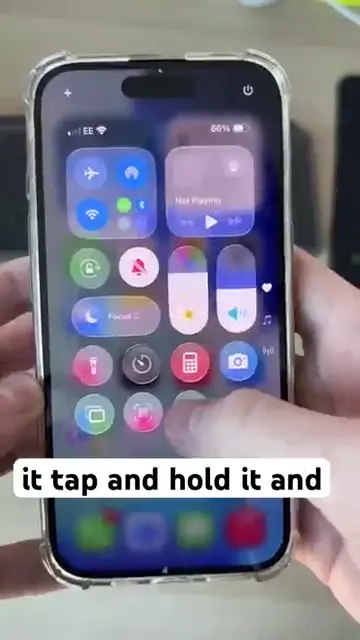
Begin by dragging down from the top right corner of your iPhone to open the Control Center. This is where you can manage your settings and access quick features like screen recording.
Step 2: Select the Options Menu
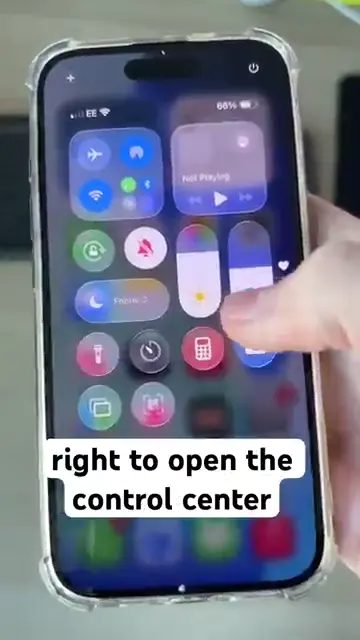
In the Control Center, find the options menu and look for the plus (+) icon at the top left. Tap this icon to proceed with adding more controls such as the screen record button.
Step 3: Add Controls
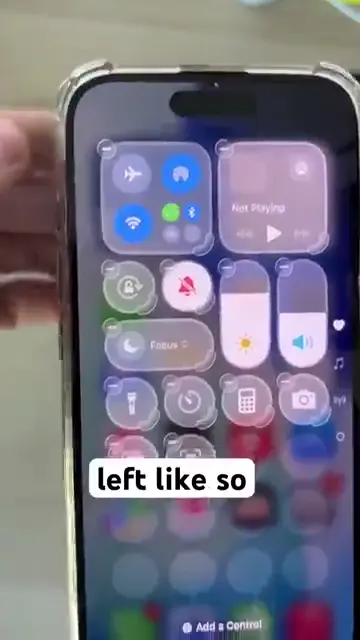
Once you tap the plus icon, look for the ‘Add Controls’ option at the bottom of the screen. This allows you to modify what features are available in your Control Center.
Step 4: Add Screen Recording Control
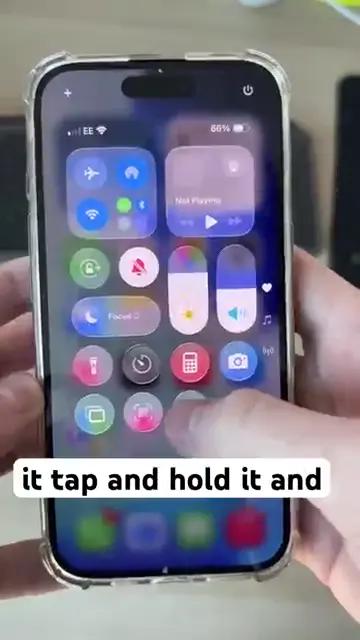
Scroll down to find ‘Screen Recording’, then tap on it to add it to your Control Center. To start screen recording, tap and hold the screen record button once added.
Step 5: Start Recording
After the screen recording button is added to your Control Center, tap and hold it to reveal options for starting your screen recording effectively.
Frequently Asked Questions
How can I access the Control Center on my iPhone?
Swipe down from the top right corner of your iPhone to open the Control Center.
What should I do after adding the screen record button?
After adding, tap and hold the screen record button to start recording your screen.
Can I customize the Control Center further?
Yes, you can add or remove various controls in the Control Center settings.
Is there an option to record audio while screen recording?
Yes, you can enable microphone audio when you tap and hold the record button before starting.
Watch the Video Tutorial
Conclusion
By following these simple steps, you can easily add the screen record button to your iPhone. This feature allows for quick access and efficient recording, helping you capture your screen for tutorials, gaming, or personal use.









Leave a comment