
· By KAI
Key Takeaways:
- Learn how to use YouTube Kids for safer viewing.
- Understand the Restricted Mode feature on YouTube.
- Discover how to enable Safe Search in Google settings.
In this guide, we will explore methods to set up parental controls on YouTube. Ensuring a safe viewing experience for children is vital in today’s digital age. By following the steps below, you can restrict unwanted content and provide a more suitable online environment for your kids.
Step 1: Activate YouTube Parental Controls
Begin by discussing the importance of parental controls to restrict inappropriate content on YouTube. Inform parents that they can use the YouTube Kids app for a safer environment.
Step 2: Use YouTube Kids App
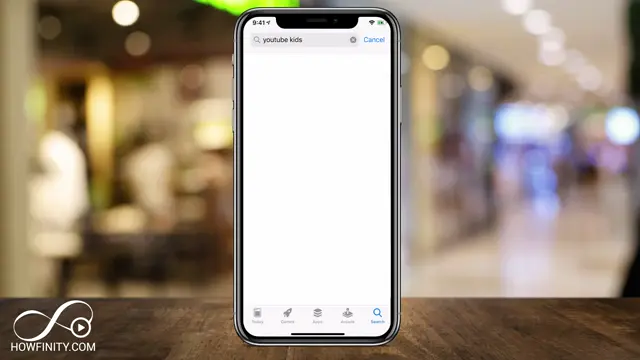
The YouTube Kids app is designed specifically for children, featuring content that is more suitable for a younger audience. By downloading this app, parents can have more control over what their kids can watch without exposing them to a wide range of content available on the main YouTube app.
How to Enable YouTube Kids
To enable YouTube Kids, download the YouTube Kids app from your device’s app store and follow the prompts to set up your profile. This app allows you to choose content based on your child’s age, ensuring a safer viewing experience.
Upon setting up, you can customize the app by selecting content types (shows, music, education) and age levels (preschool, tweens). Parents can also fine-tune their child’s settings, allowing them to block specific videos or channels as needed.
What are the Benefits of Using YouTube Kids?
The main benefit of using YouTube Kids is its content curation for younger audiences, reducing exposure to inappropriate material. YouTube Kids offers a child-friendly interface with engaging features tailored for kids.
Some additional benefits include:
- Parental Controls: Customize viewing experience and restrict certain types of content.
- Age-Appropriate Content: Videos are categorized by age ranges to ensure suitability.
- Kid-Friendly Interface: The app is designed for easy navigation by children.
Step 3: Enable Restricted Mode
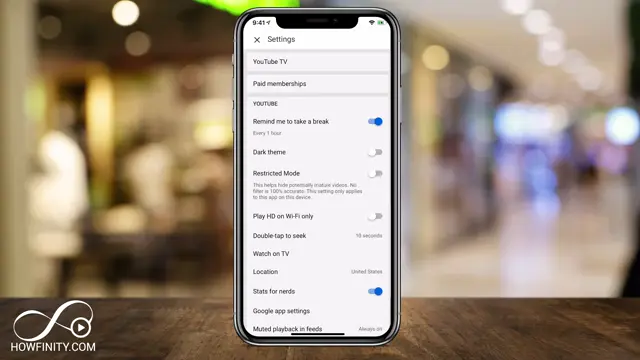
In the YouTube app, log into your account and click your profile icon. Navigate to Settings and toggle on Restricted Mode to help hide mature content while your children are watching videos.
How to Set Up YouTube Restricted Mode
To set up YouTube Restricted Mode, open the YouTube app, sign into your account, and tap on your profile icon. Under Settings, find and enable the Restricted Mode option, which helps filter content that may be inappropriate.
Remember that this setting also applies to browsers when you’re signed into your account. It’s important to note that while Restricted Mode is helpful, it is not foolproof, so regular monitoring is still advised.
Step 4: Set Up Safe Search
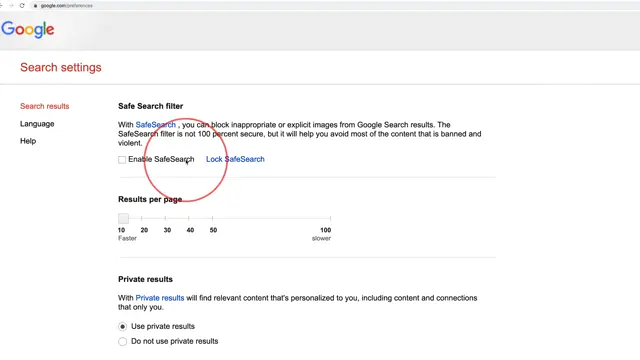
Visit google.com/preferences while signed in to your Google account. This will direct you to the Safe Search settings. Enable Safe Search to help filter explicit content across Google and YouTube searches, providing another layer of protection for your kids.
Frequently Asked Questions
How do I restrict content on the YouTube app?
You can enable Restricted Mode in the settings of the YouTube app to filter out mature content.
What is YouTube Kids?
YouTube Kids is a separate app designed for children that offers age-appropriate videos and content.
Can I lock the parental controls?
Yes, you can set a password for Restricted Mode and Safe Search, preventing anyone else from easily altering the settings.
Is Restricted Mode 100% effective?
No, Restricted Mode is not 100% effective but it significantly helps to filter out potentially mature content.
What is the Difference Between YouTube and YouTube Kids?
The main difference is that YouTube offers a vast range of content suitable for all ages, while YouTube Kids is tailored explicitly for children, featuring filtered and curated material. YouTube Kids focuses on educational, entertaining, and age-appropriate content.
Here’s a quick comparison:
| Feature | YouTube | YouTube Kids |
|---|---|---|
| Age Appropriateness | General audience, potential for mature content | Designated for children, with content filtering |
| Content Variety | Wide variety of content and channels | Curated selection focused on kids |
| Control Features | Basic parental controls available | Extensive parental controls and content filtering |
Watch the Video Tutorial
Conclusion
By following these steps and utilizing features like YouTube Kids and Restricted Mode, you can create a safer online environment for your children. Regularly check these settings to ensure they continue to meet your family’s needs.
{“@context”:”https://schema.org”,”@graph”:[{“@type”:”HowTo”,”name”:”How To Set Up YouTube Parental Controls”,”description”:”Learn how to set up YouTube parental controls for kids! Restrict inappropriate content with tips on YouTube Kids and more.”,”step”:[{“@type”:”HowToStep”,”position”:1,”name”:”Activate YouTube Parental Controls”,”text”:”Begin by discussing the importance of parental controls to restrict inappropriate content on YouTube. Inform parents that they can use the YouTube Kids app for a safer environment.”},{“@type”:”HowToStep”,”position”:2,”name”:”Use YouTube Kids App”,”text”:”The YouTube Kids app is designed specifically for children, featuring content that is more suitable for a younger audience. By downloading this app, parents can have more control over what their kids can watch without exposing them to a wide range of content available on the main YouTube app.”},{“@type”:”HowToStep”,”position”:3,”name”:”Enable Restricted Mode”,”text”:”In the YouTube app, log into your account and click your profile icon. Navigate to Settings and toggle on Restricted Mode to help hide mature content while your children are watching videos.”},{“@type”:”HowToStep”,”position”:4,”name”:”Set Up Safe Search”,”text”:”Visit google.com/preferences while signed in to your Google account. This will direct you to the Safe Search settings. Enable Safe Search to help filter explicit content across Google and YouTube searches, providing another layer of protection for your kids.”}]},{“@type”:”FAQPage”,”mainEntity”:[{“@type”:”Question”,”name”:”How do I restrict content on the YouTube app?”,”acceptedAnswer”:{“@type”:”Answer”,”text”:”You can enable Restricted Mode in the settings of the YouTube app to filter out mature content.”}},{“@type”:”Question”,”name”:”What is YouTube Kids?”,”acceptedAnswer”:{“@type”:”Answer”,”text”:”YouTube Kids is a separate app designed for children that offers age-appropriate videos and content.”}},{“@type”:”Question”,”name”:”Can I lock the parental controls?”,”acceptedAnswer”:{“@type”:”Answer”,”text”:”Yes, you can set a password for Restricted Mode and Safe Search, preventing anyone else from easily altering the settings.”}},{“@type”:”Question”,”name”:”Is Restricted Mode 100% effective?”,”acceptedAnswer”:{“@type”:”Answer”,”text”:”No, Restricted Mode is not 100% effective but it significantly helps to filter out potentially mature content.”}}]}]}





Leave a comment