
Target Audience: Beginners | Estimated Read Time: 3 min
Key Takeaways:
- Learn how to open diagnostic mode on your iPhone.
- Understand how to connect your iPhone to Wi-Fi for diagnostics.
- Follow steps to perform and exit diagnostics.
This guide will show you how to run a diagnostic test on your iPhone using a simple step-by-step process. Follow along to ensure your device is performing at its best!
Step 1: Open Settings App
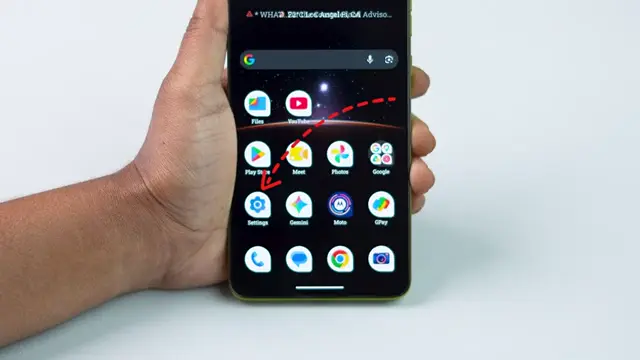
Start by tapping the Settings app on your iPhone’s home screen. This app contains all the settings you need to diagnose your device effectively.
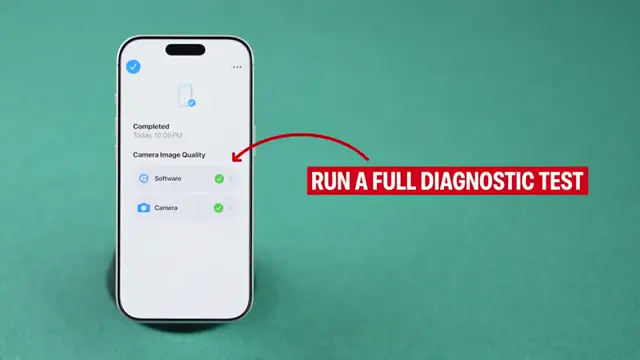
Step 2: Navigate to General
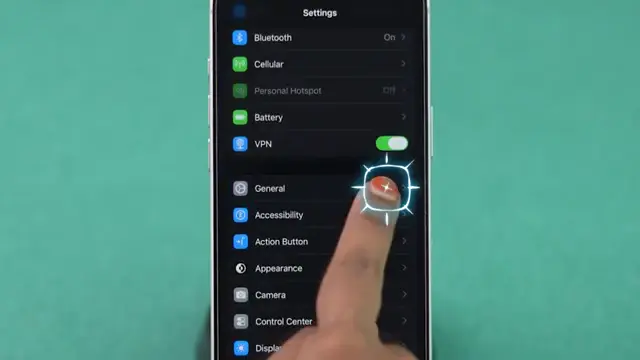
Scroll down and tap on ‘General’ in the Settings menu to find system-related options, including software updates and diagnostics.
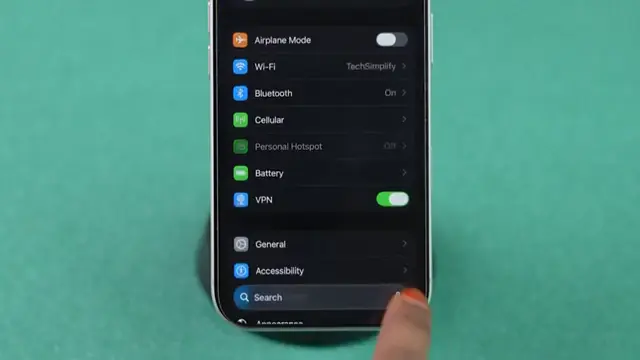
Step 3: Check for Software Update
Select ‘Software Update’ to ensure you have the latest iOS version. Updating your iPhone can simplify entering diagnostic mode.
Step 4: Enter Diagnostic Mode
If you’re using iOS 27 or later, press and quickly release the volume up button, then the volume down button. Next, press and hold the side button until the Apple logo appears or the screen goes black.

Step 5: Access Recovery Options
Continue holding the side button until you see ‘Loading recovery options.’ Once it appears, you can release the button and choose diagnostics mode from the options available.

Step 6: Connect to Wi-Fi
Your iPhone must be connected to Wi-Fi to run diagnostic tests. Tap on your Wi-Fi network and enter the password if required to connect.
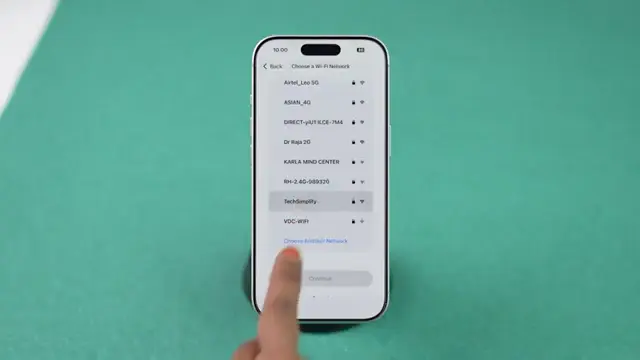
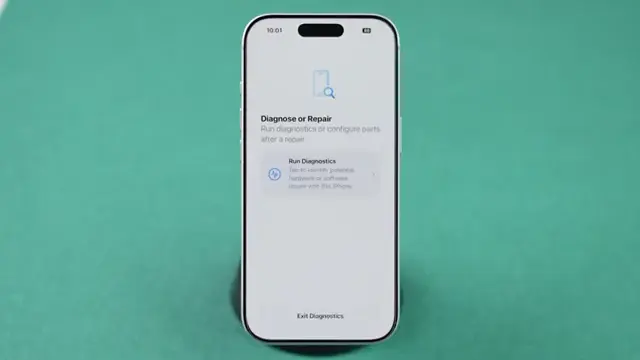
Step 7: Run Diagnostics
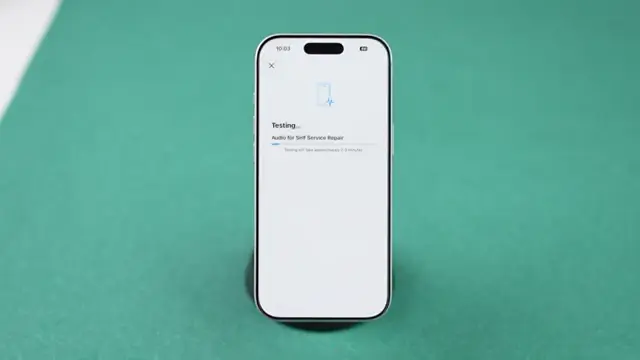
Once connected, select ‘Run Diagnostics’ to start the testing process. Your iPhone will guide you through various tests that might take a few minutes.
Step 8: Review Results
After tests are completed, you’ll see the results. If there are issues found, follow the indicated steps to troubleshoot and resolve them.
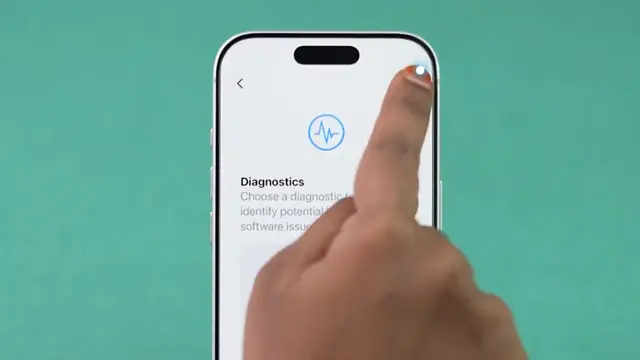
Step 9: Exit Diagnostic Mode
After finishing the diagnostic tests, tap on the three-dot menu and select ‘Exit diagnostic.’ Your iPhone will restart normally afterward.
Frequently Asked Questions
How do I know if my iPhone needs a diagnostic test?
If your iPhone is acting unusual, such as crashing or failing to connect to Wi-Fi, running a diagnostic can help identify issues.
What if I can’t enter diagnostic mode?
Ensure your iPhone is updated to the latest iOS version and follow the button sequence precisely without delay.
Is internet connection necessary for iPhone diagnostics?
Yes, your iPhone needs to be connected to Wi-Fi to download necessary diagnostic tools and to send results.
Can I run diagnostics without Apple support?
Running diagnostics requires connecting to Apple servers, which means you need internet access and accepting terms to use the feature.
Watch the Video Tutorial
Conclusion
By following these steps, you can easily run diagnostics on your iPhone and troubleshoot any issues effectively. Regular checks can help maintain your device’s performance.
{“@context”:”https://schema.org”,”@graph”:[{“@type”:”HowTo”,”name”:”Run iPhone Diagnostics Easily”,”description”:”Learn how to run diagnostics on your iPhone using the side button and recovery options for optimal performance. Simple steps included!”,”step”:[{“@type”:”HowToStep”,”position”:1,”name”:”Open Settings App”,”text”:”Start by tapping the Settings app on your iPhone’s home screen. This app contains all the settings you need to diagnose your device effectively.”},{“@type”:”HowToStep”,”position”:2,”name”:”Navigate to General”,”text”:”Scroll down and tap on ‘General’ in the Settings menu to find system-related options, including software updates and diagnostics.”},{“@type”:”HowToStep”,”position”:3,”name”:”Check for Software Update”,”text”:”Select ‘Software Update’ to ensure you have the latest iOS version. Updating your iPhone can simplify entering diagnostic mode.”},{“@type”:”HowToStep”,”position”:4,”name”:”Enter Diagnostic Mode”,”text”:”If you’re using iOS 27 or later, press and quickly release the volume up button, then the volume down button. Next, press and hold the side button until the Apple logo appears or the screen goes black.”},{“@type”:”HowToStep”,”position”:5,”name”:”Access Recovery Options”,”text”:”Continue holding the side button until you see ‘Loading recovery options.’ Once it appears, you can release the button and choose diagnostics mode from the options available.”},{“@type”:”HowToStep”,”position”:6,”name”:”Connect to Wi-Fi”,”text”:”Your iPhone must be connected to Wi-Fi to run diagnostic tests. Tap on your Wi-Fi network and enter the password if required to connect.”},{“@type”:”HowToStep”,”position”:7,”name”:”Run Diagnostics”,”text”:”Once connected, select ‘Run Diagnostics’ to start the testing process. Your iPhone will guide you through various tests that might take a few minutes.”},{“@type”:”HowToStep”,”position”:8,”name”:”Review Results”,”text”:”After tests are completed, you’ll see the results. If there are issues found, follow the indicated steps to troubleshoot and resolve them.”},{“@type”:”HowToStep”,”position”:9,”name”:”Exit Diagnostic Mode”,”text”:”After finishing the diagnostic tests, tap on the three-dot menu and select ‘Exit diagnostic.’ Your iPhone will restart normally afterward.”}]},{“@type”:”FAQPage”,”mainEntity”:[{“@type”:”Question”,”name”:”How do I know if my iPhone needs a diagnostic test?”,”acceptedAnswer”:{“@type”:”Answer”,”text”:”If your iPhone is acting unusual, such as crashing or failing to connect to Wi-Fi, running a diagnostic can help identify issues.”}},{“@type”:”Question”,”name”:”What if I can’t enter diagnostic mode?”,”acceptedAnswer”:{“@type”:”Answer”,”text”:”Ensure your iPhone is updated to the latest iOS version and follow the button sequence precisely without delay.”}},{“@type”:”Question”,”name”:”Is internet connection necessary for iPhone diagnostics?”,”acceptedAnswer”:{“@type”:”Answer”,”text”:”Yes, your iPhone needs to be connected to Wi-Fi to download necessary diagnostic tools and to send results.”}},{“@type”:”Question”,”name”:”Can I run diagnostics without Apple support?”,”acceptedAnswer”:{“@type”:”Answer”,”text”:”Running diagnostics requires connecting to Apple servers, which means you need internet access and accepting terms to use the feature.”}}]}]}


Leave a comment