
Key Takeaways:
- Identify signs of a virus on your iPhone.
- Delete malicious website data with ease.
- Understand the importance of software updates.
If your iPhone is acting strangely or you’ve noticed unexpected behavior, you might suspect a virus. Fortunately, there are several steps you can take to find and delete any viruses or malware that may have infiltrated your device. This guide will help you navigate through settings to clean your iPhone and secure it against future threats.
Step 1: Identify Potential Virus Signs
When your iPhone displays unusual behavior, it may indicate a virus. Start by checking your apps and general performance for any irregularities. If you suspect a virus, prepare to execute a cleanup.
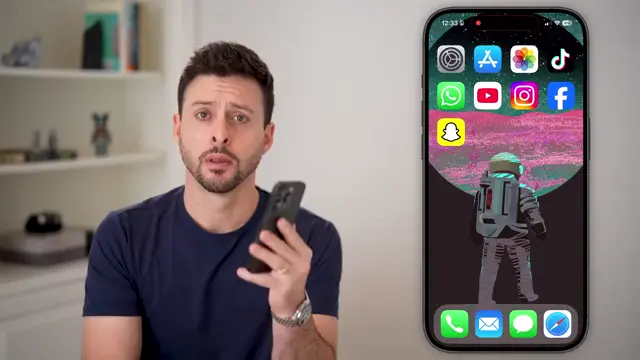
Step 2: Access Safari Settings
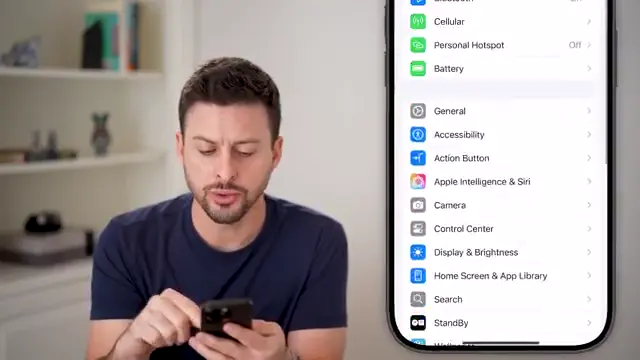
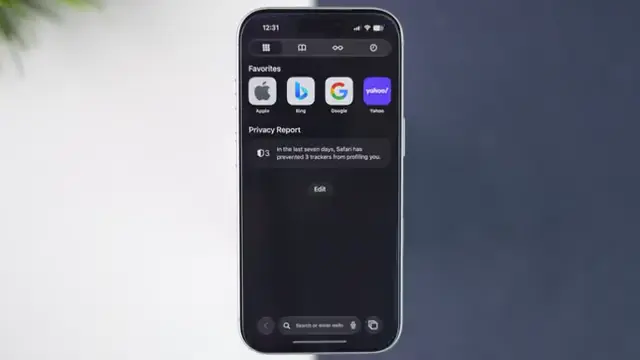
Go to your iPhone settings and scroll down until you reach the Safari settings. Tap on it to access important options related to website data, where many viruses originate.
Step 3: Delete Malicious Website Data
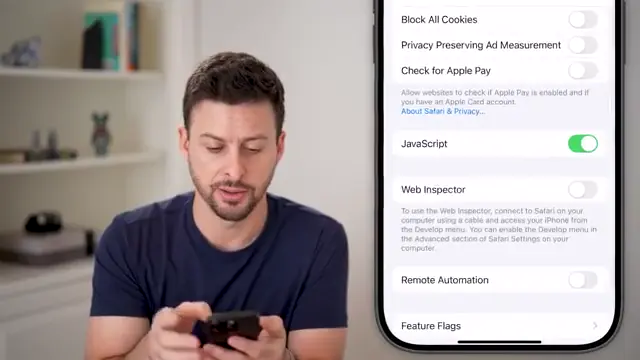
In Safari settings, tap on ‘Advanced’ and then on ‘Website Data.’ You can review stored data from websites. Hit ‘Remove All Website Data’ to eliminate any harmful files.
Step 4: Check for Suspicious Files
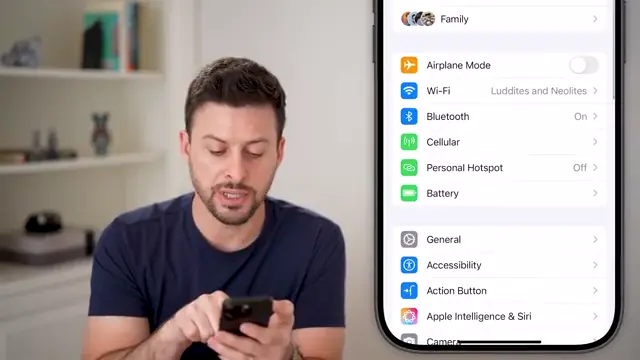
Return to Settings, then go to ‘General’ and ‘Software Update.’ iOS updates often include vital security fixes, so ensure your device is updated to help detect and recover from viruses.
Step 5: Reboot Your iPhone
Hold down the volume up and side button to power off your iPhone. Rebooting can resolve minor issues and aid in eliminating residual viruses or bugs.

Frequently Asked Questions
How do I know if my iPhone has a virus?
Look for unusual behavior, such as frequent crashes, slow performance, or unexpected pop-ups.
Can I remove a virus without a reset?
Yes, you can delete malicious apps and clear website data without needing to reset your iPhone.
What should I do if I still suspect a virus?
Consider taking your iPhone to an Apple Store where they can perform diagnostics and help remove any threats.
Is it safe to perform software updates?
Yes, software updates often include security enhancements that can help protect against viruses and malware.
Watch the Video Tutorial
Conclusion
By following these steps, you can effectively identify and remove viruses from your iPhone. Keeping your device updated and regularly checking for suspicious content will help maintain its health and security.
{“@context”:”https://schema.org”,”@graph”:[{“@type”:”HowTo”,”name”:”How To Find And Delete Viruses On iPhone”,”description”:”Learn how to find and delete all viruses on your iPhone with these simple steps. Keep your device safe and secure from malware.”,”step”:[{“@type”:”HowToStep”,”position”:1,”name”:”Identify Potential Virus Signs”,”text”:”When your iPhone displays unusual behavior, it may indicate a virus. Start by checking your apps and general performance for any irregularities. If you suspect a virus, prepare to execute a cleanup.”},{“@type”:”HowToStep”,”position”:2,”name”:”Access Safari Settings”,”text”:”Go to your iPhone settings and scroll down until you reach the Safari settings. Tap on it to access important options related to website data, where many viruses originate.”},{“@type”:”HowToStep”,”position”:3,”name”:”Delete Malicious Website Data”,”text”:”In Safari settings, tap on ‘Advanced’ and then on ‘Website Data.’ You can review stored data from websites. Hit ‘Remove All Website Data’ to eliminate any harmful files.”},{“@type”:”HowToStep”,”position”:4,”name”:”Check for Suspicious Files”,”text”:”Return to Settings, then go to ‘General’ and ‘Software Update.’ iOS updates often include vital security fixes, so ensure your device is updated to help detect and recover from viruses.”},{“@type”:”HowToStep”,”position”:5,”name”:”Reboot Your iPhone”,”text”:”Hold down the volume up and side button to power off your iPhone. Rebooting can resolve minor issues and aid in eliminating residual viruses or bugs.”}]},{“@type”:”FAQPage”,”mainEntity”:[{“@type”:”Question”,”name”:”How do I know if my iPhone has a virus?”,”acceptedAnswer”:{“@type”:”Answer”,”text”:”Look for unusual behavior, such as frequent crashes, slow performance, or unexpected pop-ups.”}},{“@type”:”Question”,”name”:”Can I remove a virus without a reset?”,”acceptedAnswer”:{“@type”:”Answer”,”text”:”Yes, you can delete malicious apps and clear website data without needing to reset your iPhone.”}},{“@type”:”Question”,”name”:”What should I do if I still suspect a virus?”,”acceptedAnswer”:{“@type”:”Answer”,”text”:”Consider taking your iPhone to an Apple Store where they can perform diagnostics and help remove any threats.”}},{“@type”:”Question”,”name”:”Is it safe to perform software updates?”,”acceptedAnswer”:{“@type”:”Answer”,”text”:”Yes, software updates often include security enhancements that can help protect against viruses and malware.”}}]}]}




Leave a comment