
Key Takeaways:
- Step-by-step process to connect Google Maps to car’s Bluetooth.
- How to enable voice navigation through Bluetooth.
- Tips for troubleshooting Bluetooth connectivity.
Connecting Google Maps to your car’s Bluetooth can enhance your driving experience by allowing hands-free navigation. This guide provides clear steps for both Android and iPhone users to successfully connect Google Maps to their car’s Bluetooth system, enabling seamless voice directions directly through the car’s speakers. Follow along as we navigate through the process step by step to ensure you stay focused on the road while getting directions.
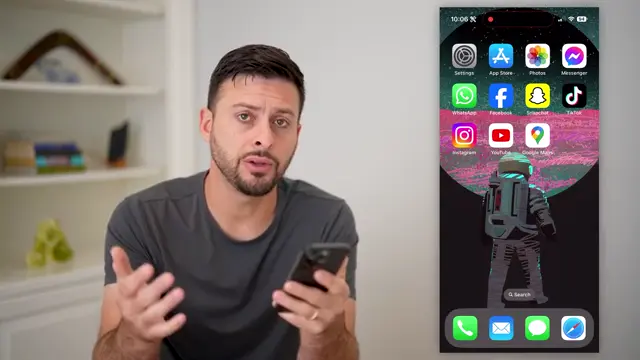
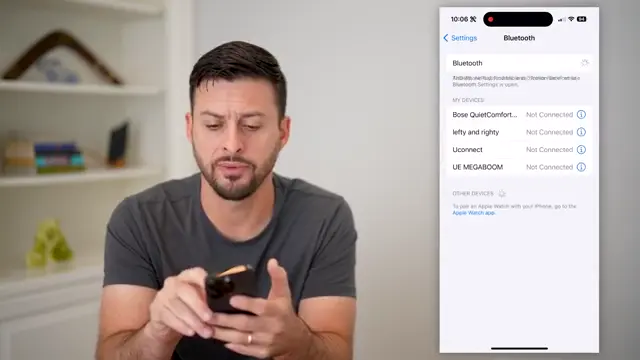
Step 1: Enable Bluetooth on Your Smartphone
First, ensure your smartphone’s Bluetooth is turned on. Go to your phone’s settings, find Bluetooth settings, and toggle it on if it’s off. If your car’s Bluetooth is visible, select it from the list to connect.
Step 2: Connect to Your Car’s Bluetooth
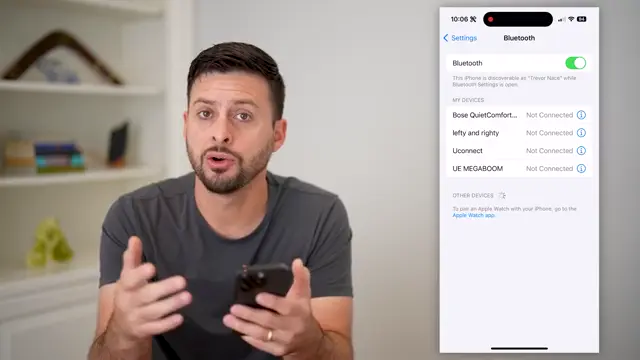
Make sure your car’s Bluetooth is in pairing mode. Find your car’s Bluetooth name in the list of available devices and tap to connect.
Step 3: Configure Google Maps Settings
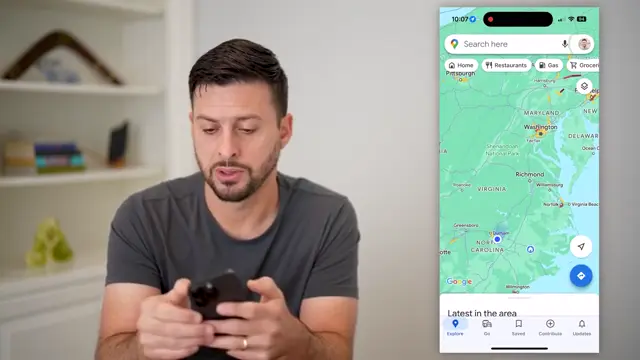
Open Google Maps and tap on your profile picture in the top right corner. From the menu, select ‘Settings’ and then navigate to ‘Navigation’. This is where you’ll set up voice instructions over Bluetooth.
Step 4: Activate Voice Over Bluetooth
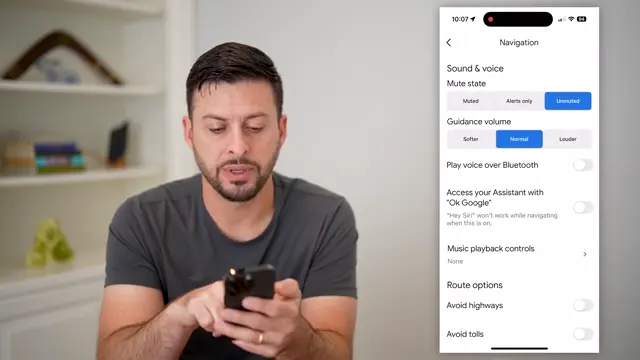
In the Navigation settings, look for ‘Play voice over Bluetooth’ and turn it on. Also, enable ‘Play Bluetooth phone calls’ to allow Google Maps to send navigation prompts through your car’s speakers.
Step 5: Toggle Bluetooth On
Ensure that Bluetooth on your smartphone is toggled on. If it was initially off, simply tap the toggle to activate it before proceeding.
Frequently Asked Questions
How do I know if my car supports Bluetooth?
Check your car’s manual or look for Bluetooth options in the car’s settings menu.
What if my smartphone doesn’t connect to my car’s Bluetooth?
Ensure your phone is discoverable and that it is not connected to other devices. Restart both devices if necessary.
Can I receive calls through my car while using Google Maps?
Yes, enabling Bluetooth phone calls allows you to receive calls while navigating with Google Maps.
Do I need to have Google Maps open for navigation instructions?
Yes, Google Maps must be open and active for voice navigation to work through Bluetooth.
Watch the Video Tutorial
Conclusion
Connecting Google Maps to your car’s Bluetooth is a straightforward process that enhances navigation safety and convenience. With a few simple settings adjustments, you can enjoy hands-free directions directly through your car speakers.





Leave a comment