
Key Takeaways:
- Learn how to freeze your location on iPhone.
- Discover multiple methods to stop location sharing.
- Understand the implications of using airplane mode.
If you want to keep your whereabouts private on your iPhone, freezing your location can be a handy feature. Whether you’re running errands or just want some privacy, there are a few options to temporarily stop sharing your location. Below, we’ll detail various methods to freeze your location on your iPhone, ensuring that others won’t be able to track you until you decide to share your location again.
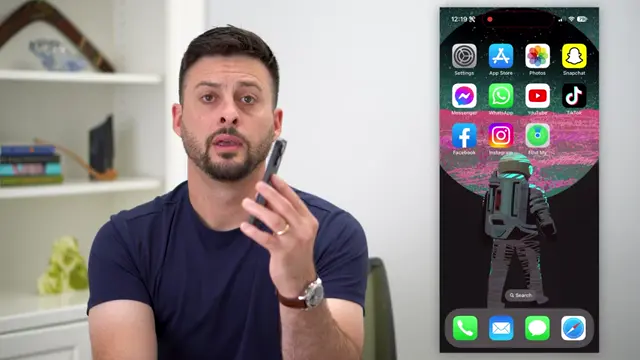
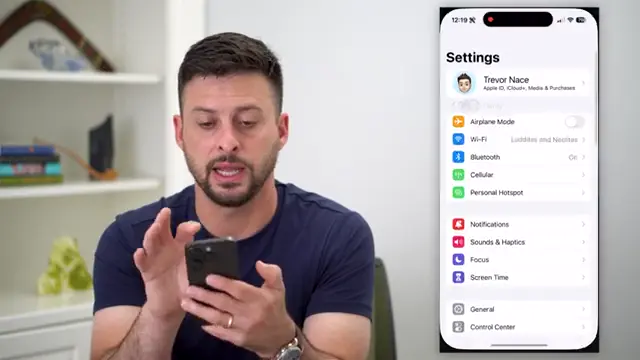
Step 1: Access Your iPhone Settings
To freeze your location, first, open the Settings app on your iPhone. This is the starting point for accessing Location Services that control how your location is shared.
Step 2: Navigate to Privacy Settings
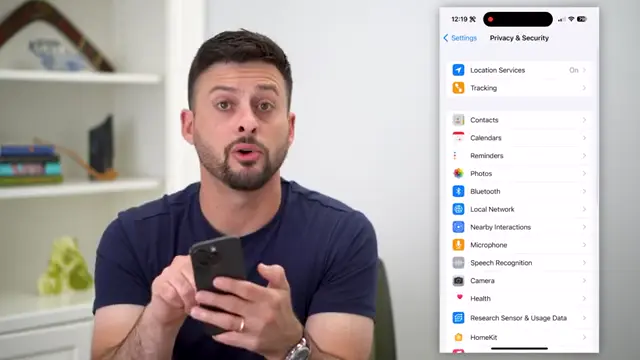
Next, scroll down and select ‘Privacy & Security.’ This section contains your Location Services settings, important for freezing your location.
Step 3: Toggle Off Share My Location
In the ‘Location Services’ settings, tap on ‘Share My Location’ and toggle it off. This action prevents anyone from being able to see your current location until you re-enable this feature.
Step 4: Enable Airplane Mode
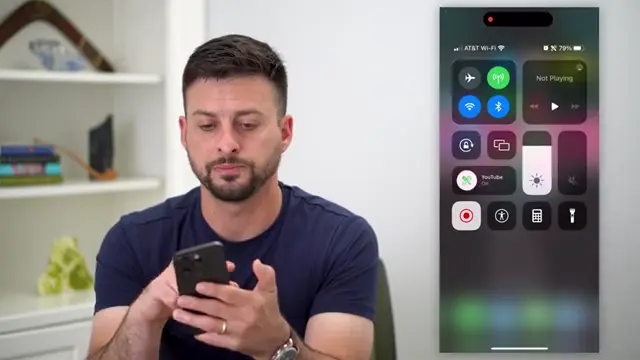
Another way to freeze your location is by enabling airplane mode. Swipe down from the top-right corner of your iPhone to access the control center and toggle on airplane mode. This disconnects your device from cellular and Wi-Fi, effectively freezing your current location.
Step 5: Use Another Device for Location Sharing
If you have a second Apple device, open the ‘Find My’ app on it. Go to ‘Me’ in the app and toggle on sharing your location for this device. This will allow your primary iPhone to freeze its location while still allowing tracking on the second device.
Frequently Asked Questions
How does enabling Airplane Mode freeze my location?
Enabling Airplane Mode disconnects your iPhone from cellular conferences and Wi-Fi, allowing it to retain its last known location without updating it.
Can I freeze my location temporarily on my iPhone?
Yes, you can temporarily freeze your location by disabling location sharing features in the settings or using Airplane Mode.
What happens if I turn off location sharing?
If you turn off location sharing, others won’t see your current location, but they may receive a notification indicating that you’ve disabled location sharing.
Do I need another device to freeze my location?
While it helps to have another device to track a different location, you can freeze your location using settings on your iPhone alone.
Watch the Video Tutorial
Conclusion
Freezing your location on an iPhone is a straightforward process that gives you control over your privacy. Whether through settings or using Airplane Mode, you have options to ensure your location remains private. If you have any more questions, feel free to ask!





Leave a comment