
Key Takeaways:
- Understand audio routing settings
- Adjust physical and software volume
- Clean speaker obstructions
Are you struggling with low sound from your iPhone’s speakers? Whether you’re on a call or playing music, a low volume can be frustrating. This guide provides easy steps to boost the sound on your device effectively, from adjusting settings to cleaning the speakers. Follow these instructions to resolve those low audio issues and enjoy your iPhone’s sound to the fullest.
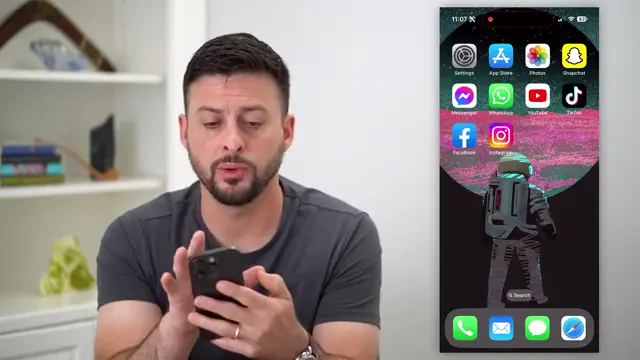
Step 1: Access iPhone Settings
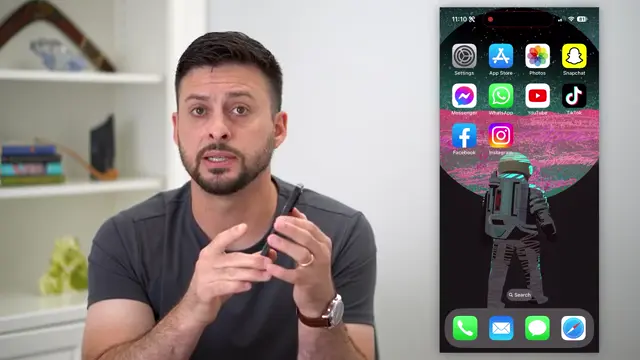
Start by opening the Settings app on your iPhone. This is where you can adjust audio settings to fix the low sound issue. Look for the ‘Settings’ icon on your home screen and tap it.
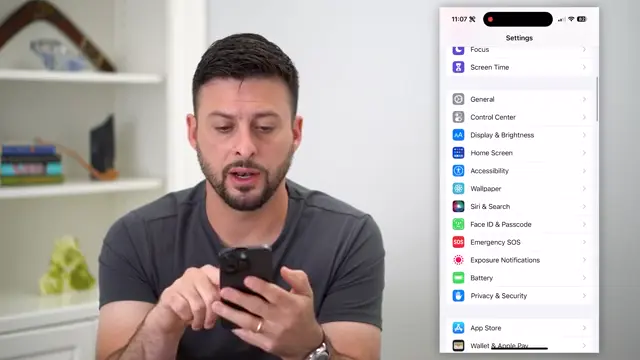
Step 2: Navigate to Accessibility Settings
Scroll down within the Settings menu until you reach the ‘Accessibility’ section. Tap on it to view options that can impact how sounds are routed during calls and media playback.
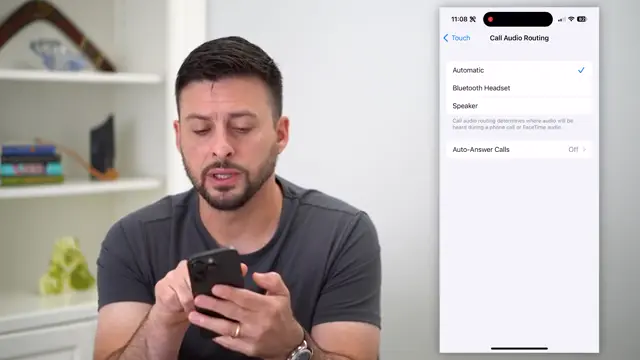
Step 3: Adjust Call Audio Routing
Inside the ‘Touch’ settings in Accessibility, tap on ‘Call Audio Routing’. Ensure it is set to ‘Automatic’ so that sound routes properly to your device’s speakers.
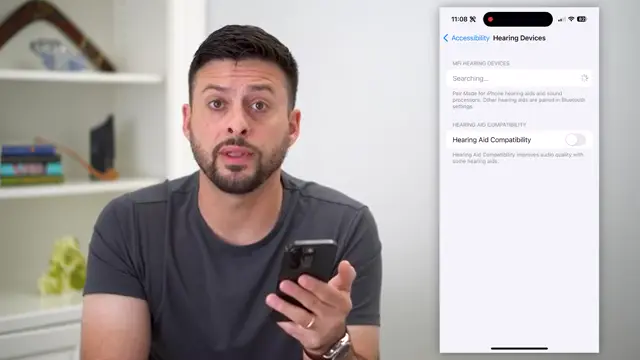
Step 4: Turn Off Hearing Aid Compatibility
Within the ‘Hearing Devices’ section, toggle ‘Hearing Aid Compatibility’ off if you are not using any hearing aids, as this option can reroute audio away from your iPhone’s speakers.
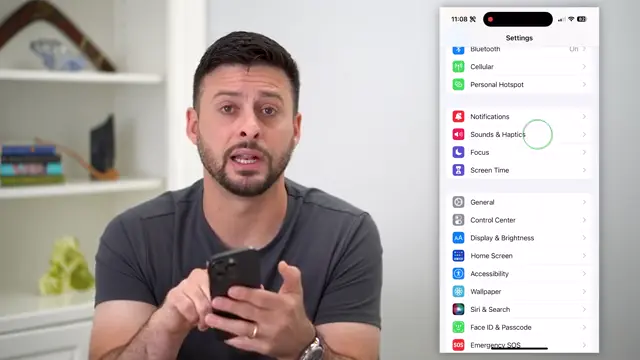
Step 5: Check Sound and Haptics Settings
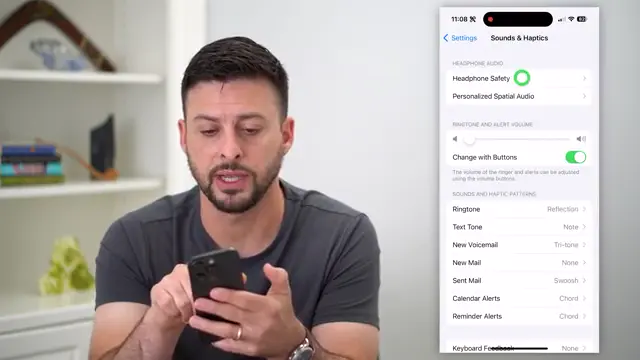
Go back and select ‘Sounds and Haptics’. Here, tap on ‘Headphone Safety’ and consider turning it off or adjusting the decibel level to increase volume limits to allow more sound from the speakers.
Step 6: Adjust Headphone Safety Settings
In the ‘Headphone Safety’ settings, you can turn off ‘Reduce Loud Sounds’ or increase the threshold to ensure your speakers can reach higher volumes.
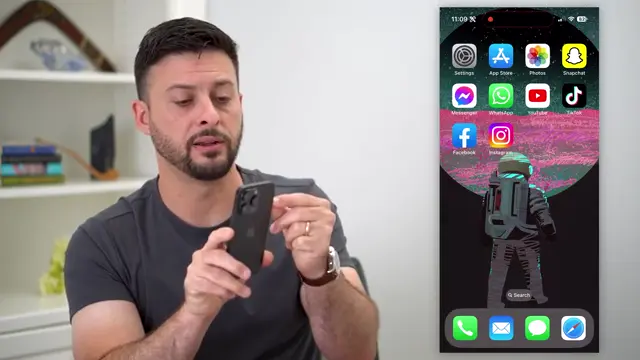
Step 7: Adjust Silent Mode Switch
Locate the silent mode switch on the left side of your iPhone. Toggle it towards you to turn on ringer mode and ensure that the sound is audible. Additionally, use the volume buttons to increase sound to the maximum level immediately.
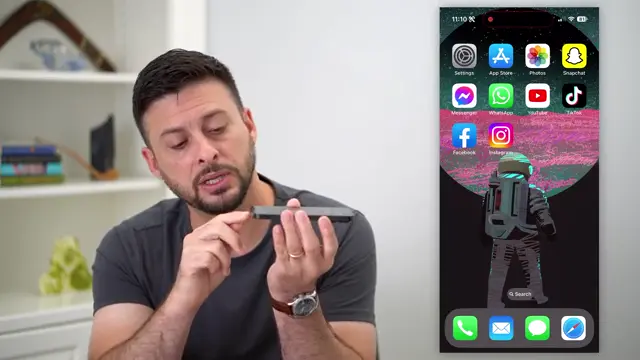
Step 8: Clean iPhone Speakers
Examine the iPhone speakers for obstructions. Dust and debris can accumulate, blocking sound. Use a toothpick or a soft brush to clean the bottom speakers and ear speaker gently without causing damage.
Step 9: Restart Your iPhone
Finally, perform a restart of your iPhone to apply changes to settings. Hold the volume up button and the side button until you see the slider to power off. Slide to turn it off and then turn it back on.
Frequently Asked Questions
Why is my iPhone speaker sound so low?
Low speaker sound can be due to various factors such as hardware obstructions, software settings, or headphone restrictions.
How can I increase the volume on an iPhone?
You can increase the volume by adjusting the ringer and media sound settings in the Sounds menu and ensuring no devices are connected via Bluetooth.
Is there a way to clean my iPhone speakers?
Yes, carefully use a toothpick or a soft brush to clean any dust or debris from the speakers without damaging them.
What if my iPhone sound is still low after following these steps?
If volume issues persist, consider checking for hardware problems or visiting an Apple service center for further assistance.
Watch the Video Tutorial
Conclusion
By following these steps, you should be able to address low sound issues on your iPhone. Remember to check settings, clean your device, and restart after making changes to enjoy a better audio experience.





Leave a comment