
Key Takeaways:
- Enable LED flash alerts for calls and texts
- Ensure phone can flash while silent
- Learn through simple step-by-step instructions
If you want your iPhone to provide a visual alert when receiving calls or text messages, even on silent mode, you can easily set it up with just a few steps. This feature helps ensure that you don’t miss important notifications, especially in quieter environments. Follow the steps below to activate the LED flash alert on your device effectively.
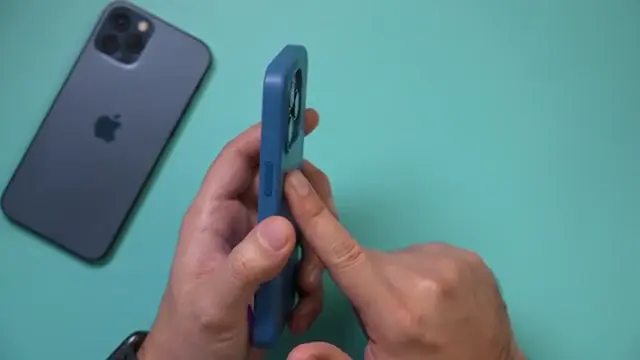
Step 1: Open Settings on Your iPhone
Begin by launching the ‘Settings’ app on your iPhone. This is the main area where you’ll configure your device’s settings.
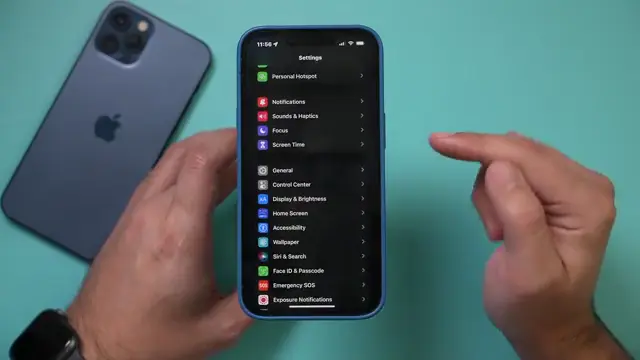
Step 2: Navigate to Accessibility Settings
Scroll down in the Settings menu and select ‘Accessibility’. This section contains various features designed to assist users.
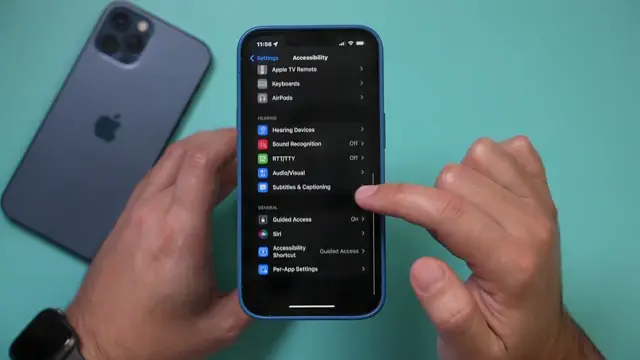
Step 3: Select Audio/Visual Settings
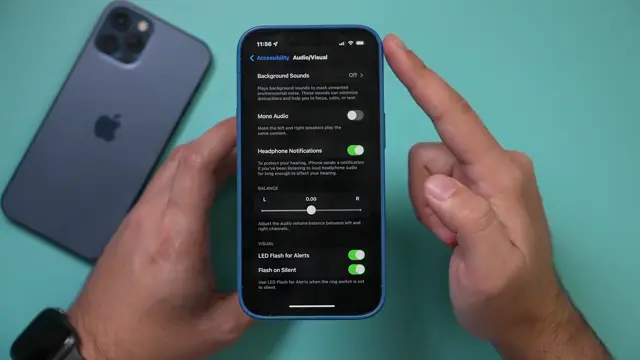
In the Accessibility menu, scroll down and tap on ‘Audio/Visual’. This is where you can find the LED flash alerts option.
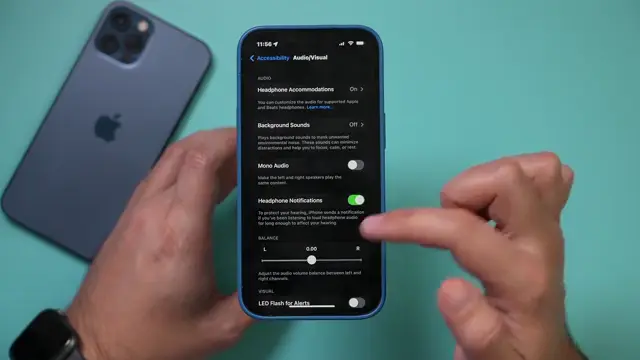
Step 4: Turn On LED Flash for Alerts
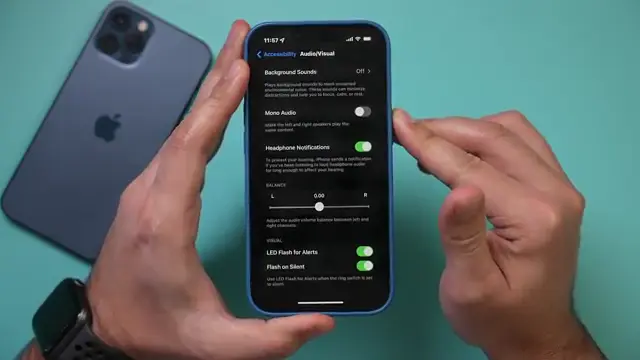
At the bottom of the Audio/Visual page, locate ‘LED Flash for Alerts’ and toggle it on. This enables the flash feature for notifications.
Step 5: Enable Flash for Silent Mode
Make sure to enable the secondary toggle option to allow the LED flash to activate while the phone is on silent mode.
Step 6: Test the Flash for Notifications
To see the flash in action, lock your iPhone and then have someone call or text you. The LED flash will activate if set correctly.
Frequently Asked Questions
Can I use the flash alert feature in silent mode?
Yes, the LED flash will alert you even if your iPhone is set to silent.
How do I turn off the LED flash alerts?
You can turn off LED flash alerts by toggling the ‘LED Flash for Alerts’ option off in Accessibility settings.
Will the flash work for all notifications?
The flash feature works specifically for incoming calls and text messages when enabled.
Is the flash alert visible during the day?
Yes, the LED flash should be visible during both day and night, but visibility may vary in bright conditions.
Watch the Video Tutorial
Conclusion
Setting your iPhone to flash for calls and texts enhances your ability to receive notifications without sound. Follow these simple steps to ensure you never miss an important message again!




Leave a comment