
Key Takeaways:
- Enable picture-in-picture in settings.
- Ensure your YouTube app is updated.
- Play YouTube videos while using other apps.
Watching YouTube videos while multitasking is a great way to enjoy content without interruptions. This tutorial will guide you through the necessary steps to enable picture-in-picture mode, allowing you to watch videos while using other apps. Whether you want to check Instagram or play games, you can keep your YouTube video playing in a small window. Let’s get started!
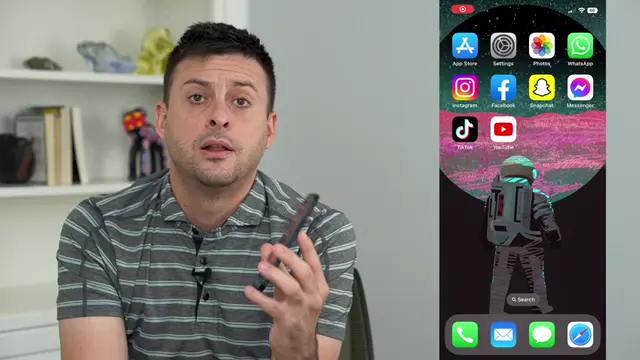
Step 1: Access Device Settings
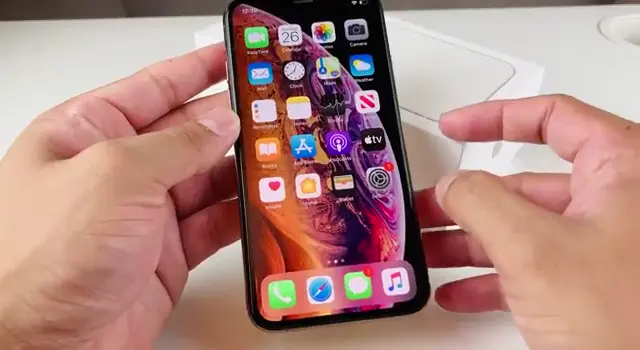
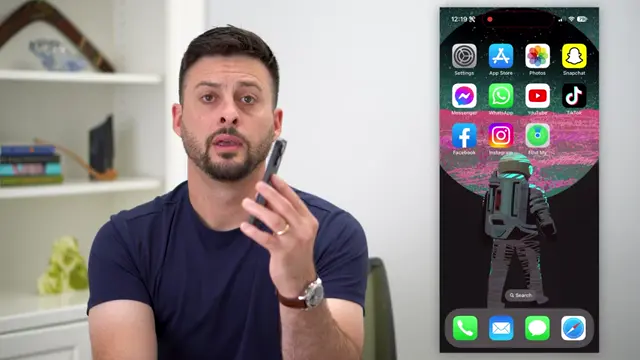
Open your device’s settings by tapping the settings icon. This is where you’ll enable picture-in-picture for your YouTube app.
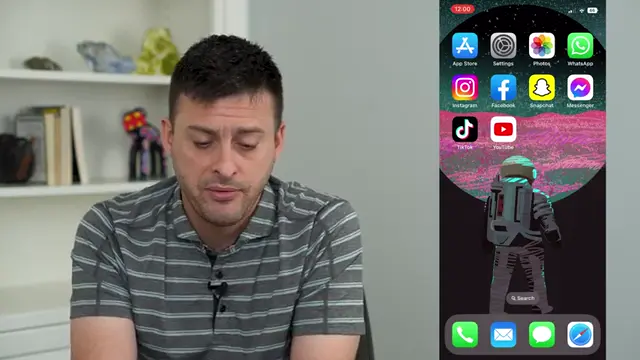
Step 2: Navigate to General Settings
In the settings menu, tap on ‘General’ to access further options including picture-in-picture settings.
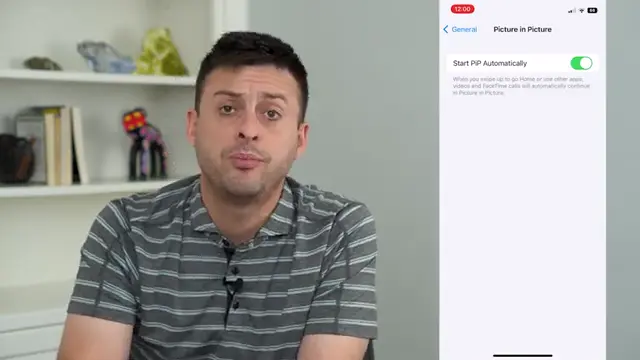
Step 3: Enable Picture-in-Picture
Ensure that the ‘Start PiP’ option is toggled on to allow picture-in-picture mode for videos.
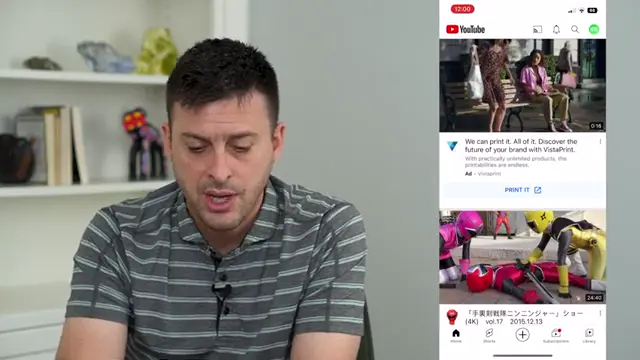
Step 4: Open YouTube App Settings
Launch the YouTube app and tap on your profile icon located at the top right corner to access your account settings.
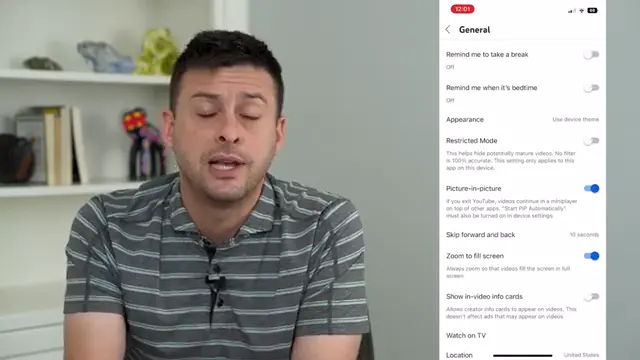
Step 5: Enable PiP in YouTube Settings
Within the YouTube app settings, find the option for picture-in-picture and ensure it is toggled on to enable the feature for your videos.
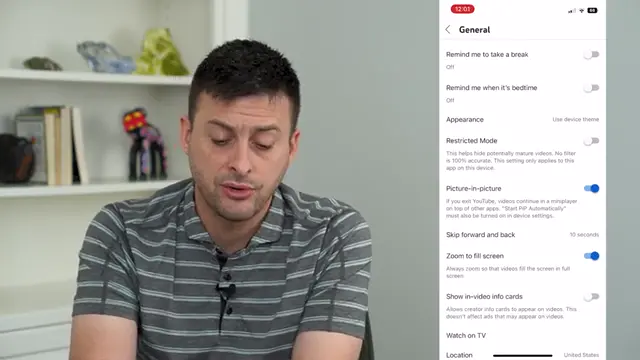
Step 6: Update YouTube App
If you don’t see the picture-in-picture option, update your YouTube app to the latest version via the App Store or Google Play Store.
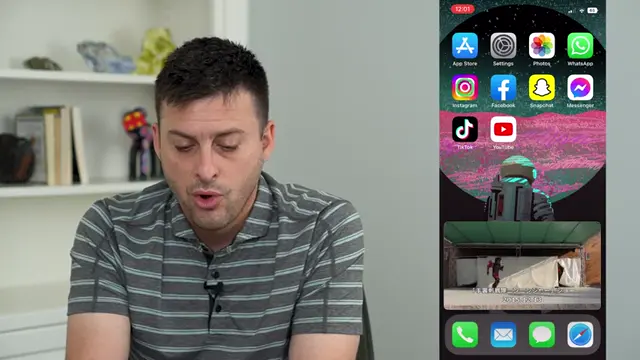
Step 7: Watch Video in PiP Mode
After enabling PiP, play a video in the YouTube app. Now, swipe out of the app, and the video will continue playing in a small window.
Frequently Asked Questions
How do I enable picture-in-picture on my device?
Go to your device settings, tap on General, then enable picture-in-picture.
Can I watch YouTube videos while using other apps?
Yes, once you enable picture-in-picture mode, you can watch YouTube videos while using other apps.
What if I don’t see the picture-in-picture option in YouTube?
Ensure your YouTube app is updated to the latest version to access this feature.
Is picture-in-picture available on all devices?
Picture-in-picture features depend on your device and app version. Check your settings for availability.
Watch the Video Tutorial
Conclusion
Following these simple steps, you can effortlessly watch YouTube videos while using other applications, enhancing your multitasking experience.



Leave a comment