
Key Takeaways:
- Create multiple YouTube channels easily
- Access YouTube Studio for settings
- Switch between channels effortlessly
Creating multiple YouTube channels under a single Google account can be incredibly useful for managing various content types. In this guide, we will walk you through the simple steps to set up new channels seamlessly. Whether you are a beginner or just need a refresher, follow along with these easy instructions and start expanding your YouTube presence!
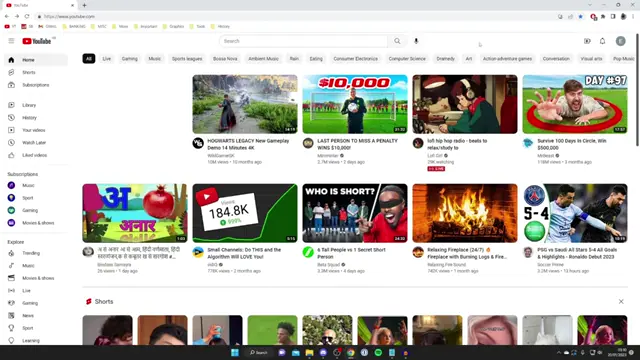
Step 1: Access YouTube Homepage
Begin by navigating to the YouTube homepage at youtube.com. This is where all your channel activities will start, so make sure you’re logged in with your Google account.

Step 2: Open Your Profile Settings
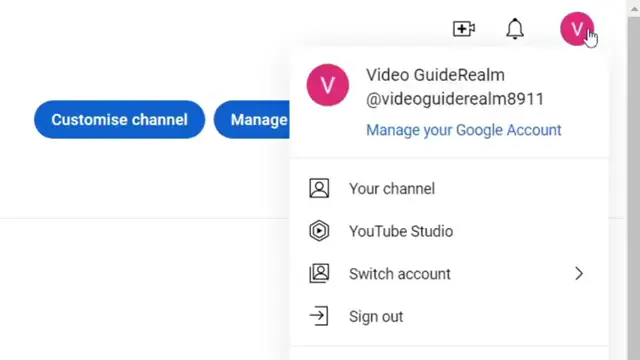
In the top right section of the homepage, tap on your profile picture. This will give you access to various settings including YouTube Studio and general account settings.
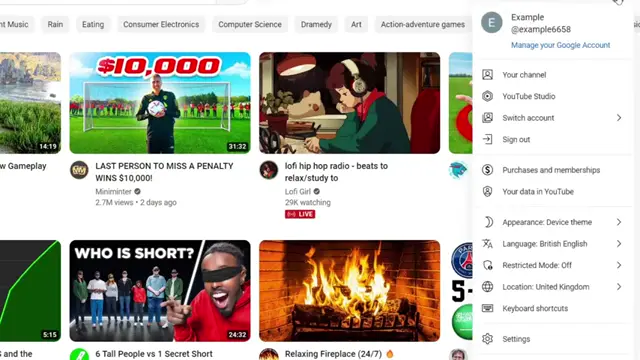
Step 3: Access YouTube Settings
From the options that appear after tapping your profile picture, select settings to get to the account management section.
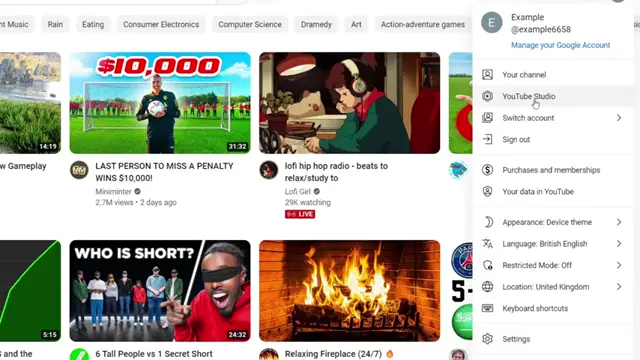
Step 4: Go to YouTube Studio
Alternatively, you can also choose to go to YouTube Studio for managing your channels and settings.
Step 5: Continue to YouTube Studio
If you chose the YouTube Studio option, press continue to proceed to the studio dashboard.
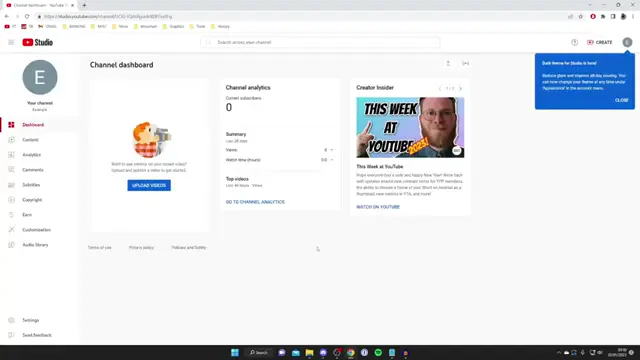
Step 6: Open Channel Settings
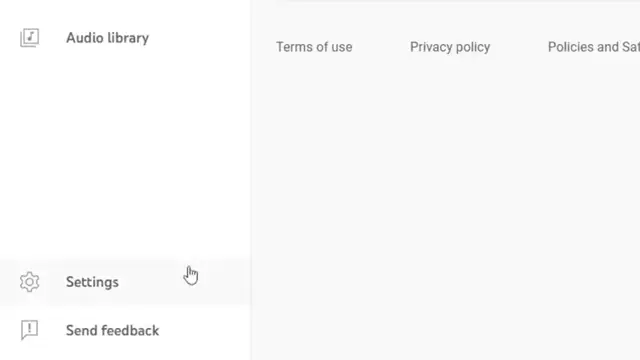
Once in YouTube Studio, press settings located at the bottom left corner of your screen.
Step 7: Select Channel Options
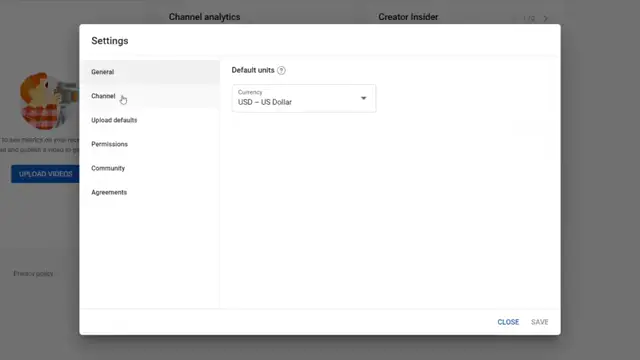
Within the settings menu, tap on channel to access more channel-related settings.
Step 8: Access Advanced Channel Settings
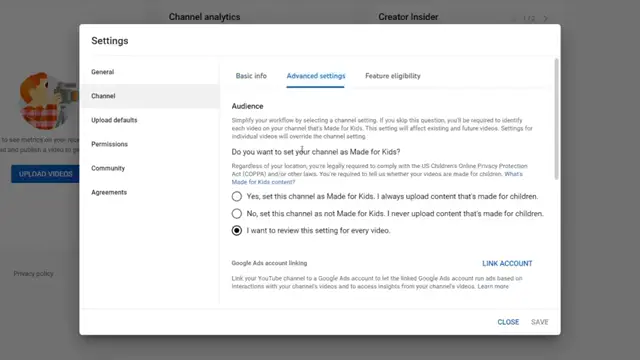
Next, tap on advanced settings for additional channel management options.
Step 9: Manage Your YouTube Account
Scroll down in advanced settings and tap on manage YouTube account to view your account details.
Step 10: Manage Your YouTube Channels
In your channel overview, locate and tap on ‘ADD or manage your channels’. You will see all your existing channels and have the option to create a new one from here.
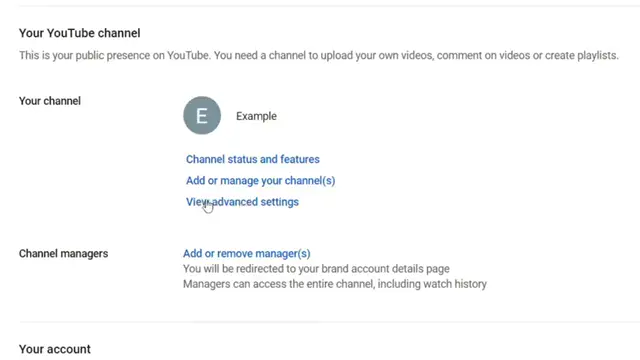
Step 11: Create a New YouTube Channel
Once you’re in the manage channels section, tap on create any channel to initiate the process of creating a new channel.
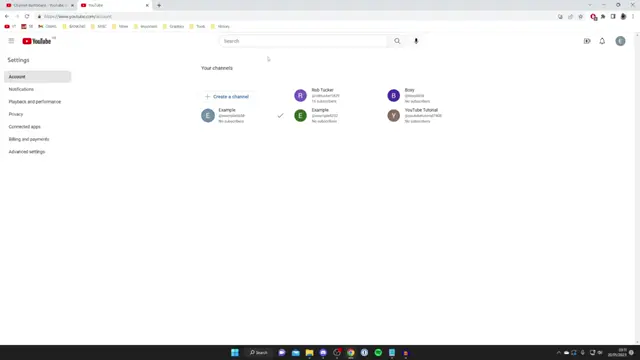
Step 12: Enter a Name for Your New Channel
When prompted, enter a name for your new YouTube channel. Ensure that it’s representative of the content you plan to produce. Remember, you can change this later if needed.
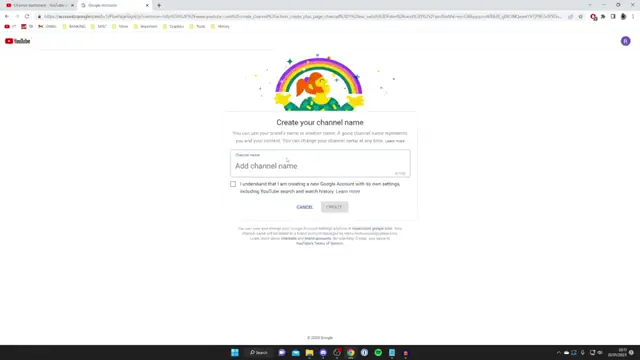
Step 13: Finalize Creation of Your New Channel
After entering a name, tap on create to finalize the creation of your new YouTube channel. This may take a moment to process.
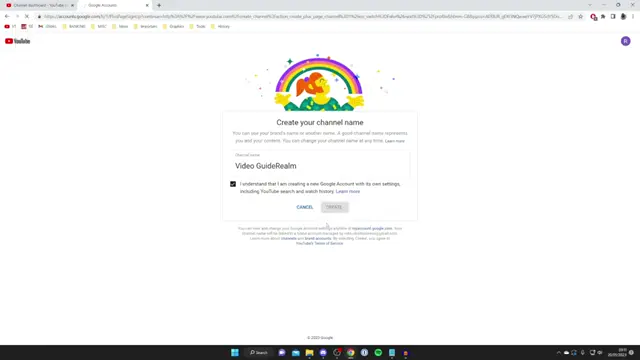
Step 14: Switch Between YouTube Channels
To switch to your newly created channel, tap on your profile picture again, followed by ‘switch account’. You will find your new channel listed here, ready for use.
Frequently Asked Questions
Can I have multiple YouTube channels under one Google account?
Yes, you can create and manage multiple YouTube channels using a single Google account.
Is it easy to switch between YouTube channels?
Yes, switching between your YouTube channels is straightforward; just use the account switcher in your profile settings.
Can I change the name of my YouTube channel later?
Absolutely! You can modify your channel’s name at any time via your channel settings.
Do I need a different email for each YouTube channel?
No, you can manage all your YouTube channels with just one email address linked to your Google account.
Watch the Video Tutorial
Conclusion
By following these simple steps, you can establish multiple YouTube channels under your single Google account. This feature is ideal for content creators who want to diversify their channels without managing additional email accounts.





Leave a comment