
Key Takeaways:
- Learn how to perform a force restart.
- Understand the steps for a factory reset.
- Discover how to navigate recovery mode.
If your Samsung phone is unresponsive, performing a hard reset can resolve various issues. This guide provides two methods: a force restart for immediate issues and a full factory reset for deeper problems. Follow the steps carefully to ensure a successful reset process.
Step 1: Perform a Force Restart
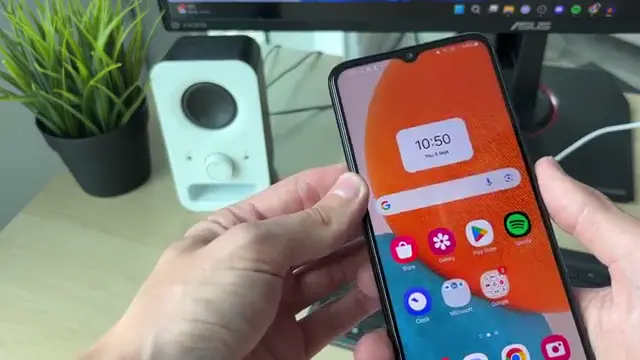
To initiate a force restart, hold down the power button and the volume button together. Keep holding them until the Samsung logo appears, indicating that the phone is restarting.
Step 2: Start a Full Factory Reset
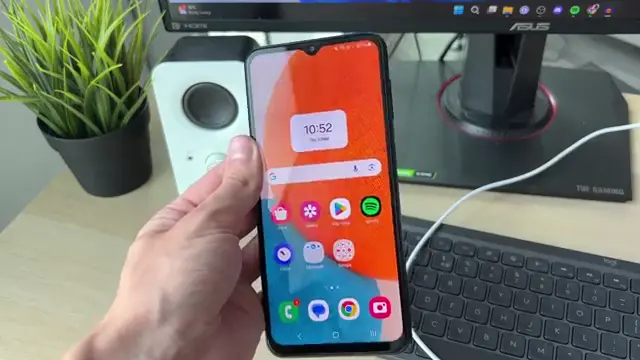
For a full factory reset, first press the power button to turn off the phone, then press power off again and wait for the device to shut down completely before moving to the next step.
Step 3: Connect to a Computer
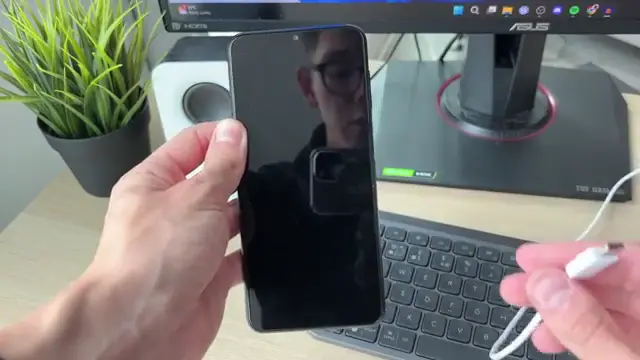
Connect your phone to a computer, which can be either a laptop or a PC, to prepare for the recovery mode steps.
Step 4: Enter Recovery Mode
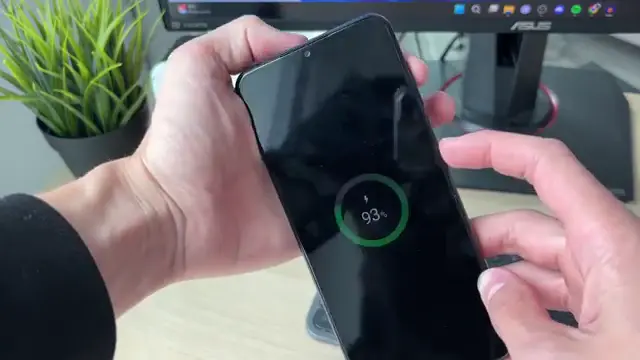
While your phone is connected, hold down the power button and the volume up button simultaneously. Keep holding until you see the Samsung logo to enter recovery mode.
Step 5: Turn Off Your Phone
Confirm the power off action again to ensure your phone is completely shut down before proceeding with the reset process.
Step 6: Select Factory Reset Option
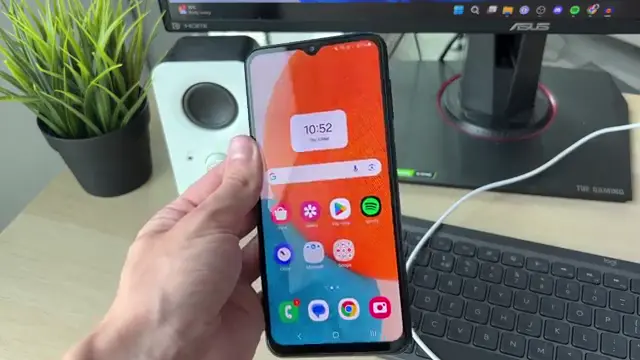
In recovery mode, use the volume buttons to navigate to the ‘wipe data/factory reset’ option. Press the power button to confirm your selection and read through any prompts before proceeding.

Step 7: Confirm Factory Data Reset
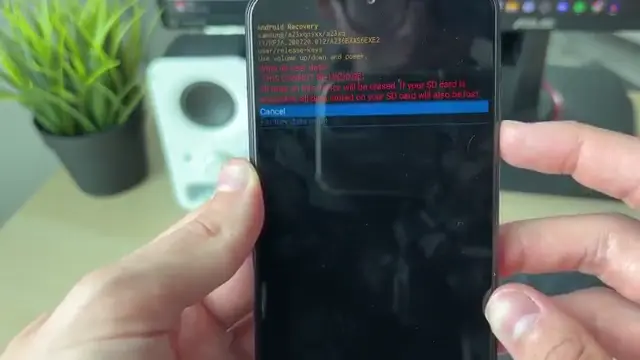
After selecting the factory reset option, navigate to the ‘factory data reset’ option and confirm your choice by pressing the power button again.
Step 8: Reboot Your Device
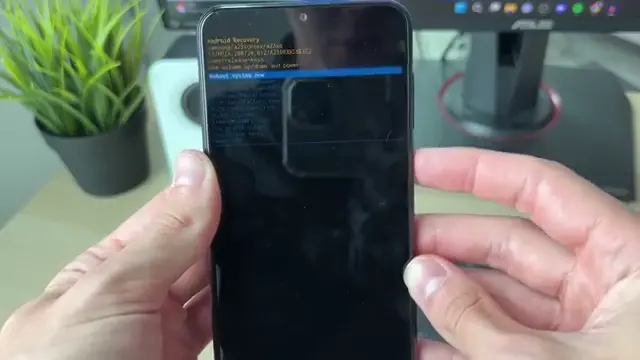
Once the factory reset is complete, select ‘reboot system now’ using the power button to restart your phone and begin the setup process.
Frequently Asked Questions
What should I do if my phone won’t turn on?
Try performing a force restart by holding the power and volume buttons together.
Will a factory reset delete all my data?
Yes, a factory reset will erase all data on your device, so ensure you back up important files first.
What is the difference between a force restart and a factory reset?
A force restart simply reboots your phone while a factory reset restores it to original settings and deletes all data.
How can I access recovery mode on my Samsung phone?
To enter recovery mode, power off your phone, then hold the power and volume up buttons until the Samsung logo appears.
Watch the Video Tutorial
Conclusion
Performing a hard reset can fix many issues on your Samsung phone. Always ensure to backup your data before a factory reset for safety.







Leave a comment