
Key Takeaways:
- Identifying the correct YouTube channel to delete
- Accessing YouTube Studio settings
- Permanently deleting YouTube channel content
Deleting your YouTube channel can be a big decision, especially if you’ve built a library of content. However, if it’s time to move on, we’re here to provide a clear and concise guide on how to delete your channel permanently. Follow the steps below to ensure you remove your content safely and effectively.
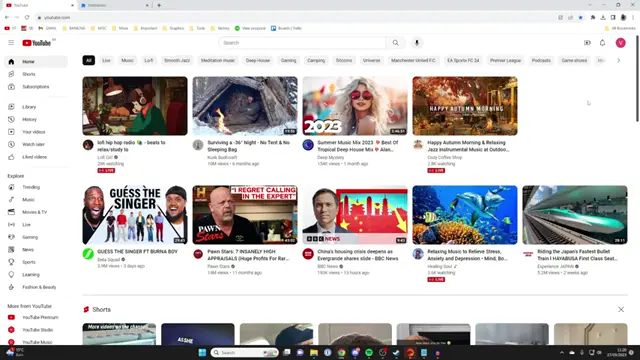
Step 1: Select Your YouTube Channel
Begin by checking that you’ve selected the correct channel you want to delete. Click on your profile icon at the top right to review the current channel. If it’s not the right one, you may click ‘Switch account’ to select the appropriate channel.
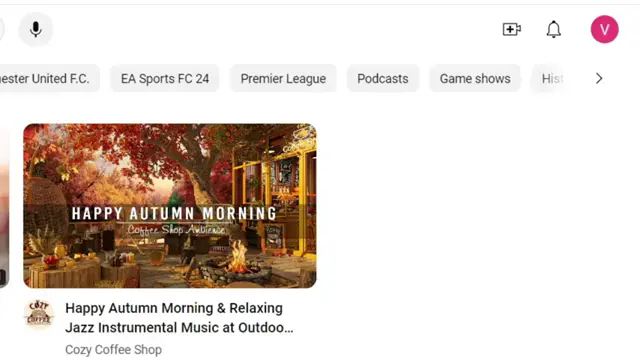
Step 2: Open Profile Icon
Press on your profile icon located at the top right corner of the screen to access your account settings.
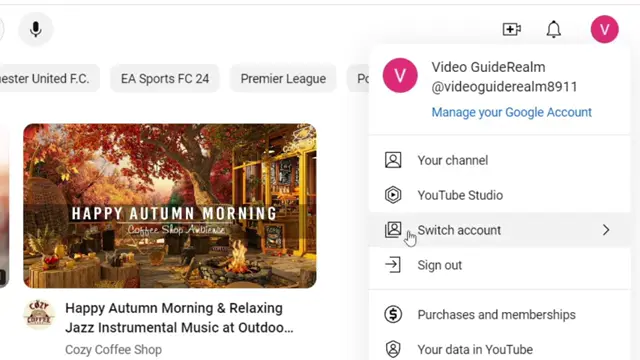
Step 3: Switch to the Correct Channel
If the current channel is not the one you wish to delete, click on ‘Switch account’ to select the desired channel.
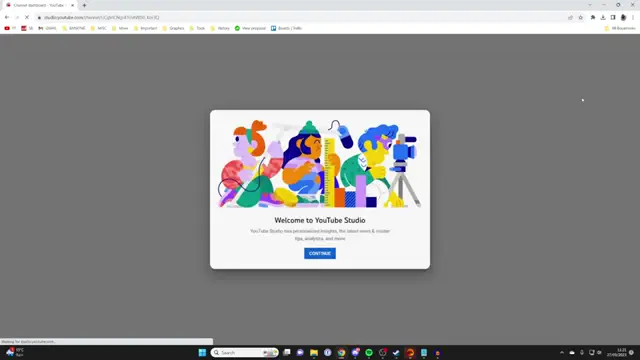
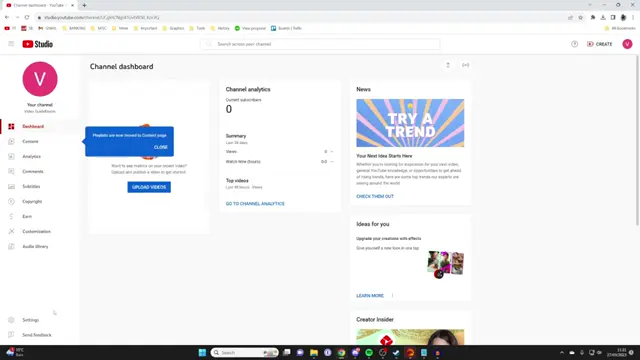
Step 4: Access YouTube Studio Settings
Next, navigate to ‘YouTube Studio’ by clicking on it. Once within the studio, find ‘Settings’ at the bottom left of the screen and click on it to access more options.
Step 5: Go to Settings Menu
Inside YouTube Studio, press on ‘Settings’ located in the bottom left corner to enter the settings menu.
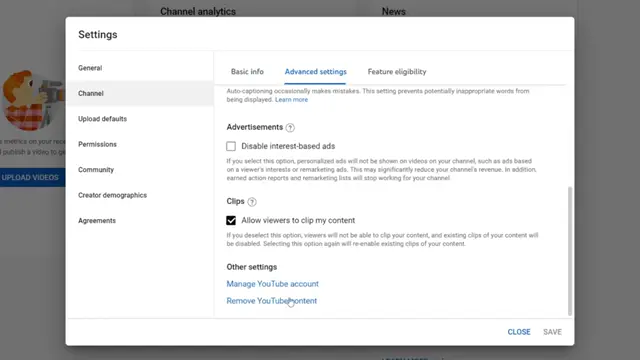
Step 6: Navigate to Advanced Settings
In the settings menu, select ‘Channel,’ then proceed to ‘Advanced Settings.’ Scroll until you see ‘Remove YouTube Content’ under other settings, and click on this option to start the deletion process.
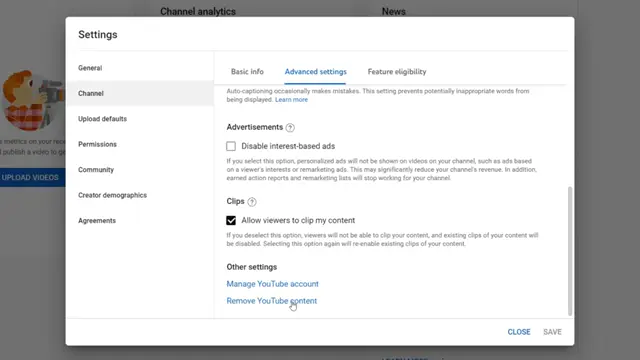
Step 7: Select Remove YouTube Content
On the advanced settings page, click on ‘Remove YouTube Content’ to continue with the deletion process.
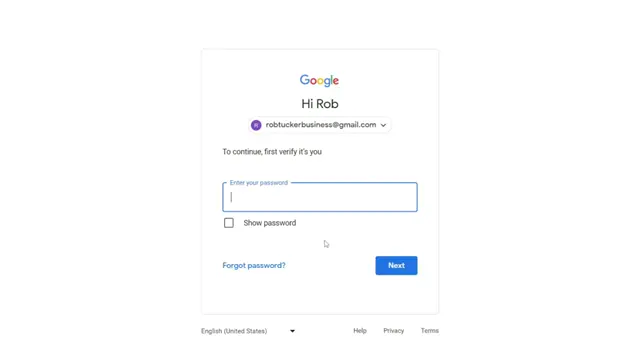
Step 8: Sign Into Your Account
You’ll need to sign in to your account to proceed with the deletion of your YouTube channel.
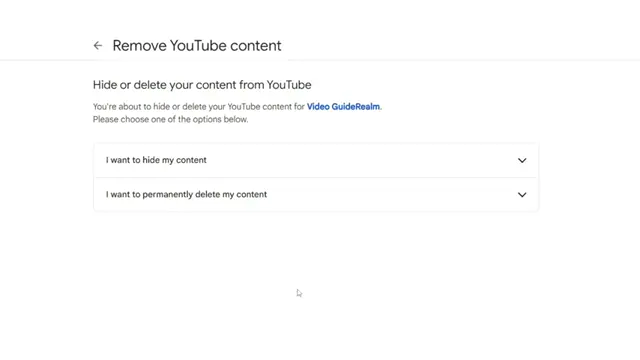
Step 9: Choose Permanent Deletion Option
Once on the content removal page, choose the second option which states that you’ll permanently delete your channel’s content. Acknowledge that this action will erase all associated data from your account.
Step 10: Type Your Channel Name for Confirmation
To confirm the deletion, type in your channel name as requested before finalizing the action.
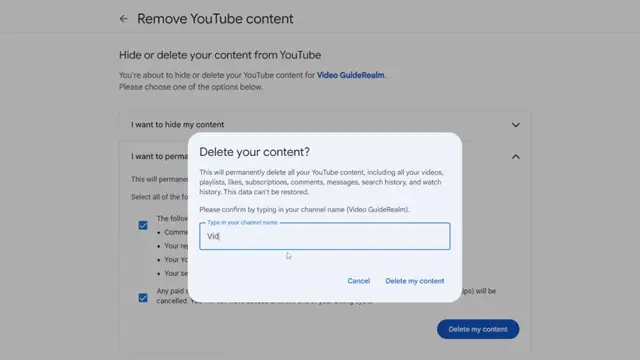
Step 11: Confirm Deletion of Content
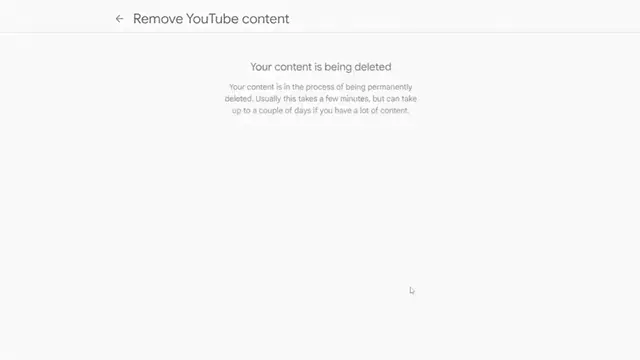
Select the content deletion option and click ‘Delete My Content.’ To finalize the process, confirm your decision by typing in your channel name as requested, and then click ‘Delete my content’ to complete the action.
Frequently Asked Questions
Can I recover my YouTube channel after deletion?
No, once you permanently delete your YouTube channel, all your data is erased and cannot be recovered.
What happens to my videos if I delete my YouTube channel?
All videos, comments, likes, and other data associated with your channel will be permanently lost.
Is it possible to temporarily hide my YouTube channel instead of deleting it?
Yes, you can choose to hide your content temporarily if you do not want to delete it permanently.
What are the consequences of deleting my YouTube channel?
Deleting your YouTube channel will remove all content, and you will lose access to any associated subscriber base.
Watch the Video Tutorial
Conclusion
Following these steps will help you successfully delete your YouTube channel permanently. Make sure to consider all implications before proceeding, as this action cannot be undone.




Leave a comment