
Key Takeaways:
- Learn the 12 essential checks for a used iPhone.
- Ensure the phone functions properly before buying.
- Make informed decisions when purchasing used devices.
Purchasing a used iPhone can be a great way to save money, but it’s essential to ensure that the device is fully functional. Before making a buying decision, there are critical aspects to verify. This guide will walk you through the 12 essential checks you should perform on a used iPhone to ensure that it operates as expected. From checking the hardware functionality to ensuring compatibility with your carrier, we’ve got you covered.
Step 1: Test Power Functionality
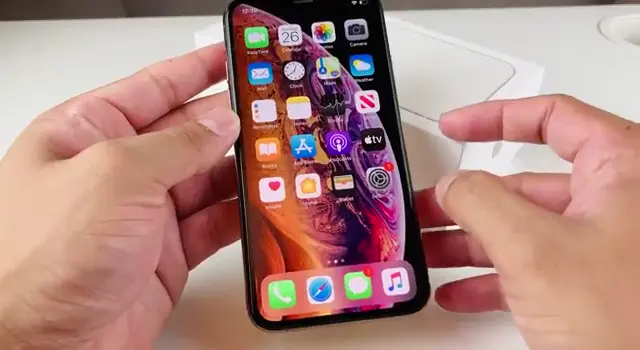
Start by turning the phone off and back on to ensure it boots up without issues. Hold the side and volume up buttons together until you see the power options, then slide to power off. Wait 10-15 seconds and turn it back on by pressing the side button. This confirms the phone’s reboot capability and helps identify any hardware issues.
Step 2: Test Face ID or Touch ID
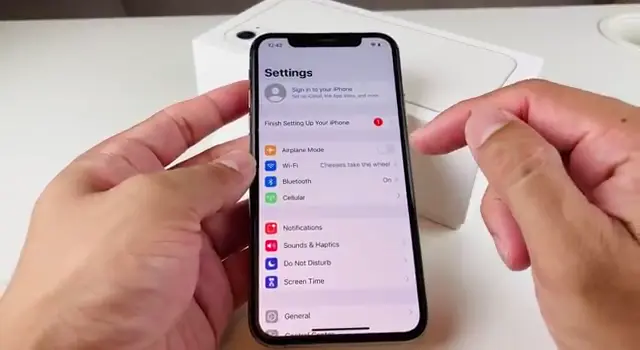
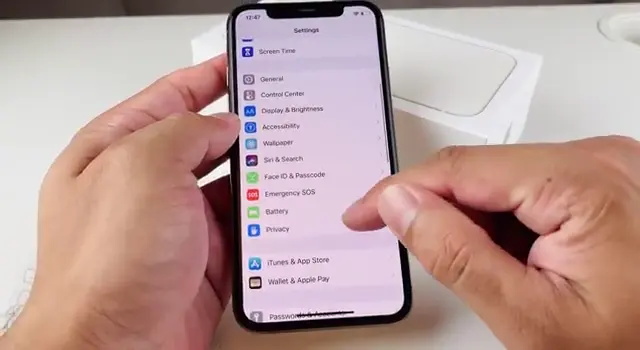
Navigate to Settings, then Face ID & Passcode (or Touch ID for older models). Follow the prompts to set up Face ID or test the fingerprint sensor. If the setup process initiates, the hardware is functioning properly, indicating the sensor is active and responsive.
Step 3: Check Camera Functionality
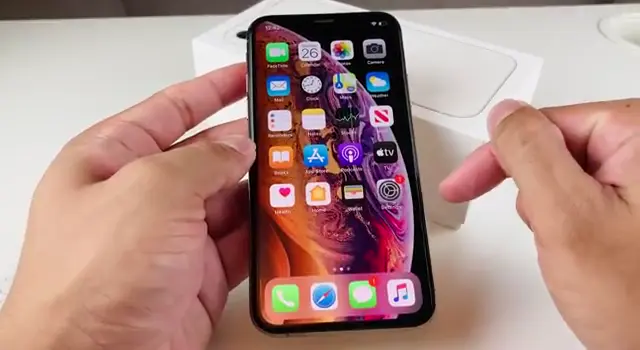
Open the Camera app to test both front and back cameras. Take photos and ensure they are clear and not blurry. Additionally, check video functionality by recording short clips to confirm that all camera features, including slow motion and portrait modes, work correctly.
Step 4: Test Microphone and Speaker
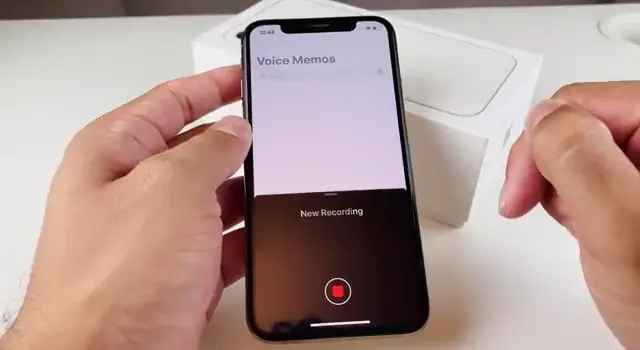
Use the Voice Memos app to record audio, confirming that the microphone captures sound effectively. After recording, play back your recording to verify that the speaker outputs sound clearly, ensuring both audio components function as intended.
Step 5: Verify iCloud Status
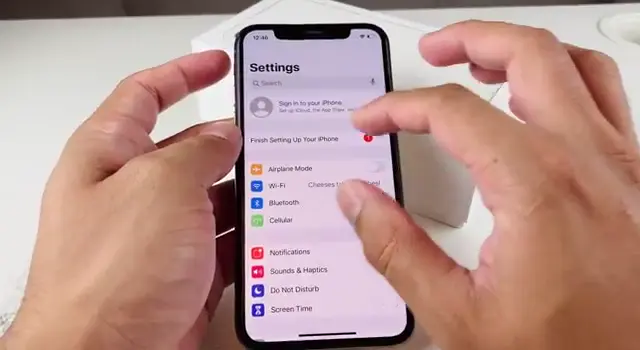
In settings, look for any signed-in iCloud account. If there is an existing account, the previous owner needs to sign out for you to use the device. Ensuring the phone is not iCloud locked is crucial, as it can render the phone unusable if security measures are in place.
Step 6: Check IMEI and Activation Status
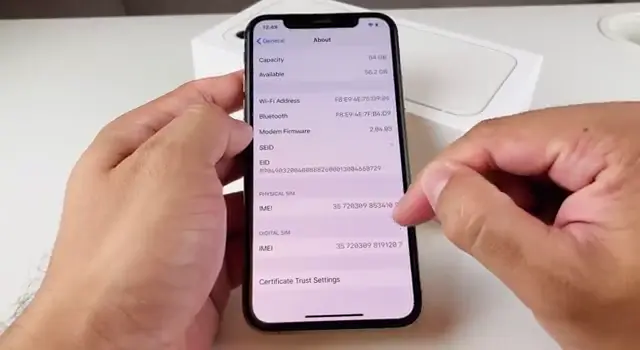
Inspect the phone’s IMEI number in Settings under General, then About. Run a IMEI check to ensure the phone isn’t blacklisted or stolen. It’s also wise to tell your carrier the IMEI number to verify that the phone can be activated on their network.
Step 7: Inspect for Water Damage
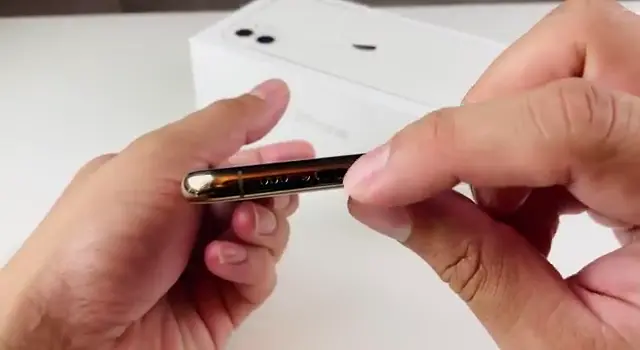
Inspect the charging port for any signs of water damage, such as discoloration. Additionally, remove the SIM card tray and check for any yellowing or rust inside. This can help determine if the phone has been exposed to moisture.
Step 8: Test Touchscreen and LCD
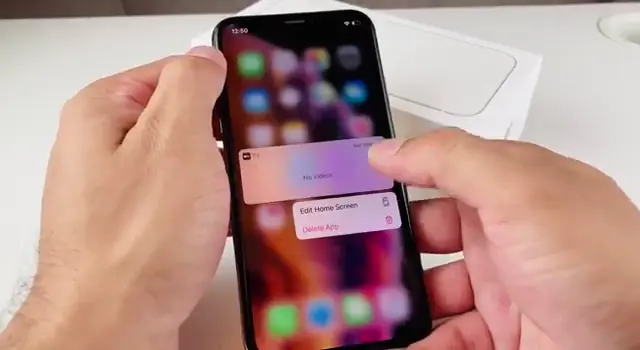
Test the touchscreen response by tapping through all apps on the device to ensure there are no dead spots on the LCD. This will confirm that the touch functionality is intact and responsive.
Step 9: Insert SIM Card and Activate Service
Insert your own SIM card into the phone to verify that it can connect to your carrier’s network. Make sure you can activate service and receive signal, confirming that the phone is compatible with your carrier.
Step 10: Check Battery Health
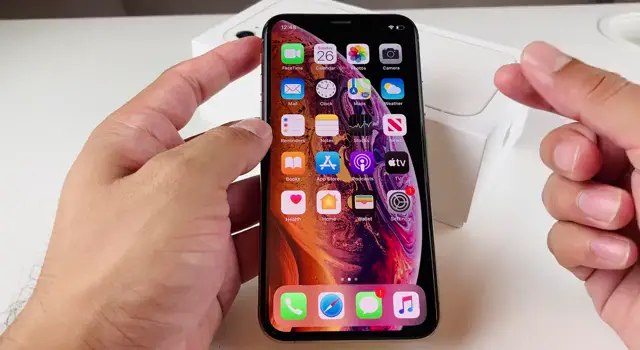
Go to Settings, select Battery, then Battery Health. Check the maximum capacity; it should be above 80% for optimal performance. This ensures the battery is in good condition for regular use.
Frequently Asked Questions
What should I check for in a used iPhone?
Check the power functionality, button responsiveness, camera operation, microphone and speaker performance, and ensure the device is not iCloud locked.
How can I test the camera of a used iPhone?
Open the Camera app, take clear photos with both the front and back cameras, and record a video to check for functionality.
What does it mean if the phone is iCloud locked?
An iCloud locked phone cannot be accessed or activated by a new user until the previous owner signs out of their iCloud account.
Are there any safety checks I should do?
Yes, always verify the IMEI number to check if the phone is blacklisted, and inspect for any signs of water damage.
Watch the Video Tutorial
Conclusion
By following these 12 essential checks, you can ensure that the used iPhone you are considering is a viable option for purchase. Remember that verifying functionality not only saves you money but also prevents potential headaches down the line.



Leave a comment