
Key Takeaways:
- Understand how to request your Snapchat data
- Learn to view your snap history
- Access chat history directly from the app
If you’re looking to access your Snapchat history, including snaps and chat records, this guide will help you through each step. By following the instructions below, you’ll be able to request your data directly from the app, making it simple to see everything you’ve shared on Snapchat over time.
Step 1: Open the Snapchat App
Launch the Snapchat app on your device. Make sure you are logged into your account to access your settings and history. This step is crucial for proceeding to download your data.
Step 2: Access Your Account Page
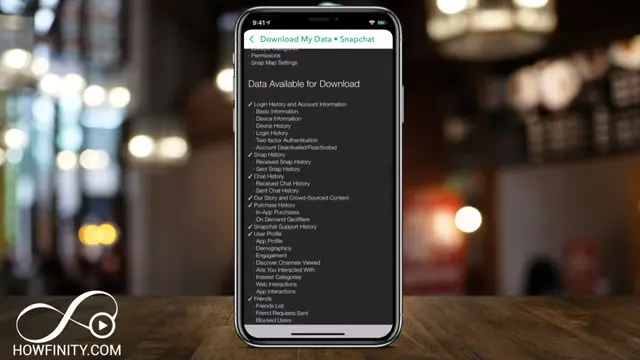
Tap on your icon located at the top left corner of the app. This will take you to your account page where you can manage your settings and view your data.

Step 3: Request My Data
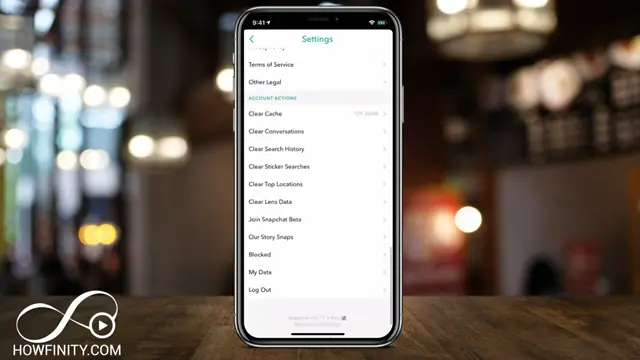
Scroll down to the bottom section of the settings page and tap on ‘My Data’. This will lead you to a page where you can request your Snapchat history, including all snaps and chats.
Step 4: Submit Data Request
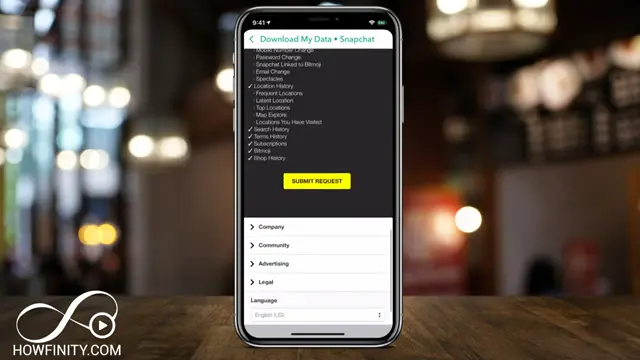
Click on the ‘Submit Request’ button. Snapchat will prepare a copy of your data, and you will receive an email once it’s ready for download. Make sure to check your registered email for updates.
Step 5: Download Your Data
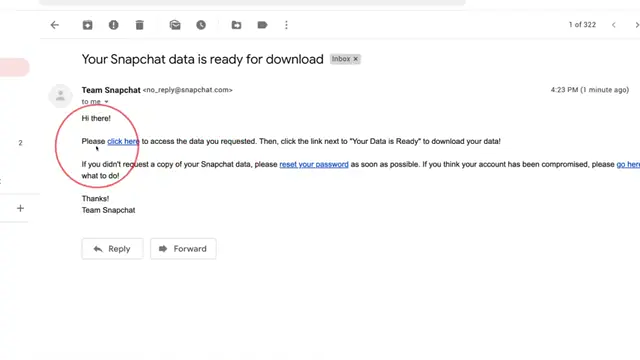
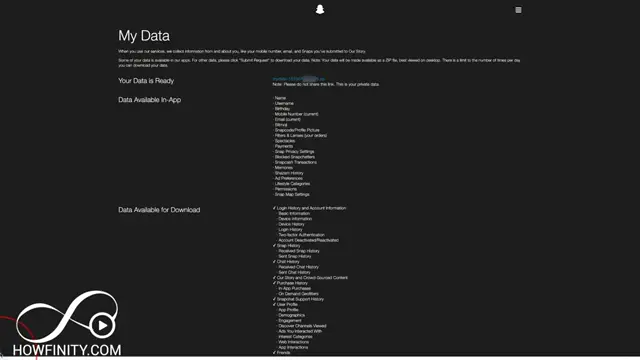
Once you receive the email, click on the link provided to access your data. Log into your Snapchat account on a computer to download the ZIP file containing your history.
Step 6: Open and Unzip the File
After the ZIP file has downloaded, open it and unzip its contents to access your data folders.
Step 7: View Your Snap History
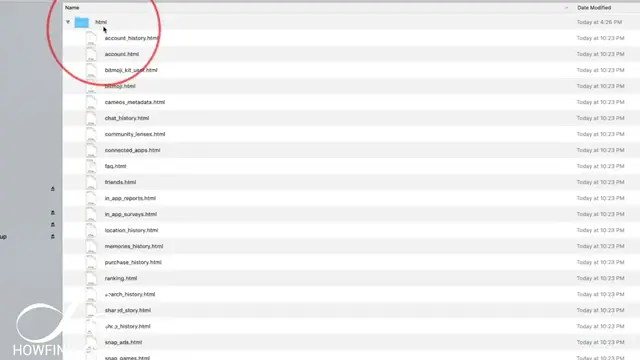
After unzipping the file, navigate to the HTML folder. Here you will find various files related to your Snapchat activity; open the ‘snap history’ file in your browser to view the details.
Step 8: Access Your Snap History in a Browser
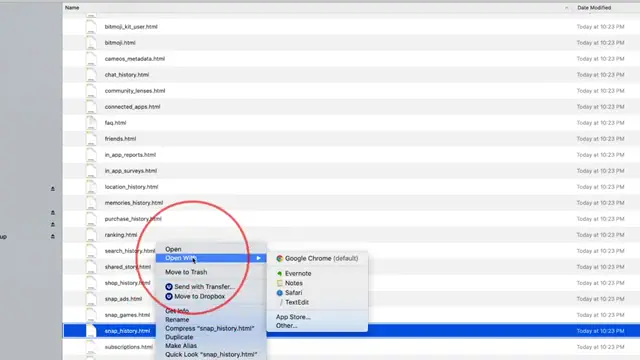
Open the ‘snap history’ file in your preferred web browser. This file contains all the details of your snaps, including who sent them and when they were created.
Frequently Asked Questions
What type of data can I access from Snapchat?
You can access your entire history including snaps, chat messages, account info, and location history.
How can I download my Snapchat data?
Request your data through the ‘My Data’ option in the app, and you will receive an email with a download link.
Can I view my Snapchat history on a mobile device?
It’s recommended to view your data on a desktop for the best experience, but you can unzip and view it on a mobile device with compatible apps.
Does Snapchat keep my snaps and chat messages?
Snapchat retains some data like chat history and snap details, but not the content itself after it has been viewed.
Watch the Video Tutorial
Conclusion
Following these steps allows you to easily access your Snapchat history and understand the data Snapchat retains about your social media interactions. If you have questions, feel free to consult the FAQs or experiment with the app yourself!






Leave a comment