
· By KAI
Key Takeaways:
- Step-by-step instructions to download COD Warzone
- How to install Battle.net for the game
- Tips for setting up your download preferences
Downloading Call of Duty: Warzone on your PC is a straightforward process. This guide will walk you through each step required to download the game for free via Battle.net. Follow these instructions carefully to ensure a smooth setup. Let’s jump in!
Step 1: Open Your Web Browser
Start by opening your favorite web browser, such as Chrome. You can use any browser to initiate the download process for Call of Duty Warzone.

Step 2: Search for Call of Duty
Navigate to a search engine and type in ‘Call of Duty’ to find the official website.
Step 3: Visit Call of Duty Website
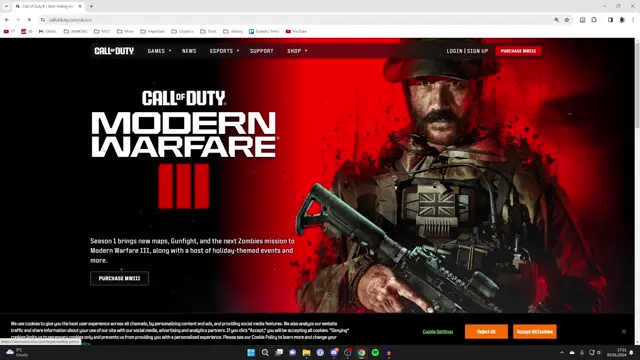
Type in the URL “callofduty.com” in the address bar. Once the homepage loads, navigate to the top and hover over ‘Games’ to find Warzone.
Step 4: Select Warzone from Games Menu
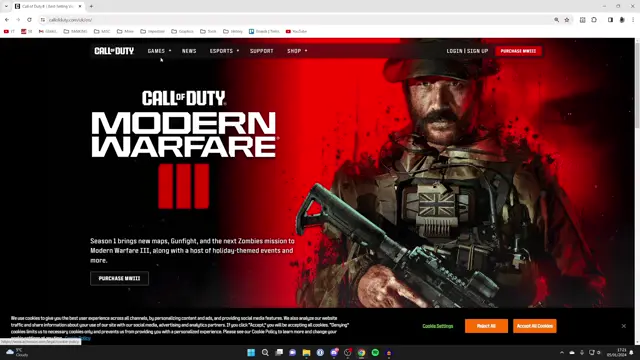
Hover over the ‘Games’ menu at the top of the site and select ‘Cod Warzone’ from the dropdown options to navigate to the game’s page.
Step 5: Select Battle.net for Download
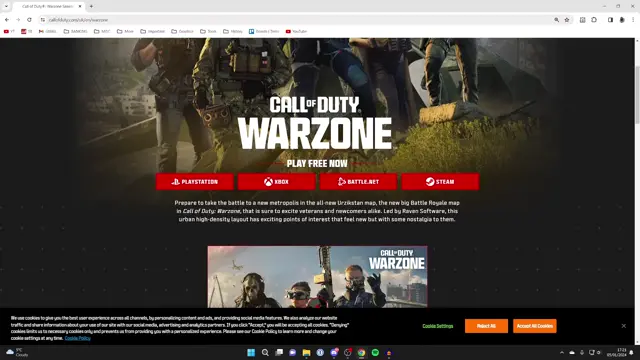
Find the section for Warzone on the website and click on the ‘Battle.net’ link. This action will begin the download of the Battle.net launcher, the required platform for the game.
Step 6: Start Battle.net Download
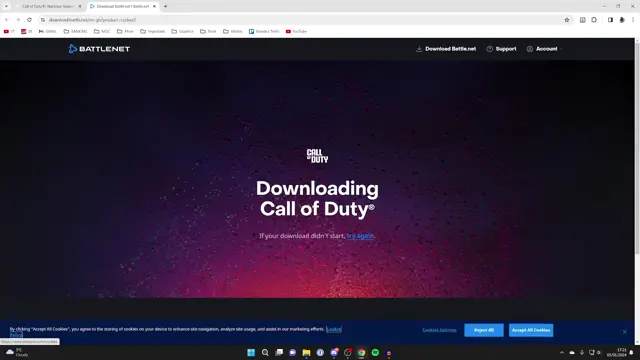
Click on the Battle.net option. The Battle.net setup file will now start downloading to your device. Wait for the download to complete.
Step 7: Locate the Setup File
Once the download is complete, close your browser and open File Explorer. Navigate to your Downloads folder to find the setup file.
Step 8: Run the Battle.net Setup File
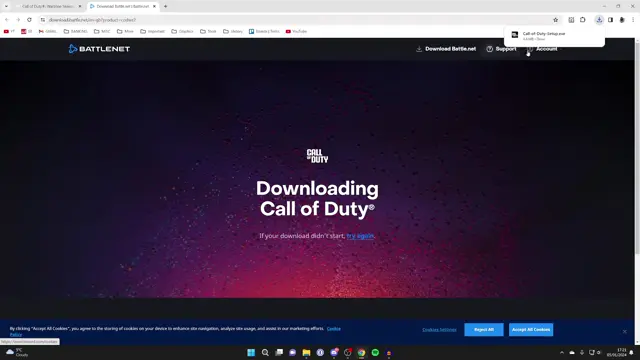
After the Battle.net setup file has downloaded, locate it in your downloads folder. Double-click the file to start the installation process.
Step 9: Install Battle.net
You will see a prompt asking for administrative access. Click ‘Agree’ to proceed with the installation of the Battle.net launcher necessary for downloading the game.

Step 10: Sign In or Create an Account
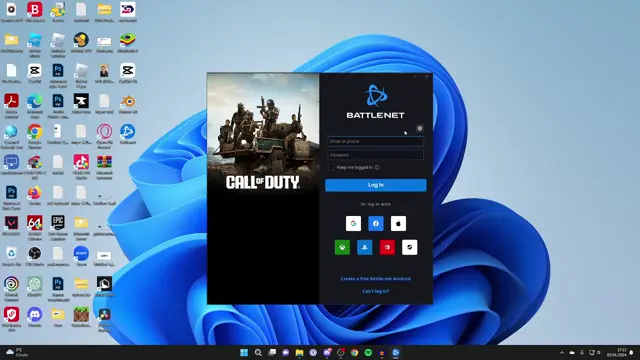
Once Battle.net is installed, sign in with your existing account or create a new one. Enter your country and birthday, and provide an email to set up your new account.
Step 11: Start Downloading COD Warzone
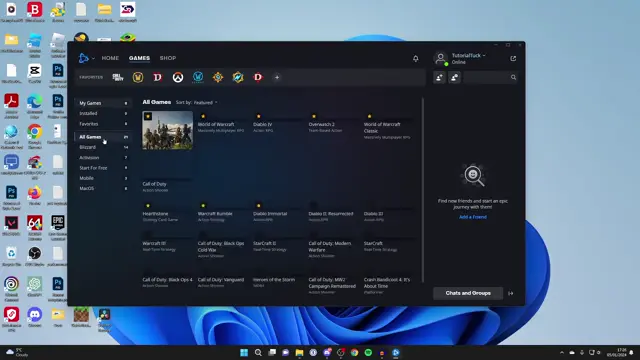
In the Battle.net launcher, click on the ‘Games’ tab, find Call of Duty, and select ‘Play for Free’. Follow the prompts to choose your install location and download preferences.
Step 12: Check Download Size
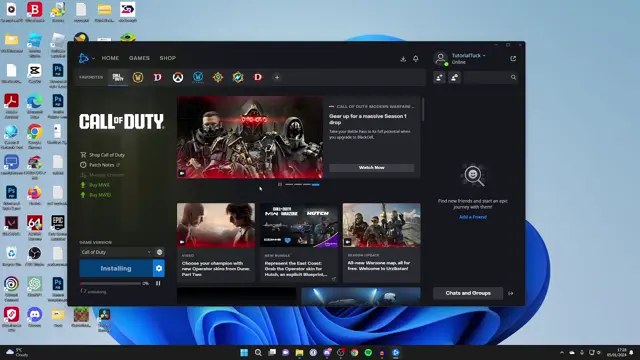
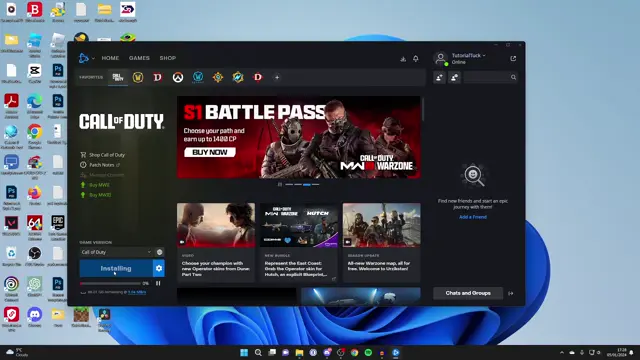
Note that the installation size for Warzone is approximately 84 GB. Depending on your internet speed, the download time may vary, so be patient as it completes.
Step 13: Launch the Game
After the download and installation are complete, return to the Battle.net launcher, click on ‘Games’, and select Call of Duty to start playing. Enjoy!
How to Install Battle.net for COD Warzone?
To install Battle.net for Call of Duty Warzone, download the setup file from the official website and run it on your PC.
Begin by navigating to the Call of Duty website and clicking the Battle.net download link. The setup file will then begin downloading. Once completed, locate the file in your Downloads folder, double-click it, and follow the installation prompts. Administrative access will be required during installation. Ensure you have enough disk space on your device and an internet connection for the installation and subsequent game downloads. It is a simple and quick process that will set you up to install and play Call of Duty Warzone.
How to Create a Battle.net Account for COD Warzone?
To create a Battle.net account for Call of Duty Warzone, open the Battle.net launcher and follow the sign-up prompts.
Once Battle.net is installed, launch the application. You will need to click on ‘Create a Free Account’ during sign-in. Fill in the required information, including your email address, country, and date of birth. After agreeing to the terms of service and privacy policy, verify your email to activate your account. A strong password is recommended for security. This account allows you to access not only Call of Duty Warzone, but also other games from Blizzard Entertainment.
Can I Play COD Warzone Without a Battle.net Account?
No, you cannot play Call of Duty Warzone without creating a Battle.net account.
A Battle.net account is mandatory to access and play Call of Duty Warzone. The account serves as the primary authentication and allows Blizzard to manage updates, purchases, and in-game content. Without this account, players cannot download or launch the game. If you are a fan of the series and want to engage in online multiplayer and other features, it is essential to create an account. The registration process is straightforward and free of charge. You can sign up and start playing with friends easily through the platform.
Frequently Asked Questions
Is Call of Duty Warzone free to download?
Yes, you can download Call of Duty Warzone for free through the Battle.net platform.
What is Battle.net?
Battle.net is the gaming platform and launcher developed by Blizzard, required to play certain games including Call of Duty.
How much space do I need for COD Warzone?
The total download size for Call of Duty Warzone is approximately 84 GB, so ensure you have enough available space on your hard drive.
Can I play COD Warzone without a Battle.net account?
No, you need to create or sign in to a Battle.net account to access and play Call of Duty Warzone.
Watch the Video Tutorial
Conclusion
Now that you know how to download Call of Duty Warzone on your PC, you’re all set to join the battlefield. Follow the steps carefully, and enjoy your gaming experience!






Leave a comment