
Key Takeaways:
- Learn to set up your Telegram account.
- Understand the app’s main features.
- Start messaging and making calls on Telegram.
Telegram is a rapidly growing messaging app that promises speed and security. With over a hundred million visitors each month, it is a great alternative to other messaging platforms like WhatsApp or Facebook Messenger. In this guide, you’ll learn how to set up your Telegram account and begin messaging with friends seamlessly. Let’s dive into how you can start using Telegram effectively.
Step 1: Introduction to Telegram
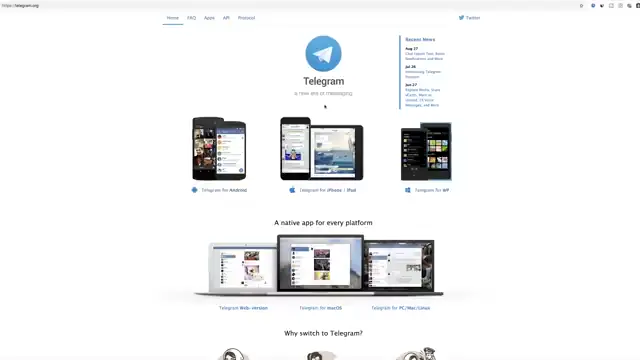
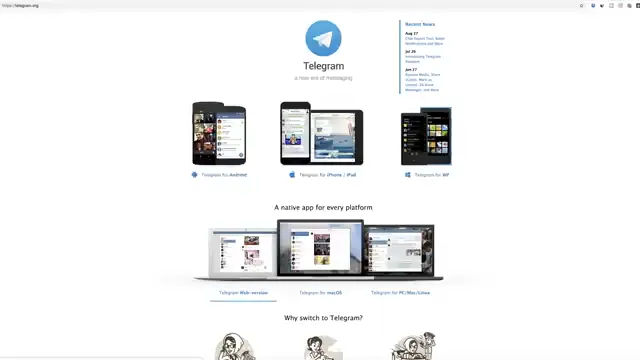
Telegram is a popular messaging app that focuses on speed and security. As a user, you’ll find it similar to apps like WhatsApp or Facebook Messenger, offering a wide range of features to enhance your chat experience. It’s available for multiple platforms including Android, iPhone, and desktop.
Step 2: Setting Up Telegram on Your Phone
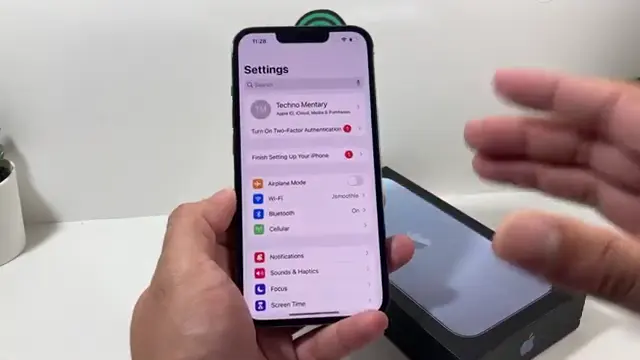
To set up Telegram, download the app from your device’s App Store or Play Store. Open the app, and it will prompt you to enter your phone number. This step ensures your account is linked securely to your phone, allowing for a unique messaging experience.
Step 3: Creating Your Account
After entering your phone number, Telegram will send you a verification code via SMS. Input this code into the app, and it will then ask for your name and an optional profile photo. Completing this step allows others to identify you in chats.

Step 4: Inviting Friends to Telegram
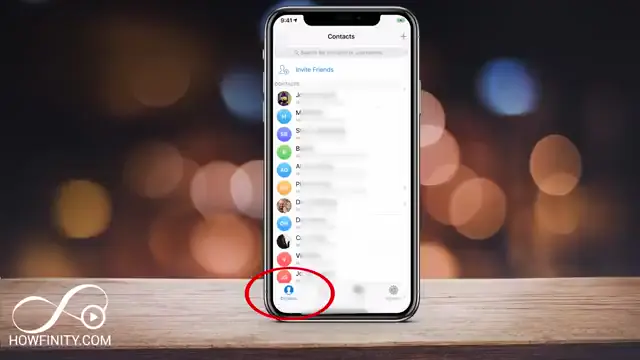
Once your account is set up, you can invite friends to join Telegram. Navigate to your contacts list within the app and press the ‘Invite Friends’ option. This feature lets you see who among your contacts is already using Telegram or send invitations to those who aren’t.
Step 5: Starting a Chat
To begin chatting, select a contact from your friends list. Type a message in the chat box and press send. Telegram also allows you to share files, photos, and even voice messages by tapping on the attachment icon, enhancing your messaging experience.

Step 6: Searching for Messaging Users
To find specific contacts or conversations, use the search function within Telegram. Tap on the search icon and type the name of the person or keyword you are looking for to quickly locate chats.

Step 7: Archiving or Deleting a Chat
If you want to manage your chat list, tap and hold a chat to reveal options such as archiving or deleting. You can choose to archive chats for later or delete them to clean up your messaging list.

Step 8: Pinning and Muting Chats
To organize your chats, you can pin important conversations to the top of your chat list by tapping and holding on the chat, then selecting the pin option. Similarly, you can mute chats to stop receiving notifications for them, allowing you to manage your focus.

Frequently Asked Questions
What platforms is Telegram available on?
Telegram is available on Android, iPhone, Windows Phone, and as a web version.
Is Telegram free to use?
Yes, Telegram is completely free to use and doesn’t have hidden charges.
How secure is Telegram?
Telegram emphasizes secure messaging and encrypts messages, making it a safe choice for users.
Can I make calls on Telegram?
Yes, Telegram allows you to make voice calls with your contacts directly through the app.
Watch the Video Tutorial
Conclusion
In conclusion, Telegram is an effective messaging app that combines speed and security with an easy-to-use interface. By following the steps outlined, you can set up your account and start enjoying its features, from chatting to making calls. Don’t miss out on connecting with friends using this growing platform!








Leave a comment