
Key Takeaways:
- Understand channel settings affecting comments.
- Identify common glitches in the YouTube app.
- Learn how to adjust settings on both desktop and mobile.
If you’re struggling with YouTube not showing comments on your videos or others’, several factors might be at play. Comment visibility can be affected by specific channel settings, particularly for videos made for kids, or issues within the YouTube app itself. In this guide, we’ll walk you through the steps to troubleshoot and resolve comment visibility issues to enhance your YouTube experience.
Step 1: Check YouTube Channel Settings
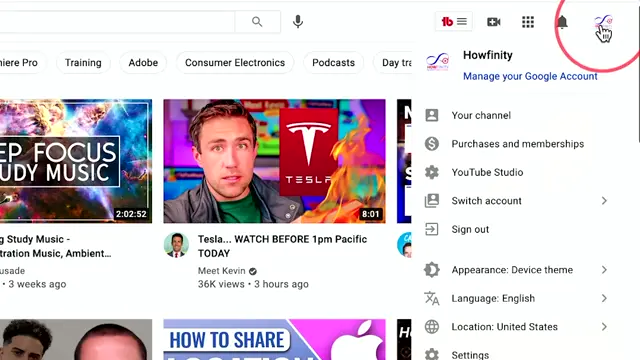
Start by logging into your YouTube channel on a desktop. Navigate to YouTube Studio and click on the settings at the bottom left of the menu. Make sure to check the settings related to your own videos.
Step 2: Adjust Kids Settings
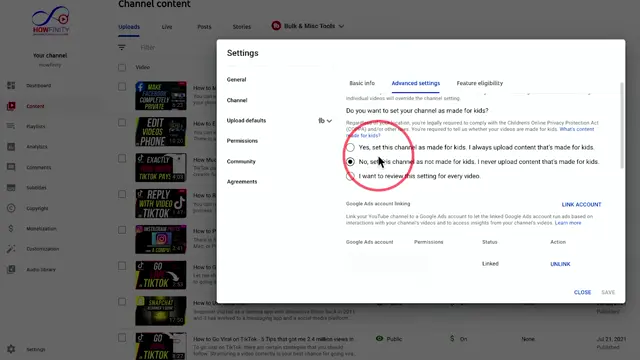
In the settings menu, go to ‘Channel’ and then ‘Advanced Settings’. Check if the channel categorization of ‘Made for kids’ is set to ‘Yes’. If so, comments will not be available on those videos.
Step 3: Review Community Settings
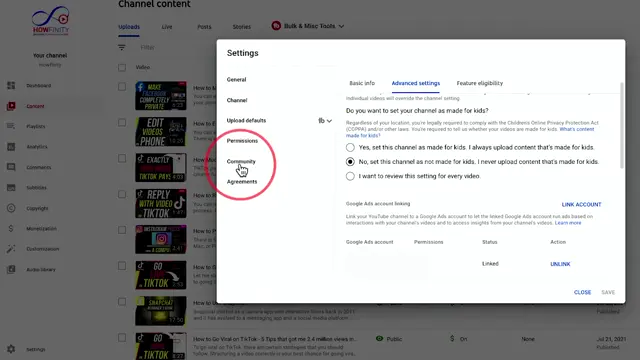
Next, check the ‘Community’ tab under settings. Look at the default comment settings; if it’s set to ‘Disabled’ or ‘Hold all comments for review’, you won’t see comments either.
Step 4: Verify YouTube App Settings
Open the YouTube app and press your profile picture on top to come to the settings page. Go to ‘General’ and check ‘Restricted Mode’. If it’s enabled, this may limit the comments you can see on videos.
Step 5: Reinstall YouTube App
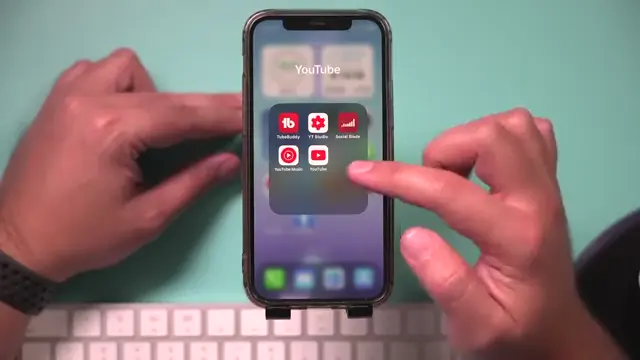
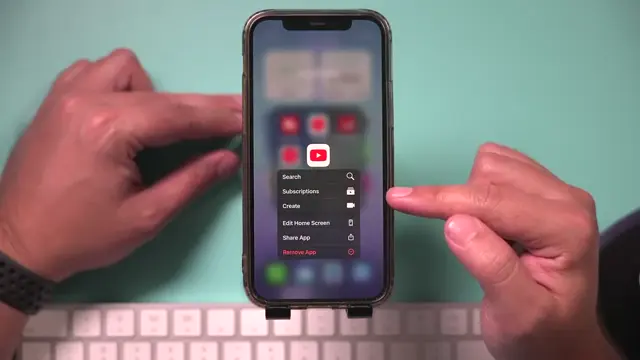
If comments are still invisible, press and hold down on the YouTube app here. You need to either remove the app and reinstall it from your app store.
Step 6: Adjust Background App Refresh Settings
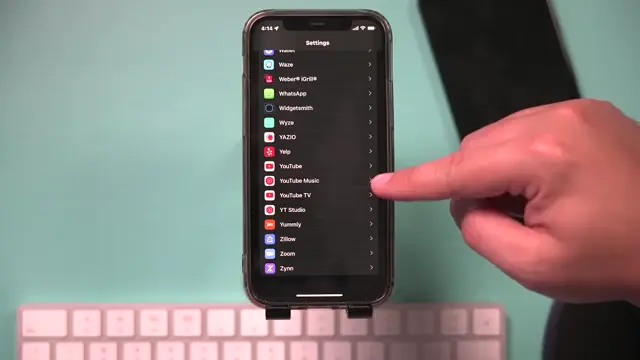
If you’re on the iPhone, go to the settings of the phone, and slide all the way to the very bottom of the settings page. Go to the YouTube app and check if background app refresh is turned off.
Frequently Asked Questions
Why are comments not showing on my YouTube videos?
Comments may not show if your channel is set to ‘Made for kids’ or if the comment settings are disabled.
How can I enable comments on my videos?
You can enable comments in the ‘Community’ section of your YouTube Studio settings.
What is restricted mode on the YouTube app?
Restricted mode is a setting that limits the types of videos and comments displayed, often aimed at filtering out sensitive content.
How do I fix glitches in the YouTube app?
Try reinstalling the YouTube app or checking your phone’s background app refresh settings to resolve glitches.
Watch the Video Tutorial
Conclusion
By following these steps, you should be able to diagnose and resolve the issue of YouTube not showing comments. Make sure to check both your channel settings and the settings of the YouTube app to ensure everything is configured correctly.



Leave a comment